Apple Watch - Set Up with Number Share (Set Up for Myself)
Here's how to pair and sync your Apple Watch with your iPhone.
Before you begin:
- Only one Apple Watch® with Number Share at a time can be paired to an Apple® iPhone®; if you are pairing and activating a replacement iPhone or Apple Watch, follow these steps to unpair before proceeding.
- Apple Watch Series 3 must be tied to an eligible iPhone with Number Share in order to be activated. Series 4 and later can be activated on Number Share or as a Standalone Mode (Set Up for a Family Member). Check out these Number Share FAQs for more info.
- Both devices must be charged and kept close together while they are paired and synced.
- Ensure your iPhone:
- is updated to iOS 13 or higher.
- is connected to the Verizon network and the Bluetooth® setting is turned on.
- has LTE Voice and Data turned on.
- has a network connection or Wi-Fi turned on.Apple Watch can connect only to 2.4 GHz Wi-Fi networks. For additional info on connecting to Wi-Fi refer to, About Bluetooth, Wi-Fi, and cellular on your Apple Watch.
- If you're setting up your Apple Watch for the first time with Cellular service, you must install My Verizon and sign in as an Account Owner or Manager. For more on account roles, review this info.
- If you're switching the iPhone your Apple Watch is paired with, refer to Switch Paired iPhone.
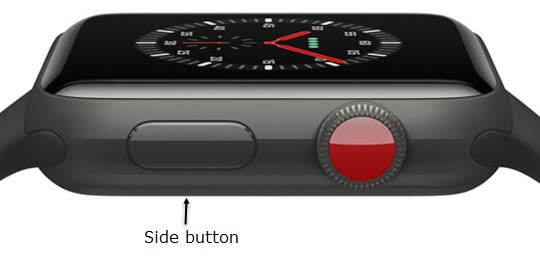
- If necessary, power your Apple Watch on by pressing and holding theSide buttonuntil the Apple logo is displayed.
- From a Home screen on your iPhone, open theWatch app
.
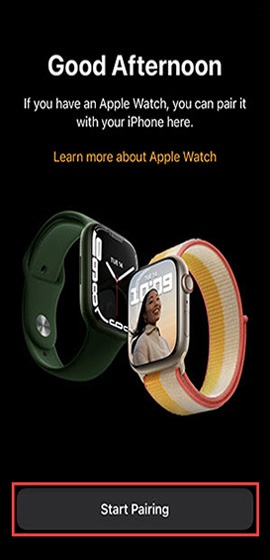
- TapStart Pairing.If your device was set up in Standalone mode (Set Up for a Family Member) and you're switching to Number Share (Set Up for Myself), unpair your watch before completing these steps.
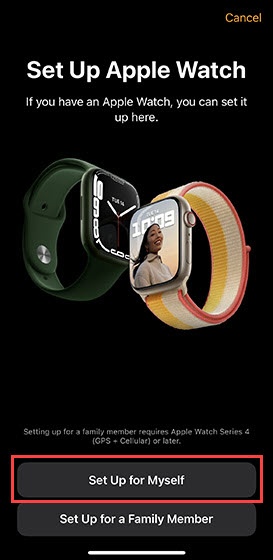
- TapSet Up for Myself.This step doesn't apply to the Apple Watch Series 3. Skip to step 5.If you're setting the Apple Watch up in Standalone mode (Set Up for a Family Member), refer to Set Up in Standalone Mode (Set Up for a Family Member).
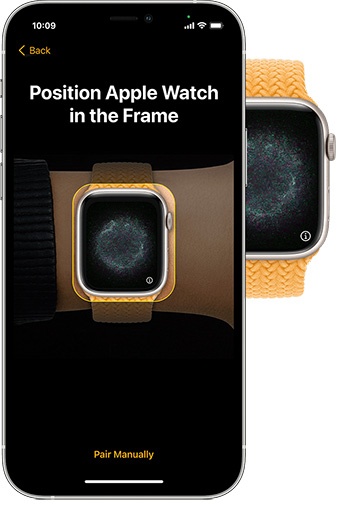
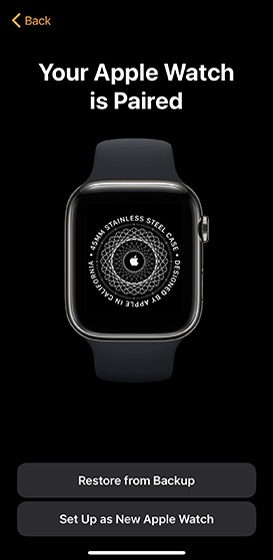
- Center the watch face in the viewfinder on your iPhone until 'Your Apple Watch is Paired' is displayed.If the pairing animation isn't displayed or the iPhone doesn't read it, tap Pair Apple Watch manually.
- If prompted to update the software on your Watch, tapUpdate Now.
- Do one of the following:
- If this is your first Apple Watch, or if you want a fresh start, tapSet Up as a New Apple Watch.
- To restore from a previous Apple Watch backup, tapRestore from Backupthen follow the onscreen steps.
- Select the wrist (left or right) you wear the watch on.Based on your selection, you may have to pick the 'Digital Crown Orientation' (top or bottom) then tapContinue.
- To continue, review the 'Terms and Conditions' then tapAgree.
- If prompted with an 'Activation Lock' screen, enter your Apple ID and password then tapNext(upper-right).
- If desired, tapCreate a Passcode, enter a 4-digit passcode on your Watch and re-enter to confirm.
- From the 'Bold Text & Size' screen, do the following:To customize text options later, tapSet Up Later in the Apple Watch App.
- Tap theBold Text switchto turn on
or off
.
- Drag thesliderleft or right to increase / decrease font size.
- TapContinue.
- From the 'Siri' screen, tap 'Use Siri' or 'Don't Use Siri'.
- TapOKto enable your Watch to share settings (e.g., Location Services & Find my iPhone, Siri, etc.) with your iPhone.These settings transfer from the Watch to the iPhone and back. If a setting for these services is changed on one device, it applies to both devices.
- To automatically install future watchOS updates on your Apple Watch, tapContinue.If you'd like to choose when updates are installed, tapInstall Updates Manually.
- Review the info about 'Emergency SOS' then tapContinue.
- TapSet Up Cellular.If your watch says 'Cellular Is Ready', tapContinuethen skip to step 18.
- Do one of the following:
- If you're setting up your Apple Watch for the first time:If you haven't registered your mobile number for use on the My Verizon app, tap theI Need to Register buttonand follow the prompts.
- Enter your phone number then tapSign Me In.
- Enter your My Verizon password then tapContinue.
- TapAdd device.If necessary, pick a phone number and follow the on-screen instructions to turn on Wi-Fi Calling.
- Review and agree to the Verizon Wireless Customer Agreement, then tapConfirm.
- If you've recently received an upgrade or replacement Apple Watch, refer to Apple Watch - Replace Existing Device.
- If you're switching from Standalone mode (Set Up for a Family Member) to Number Share (Set Up for Myself):
- TapNumber Share.
- Enter your My Verizon phone number and password then tapContinue.
- TapI want Number Share.
- Enter an address for Wi-Fi Calling then tapContinue.
- Review the info then tapConfirm.
- To have compatible apps from your iPhone installed on your Apple Watch, tapInstall All.If you'd prefer to install apps later, tapChoose Later.
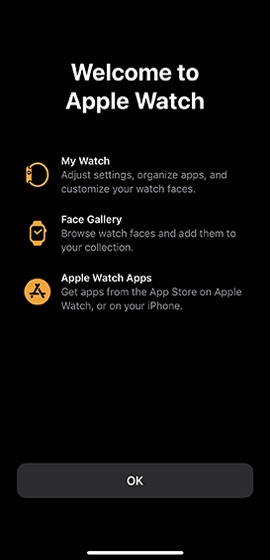
- Keep your watch and iPhone close together until you receive an alert that syncing is complete then tapOKto open the Watch app.

- For versions of the Watch with Cellular (LTE), you must pair and share a number with a compatible iPhone. If you haven't set up or are having issues activating Number Share, view these steps.
- For additional info on cellular set up, refer to Apple Watch Activation Support.