Apple Watch - Switch Paired iPhone
Here's how to unpair your Apple Watch from your current iPhone and then pair with a new one.
If you want to pair your Apple Watch with a different iPhone, view this info.
- Unpairing your Apple Watch® with your current Apple® iPhone® erases the Watch content and resets it so you can pair with another iPhone.
- Back up and unpair your Apple Watch from your current iPhone.When you unpair, your Apple Watch is erased and powers off then back on again.If you are keeping your watch paired to the same mobile number, back up your current iPhone and transfer contents to the new iPhone.
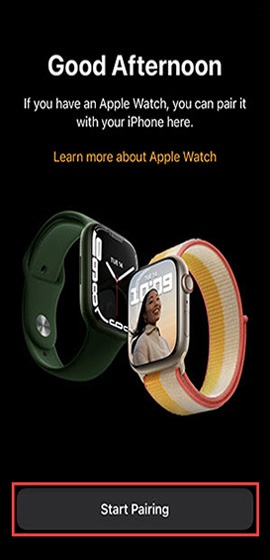
- Open theWatch appon your new iPhone.A pairing animation should appear on the watch; if not, it needs to be manually reset. To do this on the watch, navigate: .If you see an 'Activation Lock' screen, your Apple Watch is linked to an Apple ID; enter your login info to continue.
- TapStart Pairingon your iPhone.
- Refer to one of the following for the remaining instructions: