Apple Watch - Set Up in Standalone Mode (Set Up for a Family Member)
Here's how to set up your Apple Watch in Standalone mode (Set Up for a Family Member) using your iPhone.
The steps below apply to watchOS 7 or newer (doesn't apply to Apple Watch® Series 3 or older).
- The Apple Watch doesn't need to be connected to the same carrier as your Apple® iPhone® when set up using Standalone mode (Set Up for a Family Member).
- The family member using the Apple Watch doesn't need an iPhone, but an iPhone is required for initial setup.
- If you're switching the iPhone your Apple Watch is paired with, refer to Switch Paired iPhone.
- An Apple ID for yourself and one for the family member who is using the Apple Watch is needed. Your Apple ID needs to have two-factor authentication turned on.
- You will need a Family Sharing setup that includes the person who'll use the Apple Watch. You need to have the role of organizer or parent / guardian to set up an Apple Watch for a family member.
- For more info on Standalone Mode (Set Up for a Family Member), check out this Apple Support page.
- While an Apple Watch is set up in Standalone Mode, the following features / apps are unavailable:
- Irregular heart rhythm notifications
- ECG
- Cycle Tracking
- Sleep
- Blood Oxygen
- Podcasts
- Remote
- News
- Home
- Shortcuts
- Before you begin, verify your iPhone:
- has iOS 14 or newer installed.
- is connected to the Verizon network and the Bluetooth® setting is turned on.If you're outside of the Verizon coverage area or your iPhone is activated with another carrier, ensure your watch is connected via Bluetooth or Wi-Fi.
- has LTE Voice and Data turned on.
- has a cellular network connection or Wi-Fi turned on.Apple Watch can connect only to 2.4 GHz Wi-Fi networks. For additional info on connecting to Wi-Fi refer to, About Bluetooth, Wi-Fi, and cellular on your Apple Watch.
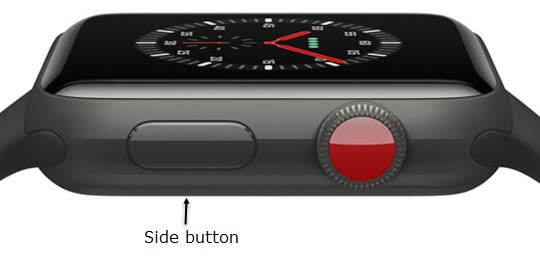
- If necessary, power your Apple Watch on by pressing and holding theSide buttonuntil the Apple logo is displayed.
- From a Home screen on your iPhone, open theWatch app
.
If you are pairing and activating a replacement iPhone or Apple Watch, follow these steps to unpair before proceeding. - TapStart Pairing.If you already have an Apple Watch connected, tapAll Watches(upper-left) then tapAdd Watchto add an additional watch for yourself or a family member who doesn't have an iPhone.If your device was set up with Number Share (Set Up for Myself) and you're switching to Standalone mode (Set Up for a Family Member), unpair your watch before completing these steps.
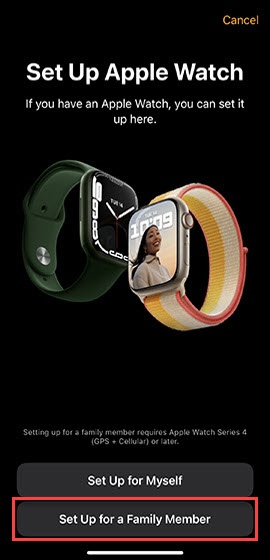
- TapSet Up for a Family Member.If you're setting the watch for yourself with Number Share, refer to Set Up with Number Share (Set Up for Myself).
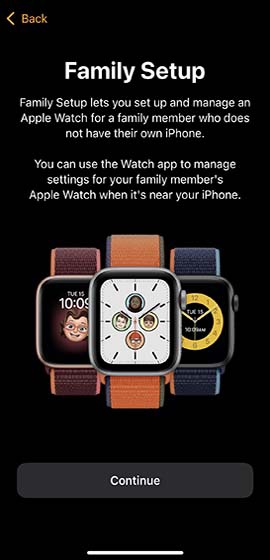
- Review the Family Setup tutorial screens, then tapContinue.
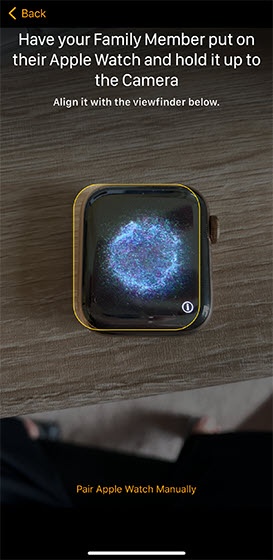
- Center the watch face in the viewfinder on your iPhone until 'Apple Watch is Paired' is displayed then tapSet Up Apple Watch.If you can't use the camera, or you don't see the pairing animation or your iPhone can't read it, tapPair Apple Watch Manually.
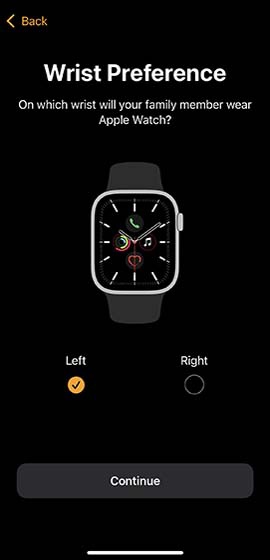
- Select the wrist (left or right) you wear the watch on.Based on your selection, you may have to pick the 'Digital Crown Orientation' (top or bottom) then tapContinue.Selected when a checkmark is present.
- To continue, review the 'Terms and Conditions' then tapAgree.
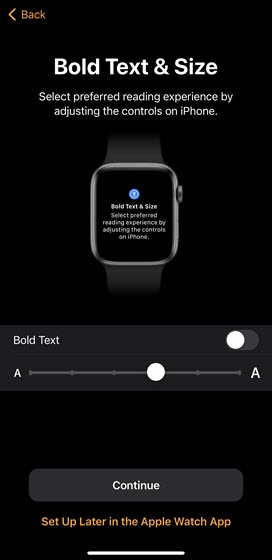
- From the 'Bold Text and Size' screen, do the following:To customize text options later, tapSet Up Later in the Apple Watch App.
- Tap theBold Text switchto turn on
or off
.
- Drag thesliderleft or right to increase / decrease font size.
- TapContinue.
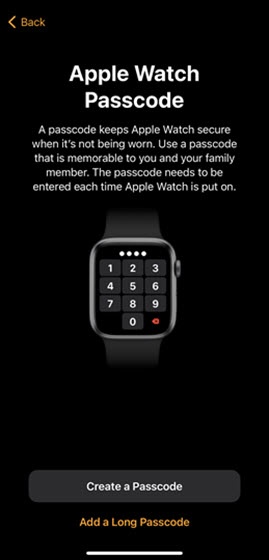
- TapCreate a Passcode, enter a 4-digit passcode on your watch then re-enter the passcode.
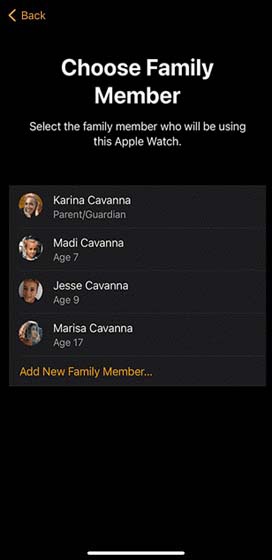
- Do one of the following to add a family member to your Apple account:
- To add an existing family member:
- Tap the desired family member.
- Enter their Apple ID password then tapNext.
- TapTurn on Ask to Buy.
- Enter the passcode used on your family member's other devices.
- If prompted, tap an available backup to restore your data.To start fresh, tapSet Up as New Apple Watch.
- To add a new family member:
- TapAdd New Family Member.
- TapUse Existing Apple ID.If you need to set up an Apple ID for your family member, tapCreate New Apple IDand follow the on-screen instructions.
- If prompted, review the 'These Features Will Help You Get Started' screen then tapTurn on.
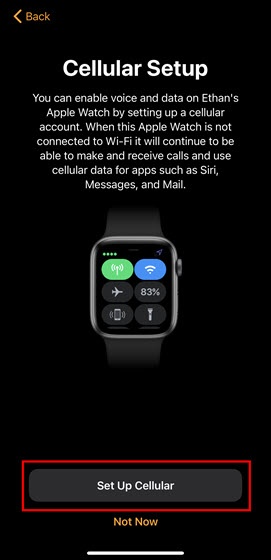
- TapSet Up Cellular.If your Apple iPhone is activated with another carrier, and your Apple Watch hasn't been activated, contact us to get it activated.If your watch says 'Cellular Is Ready' tapContinuethen skip to step 14.
- Do one of the following:
- If you're setting up your Apple Watch for the first time:
- Enter your phone number then tapSign Me In.
- Enter your My Verizon password then tapContinue.
- TapAdd device.If necessary, pick a phone number and follow the on-screen instructions to turn on Wi-Fi Calling.
- Review and agree to the Verizon Wireless Customer Agreement, then tapConfirm.
- If you are switching from Number Share (Set Up for Myself) to Standalone mode (Set Up for a Family Member):
- TapStandalone.
- Enter your My Verizon phone number and password then tapContinue.
- TapI want Standalone.
- Enter an address for Wi-Fi Calling then tapContinue.
- Review the info then tapConfirm.
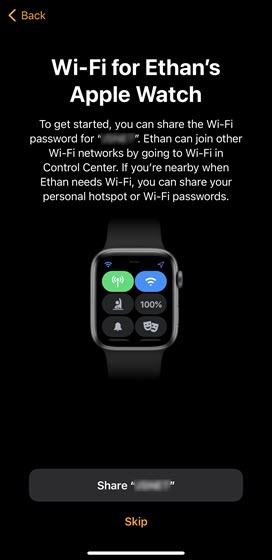
- To share your Wi-Fi passwords with your family member, tapShare [Network Name].
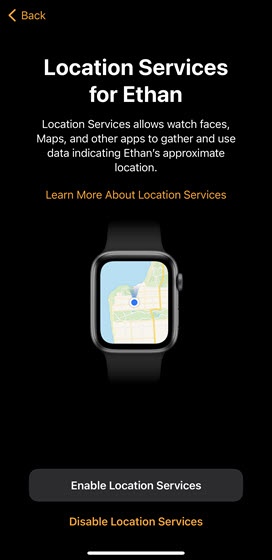
- If prompted, tapEnable Location Servicesto gather and use your family member's approximate location.
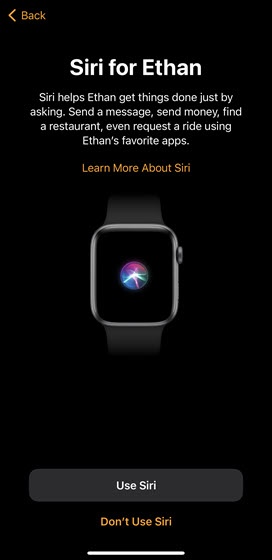
- TapUse Siri.
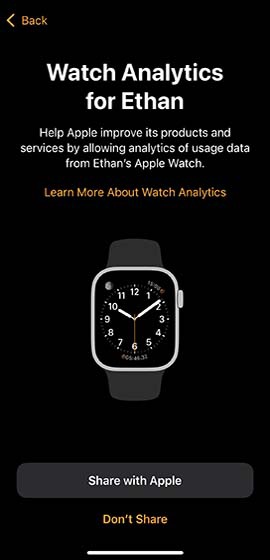
- To share watch analytics with Apple, tapShare with Apple.
- To store messages in iCloud, tapEnable Messages in iCloud.
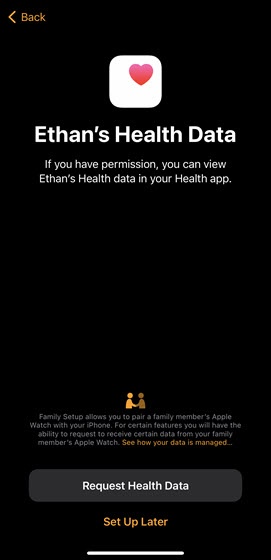
- To receive your family member's Health data in your Health app, tapRequest Health Data.If prompted on the Apple Watch, tapShareto allow sharing of your family member's Health data from the Apple Watch.
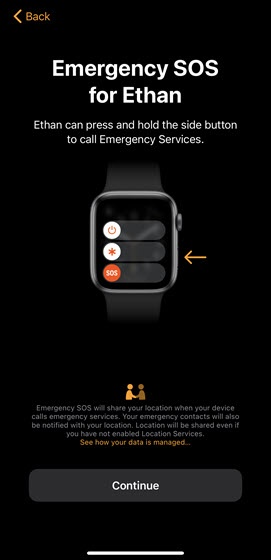
- Review the instructions to call Emergency Services then tapContinue.
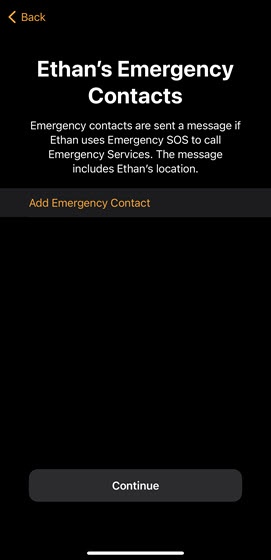
- TapAdd Emergency Contact, select the desired contact(s) then tapContinue.
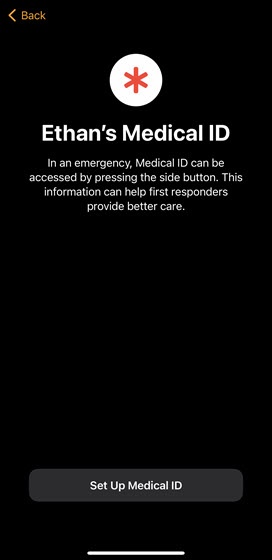
- To create a Medical ID, which allows first responders to provide better care, tapSet Up Medical ID.
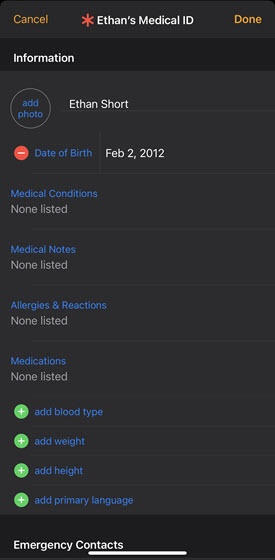
- Enter the requested info (e.g., Medical Conditions, Allergies and Reactions, Blood Type, etc.) then tapDone.
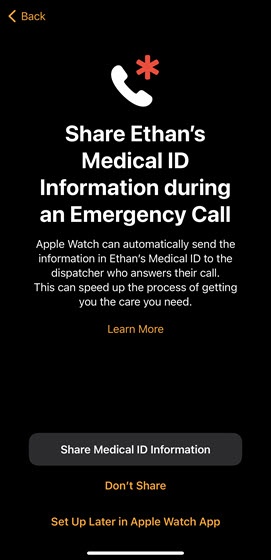
- To share the Medical ID with the dispatcher who answers the call, tapShare Medical ID Information.
- To continue, if prompted to update the software on your Watch, tapUpdate Now.
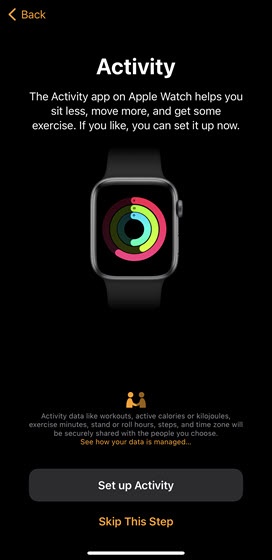
- To set up the Activity app, tapSet up Activitythen follow the on-screen instructions.
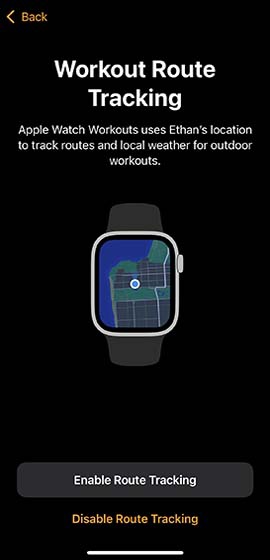
- To allow the Workout app to use your family member's location to track routes and local weather, tapEnable Route Tracking.
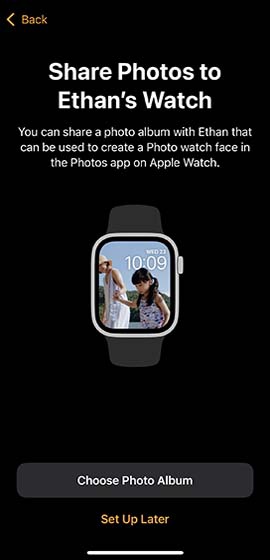
- To select a photo album to share with your family member, tapChoose Photo Albumthen select the desired album.
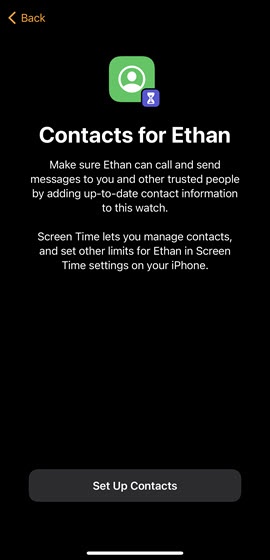
- If prompted, TapSet Up Contacts.
- Select the contacts you want to give your family member then tapDone.Selected when a checkmark is present.
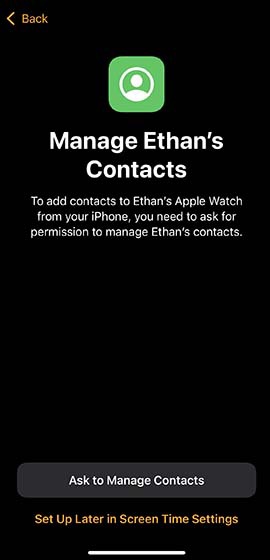
- If prompted, tapAsk to Manage Contactsto manage your family member's contacts.
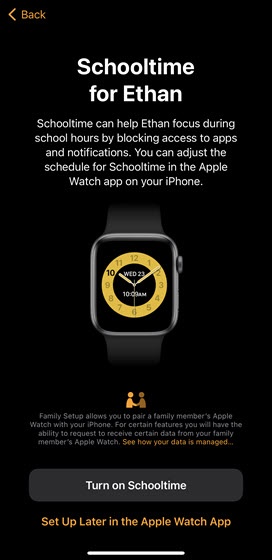
- If prompted to create a school schedule, tapTurn on Schooltime, enter the required info (e.g., Every Day, From, To, etc.) then tapDone.The schedule can be adjusted in the Apple Watch app on your iPhone.
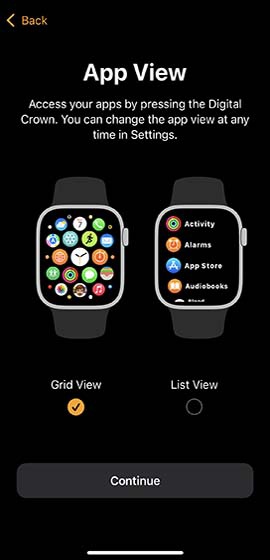
- Select the way you view your apps on your watch (Grid View or List View).Selected when a checkmark is present.Selected when a checkmark is present.
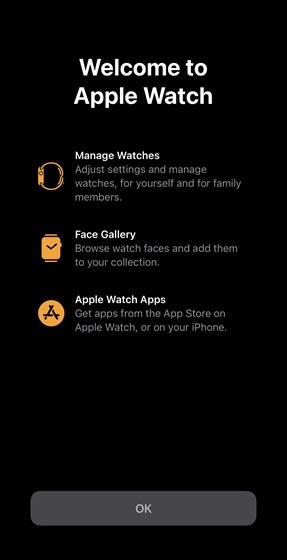
- To begin using your Apple Watch, tapOK.