Apple Watch - Set Up Cellular Service
Here's how to activate your Apple Watch to share the mobile number used by your iPhone.
- Ensure you've already paired your watch with your iPhone.
- The iPhone must be connected to the Verizon network and Bluetooth® must be turned on.
- These steps apply to the Apple Watch Series 3 and newer models.
If you receive the following error message: 'Carrier does not currently support Apple Watch,' you need to update your carrier settings on your iPhone.
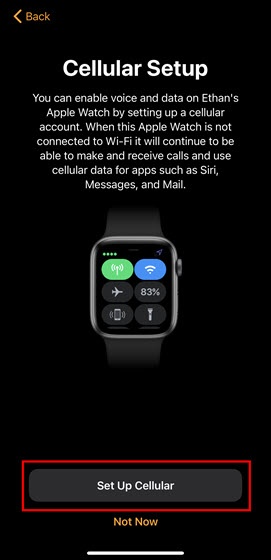
- During the pairing and setup process, tapSet Up Cellularon your iPhone.If you are attempting this after the initial setup process, follow the instructions in the 'Set up your cellular plan' section of this Apple support page.
- Enter your username to sign in to the My Verizon app.If you haven't registered your mobile number for use on the My Verizon app, tap theI Need to Register buttonand follow the prompts.To activate service, you must install My Verizon and sign in as an Account Owner or Manager. For more on account roles, review this info.
- Enter your password.Once you sign in, the system performs checks to see if you are on a compatible price plan.An error displays if your price plan isn't eligible for Number Share; for more info on compatible plans, visit the Number Share FAQs.
- TapContinue.If you are upgrading or replacing your existing Apple Watch, follow the instructions (beginning with step 4) in the Replace Existing Device - Apple Watch® article.
- If prompted, tapSet up Wi-Fi calling.
- Enter your 911 address.If the address isn't found in the system, choose whether to use the suggested address or the address as entered.If you get an error, ensure the State is abbreviated (e.g., 'New York' must be entered as 'NY').
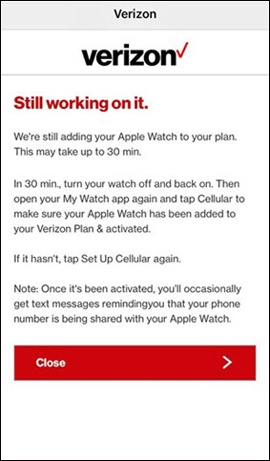
- From the 'Cellular Is Ready' screen, tapContinue(keep the Watch and the iPhone close together until you receive the alert that syncing is complete).If the activation is delayed, the screen below appears; follow the instructions given to complete Watch activation.
- From the 'Device Added' screen, tapOKto complete activation and the open Watch app.
For additional help, refer to Apple Watch Support.