Apple iPhone 14 Pro / iPhone Pro Max - Activate / Set Up Device
Here's how to quickly set up your iPhone 14 Pro / iPhone 14 Pro Max.
If you need to transfer contacts and media from one device to another, follow these instructions before activating your new iPhone 14 Pro / iPhone 14 Pro Max.
- If the device has been set up with an incorrect Apple ID erase all content and settings.
- iPhone 14 models should be connected to Wi-Fi as the Primary method for activation. If Wi-Fi isn't available, you can continue without Wi-Fi if presented.
If troubleshooting, don't restore the device until all testing has been completed.
- Using your previous iPhone:If you don't have a previous iPhone, proceed to step 2.
- Ensure the Find My app is disabled then power it off.
- If temporary iCloud storage is needed, refer to this Apple Support Page (iOS 15 or newer is required).
- Press and hold thePower button(top-right edge) to power the new iPhone on.iPhone 14 devices do not have an option for a physical SIM card and can only be activated with an eSIM (electronic SIM card).If this is an upgrade or your phone was not activated after purchase, refer to activate a new iPhone.
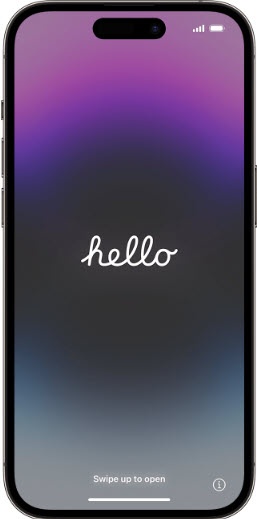
- From the 'Hello' screen, swipe up from the bottom of the screen to choose a language then tap your country or region.
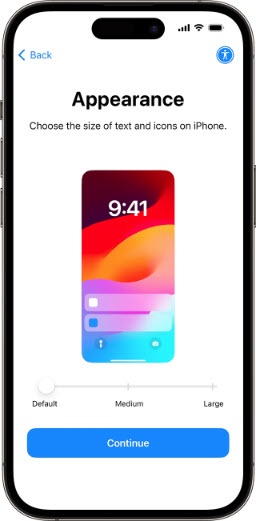
- From the Appearance screen select the preferred size (e.g., Default, Medium, Large) then tapContinue:
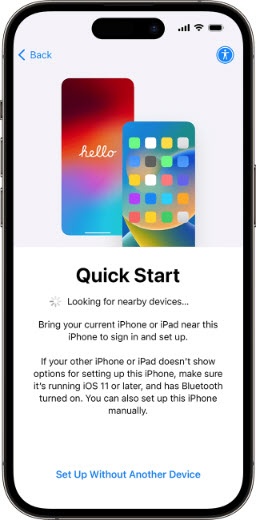
- From the 'Quick Start' screen, tapSet Up Without Another Device.If you have a previous device running iOS 11 or later, use Quick Start to complete auto sign-in.
- Tap the Wi-Fi network, enter the Wi-Fi password then tapJoin(upper-right).If a Wi-Fi network isn't available, you can continue without Wi-Fi if presented.Allow a few moments for the activation process to complete.
- To proceed, review the Data & Privacy info then tapContinue.
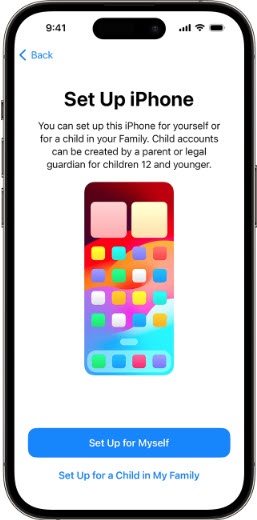
- From the Set Up iPhone screen select one of the following:
- Set Up for Myself
- Set Up for a Child in My Family
- To set up Face ID, tapContinuethen follow the on-screen instructions.To skip this step, tap Set Up Later.
- Enter a 6-digit passcode then re-enter the passcode.To choose a different numeric code, tapPasscode Optionsthen select from the following options:
- Custom Alphanumeric Code
- Customer Numeric Code
- 4-Digit Numeric Code
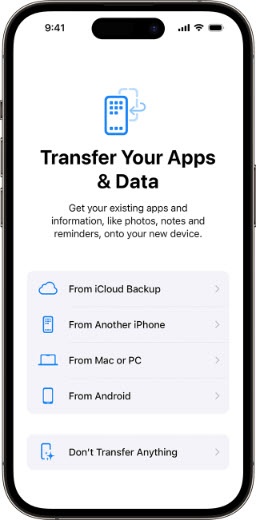
- Tap a transfer apps & data option:Restoring from a backup can take up to 30 minutes to complete.
- From Another iPhoneIf your trading in your device, once the transfer is completed follow the prompts on your old device to Erase the iPhone and disable the activation lock / Find My settings.
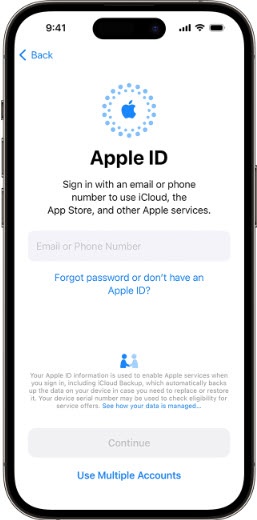
- Enter your Apple ID and password then tapContinue.If you have an Apple ID already in use on another device, a verification code is sent to that device; you must enter this code to proceed with activation.If you don't have an Apple ID or have forgotten your sign-in info, refer to one of the following:
- To continue, review the Terms and Conditions then tapAgree.
- To set up your phone with the recommended settings, tapContinue.If you'd like to customize your settings, tapCustomize.If 'Continue' is selected, the remaining steps in the activation process will vary.
- From the 'Keep Your iPhone Up to Date' screen, tapContinueto get the latest features, security, and improvements automatically.
- If prompted, from the 'iMessage & FaceTime' screen, tapContinueorNot Now.If 'Continue' is selected, the remaining steps in the activation process will vary.
- From the 'Location Services' screen, review then tapEnable Location ServicesorDisable Location Servicesto continue.
- From the 'Set Up Cellular' screen, tap one of the following:This step only applies to BYOD (Bring Your Own Device).
- Transfer From Nearby iPhoneThis only applies when transferring from an iPhone 11 and newer running on iOS 15.6.1 or later.
- Use QR CodeQR is not required for iPhone SE (3rd Gen) and iPhone 12 and newer models
- To set up Apple Pay, tapContinuethen follow the on-screen instructions.To skip this step, tapSet Up Later in Wallet.
- To set up Siri, tapContinuethen follow the on-screen instructions.To skip this step, tapSet Up Later in Settings.
- To receive weekly reports about your screen time and set limits for apps you want to manage, tapContinue.To skip this step, tapSet Up Later in Settings.
- To share iPhone Analytics with Apple, tapShare with Apple.If you don't want to share iPhone Analytics, tapDon't Share.
- To share app activity and crash data with app developers, tapShare with App Developers.If you don't want to share app activity and crash data with app developers, tapDon't Share.
- From the 'Appearance' screen, select a light or dark appearance for your iPhone then tapContinue.Selected when a checkmark is present.
- Select the desired Display Zoom then tapContinue.Selected when a checkmark is present.
- To begin using your iPhone, Swipe up to Get Started.Confirm the status bar at the top of the screen changes from 'No Service' to 'Verizon'. This process may take 2-3 minutes. If the activation fails, view Apple Support page.
- Accounts (e.g., Gmail, Cloud, etc.) should be set up after activating the device (see Related Info section at the bottom of this page).
iPhone 14 models don't have a charging block or earbuds included in the box. If necessary, charging blocks / earbuds can be purchased from any Verizon store or online.