Apple iPhone - Bring Your Own Device (BYOD) - Transfer SIM / eSIM
Here's how to transfer an eSIM or physical SIM from your previous iPhone to an eSIM on your BYOD (bring your own device) iPhone.
If you need to transfer the eSIM or phsyical SIM card from your Apple® iPhone® to an eSIM on your BYOD iPhone, follow these step-by-step instructions.
- Verify you have the following Apple iPhones:
- Source device: iPhone 11 and newerSource device is the previous iPhone with an active line.
- Target device: iPhone 12 and newerTarget device is the BYOD iPhone that you want to transfer the eSIM or physical SIM to.
- The BYOD device must be unlocked:Only unlocked devices are eligible for the dual SIM functionality.
Transfer eSIM to eSIM
- On your BYOD (target) iPhone, navigate:.SettingsCellularIf an app isn't available on your Home screen, swipe left to access the App Library.
- TapAdd eSIM.If unavailable, tapSet Up Cellular.
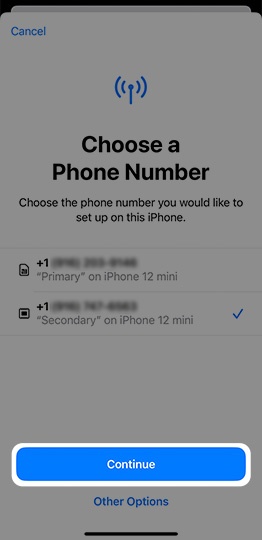
- From the 'Choose a Phone Number' screen, tap the desired line you want to transfer then tapContinue.If the desired line isn't supported it's grayed out and shows 'Transfer Not Supported'.
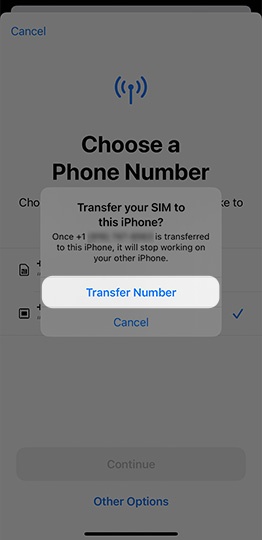
- When the ‘Transfer your SIM to this iPhone’ prompt appears tapTransfer Number.
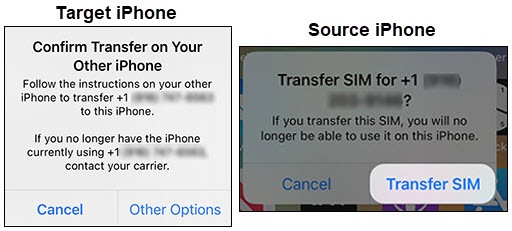
- When the ‘Confirm Transfer on Your Other iPhone’ prompt appears, on the previous (source) iPhone review the prompt then tapTransfer SIM.
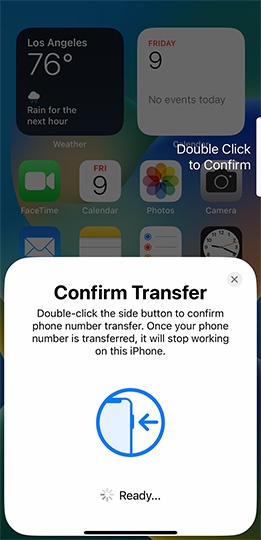
- To confirm transfer, double click the side button on the previous (source) iPhone.
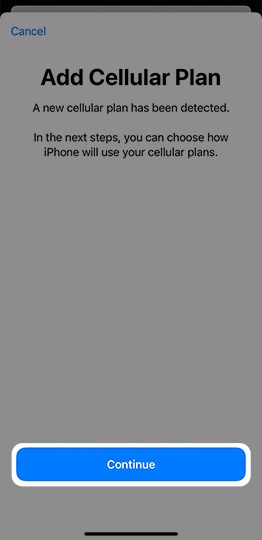
- From the ‘Add Cellular Plan’ screen on the BYOD (target) iPhone, tapContinue.
- If necessary, do the following:
- Choose a label for each of your cellular plans then tapContinue.
- Select a default line then tapContinue.
- From the ‘iMessage & FaceTime’ screen, select the desired line then tapContinue.
- Select the default line for cellular data then tapDone.Tap theAllow Cellular Data Switching switchto turn on
or off
.
- From the ‘Cellular Setup Complete’ screen tapDone.
- After your BYOD (target) iPhone displays the 'iPhone is activated' prompt, Restart your iPhone.

Transfer Physical SIM to eSIM
- On your BYOD (target) iPhone, navigate:.SettingsCellularIf unavailable, tapSet Up Cellular.
- TapAdd eSIM.If unavailable, tapSet Up Cellular.
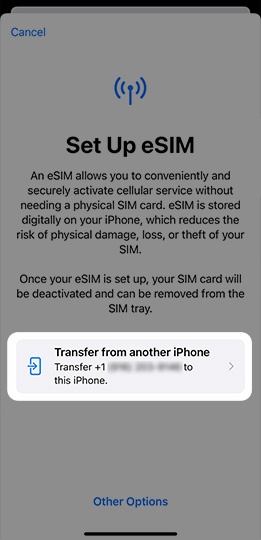
- From the ‘Set Up eSIM’ screen, tapTransfer from another iPhone.If the desired line isn't supported it's grayed out and shows 'Transfer Not Supported'.
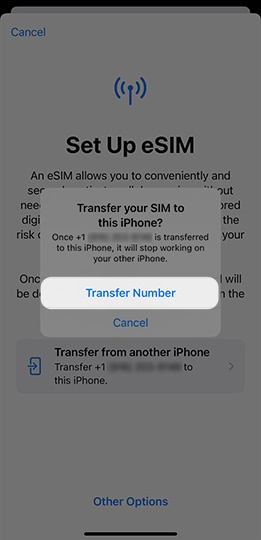
- When the ‘Transfer your SIM to this iPhone’ prompt appears tapTransfer Number.
- To confirm transfer, double click the side button on the previous (source) iPhone.
- From the ‘Cellular Setup Complete’ screen tapDone.
- After your BYOD (target) iPhone displays the 'iPhone is activated' prompt, Restart your iPhone.