Apple iPhone - Create Apple ID
Here's how to create an Apple ID to access your personal account for iOS devices.
- To set up an Apple ID without a payment method, review these instructions.
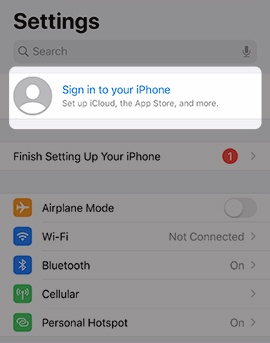
- From a Home screen, tapSettings
.
If an app isn't available on your Home screen, swipe left to access the App Library. - TapSign in to your iPhoneat the top of the Settings menu.
- TapDon't have an Apple IDorforgot it?.The option to create a new Apple ID shows only when not logged in with an existing ID.
- TapCreate Apple ID.
- Enter your first and last name and birthdate in the spaces provided then tapNext.
- From the 'Email Address' screen, tapDon't have an email address?.
- TapGet an iCloud Email Address.
- From the 'Email Address' screen, enter preferred email then tapNext(upper-right).The email address entered becomes the Apple ID.
- TapCreate Email Addressto confirm.
- Enter the password into the required fields then tapNext(upper-right).The password must be at least 8 characters, including a number and an uppercase and lowercase letter.
- From the 'Phone Number' screen, tapContinue.
- To continue, review the Terms and Conditions then tapAgree(lower-right).
- To confirm, tapAgree.An email with verification steps is sent to the address chosen as the Apple ID.For additional setup info, see Change iCloud feature settings.
For more info, refer to Frequently asked questions about Apple ID.