Apple iPhone - Set iCloud Preferences
Here's how to change your iCloud settings on your iPhone.
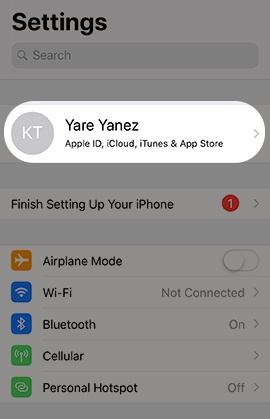
- From a Home screen on your Apple® iPhone®, tapSettings
.
If an app isn't available on your Home screen, swipe left to access the App Library. - Tap yourApple profileat the top of the Settings menu.If prompted, enter your Apple ID and Password then tapSign In.TapMergeif prompted.
- TapiCloud.If prompted to allow iCloud to use the location of your iPhone, tap an option:
- Don't Allow
- OK
- TapPhotosthen tap the following switch(es) to turn on
or off
:
- Sync this iPhoneAutomatically uploads and stores the entire library in iCloud to access photos / videos from all your devices.If unavailable, tap theiCloud Photos switchto turn on or off.
- Shared AlbumsCreate albums to share with other people.
- TapiCloud(upper-left) to return to the previous screen.
- Tap the preferred switch(es) to turn options on or off:If necessary, tapShow All.
- Mail
- Contacts
- Calendars
- Reminders
- Notes
- Messages
- Safari
- News
- Stocks
- Home
- Health
- Wallet
- Game Center
- Siri
- TapPasswords and Keychainthen tap theSync this iPhone switchto turn on or off.If unavailable, tapKeychainthen tap theiCloud Keychain switchto turn on or off.If prompted, enter the iCloud password then tapOK.
- If prompted, tap the iCloud Keychain option then follow the appropriate screen prompts:The screen prompts could include entering an existing security code or create a new one.
- Use Passcode
- Create Different Code
- TapBack(upper-left) then tapiCloud(upper-left) to return to the previous screen.
- TapiCloud Backupthen tap theBack Up This iPhone switchto turn on or off.If unavailable, tapiCloud Backupthen tap theiCloud Backup switchto turn on or offFor additional support, refer to Apple iPhone - Manage iCloud Backup Options.
- TapiCloudto return to the previous screen.
- TapiCloud Drive switchto turn on or off.If prompted, tapUpgrade to iCloud Drive.
- If not on the main iCloud screen, tapiCloudto return.
- TapLook Me Up. . .then tap any of the app switches to allow or not allow.Apps that request permissions to allow others to look you up by email appear.