Apple iPhone - Turn the Find My App On / Off
Here's how to turn the Find My app on or off.
To avoid activation issues, make sure the Find My app (formerly Find My iPhone) is turned off before activating your new iPhone.
- If you are unable to access the Apple® iPhone® or it is unresponsive, the Find My app can be disabled online via iCloud®.
- To disable the Find My app, your iPhone must have a valid connection to either a Cellular Data or Wi-F network. Without a connection, the Find My app is disabled on the device but not from Apple's servers.
- From a Home screen, tapSettings
.
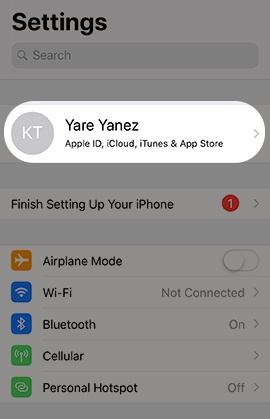
If unavailable on your Home screen, swipe left to access the App Library. - From the main settings screen, tap your name (at the top).If necessary, tap theleft arrow(upper-left) as necessary to return to Settings.
- TapFind My.
- TapFind My iPhone, then tap theFind My iPhone switchto turn on
or off
.
If prompted, enter your Apple ID password then tapTurn Off. - If desired, tap theSend Last Location switchto turn on or off.