Apple iPhone 13 Pro / iPhone 13 Pro Max - Activate / Set Up Device
Here's how to quickly set up your iPhone 13 Pro / iPhone 13 Pro Max.
If you need to back up contacts and media, follow these instructions before activating your new Apple® iPhone® 13 Pro / iPhone 13 Pro Max.
To avoid potential issues, review the following:
- Swapping the SIM card from your previous device may prevent your device from being correctly provisioned for Verizon's 5G network.
- If the device has been set up with an incorrect Apple ID erase all content and settings.
If troubleshooting, don't restore the device until all testing has been completed.
- Using your previous iPhone:If you don't have a previous iPhone, proceed to step 2.
- Ensure the Find My app is disabled then power it off.
- If temporary iCloud storage is needed, refer to this Apple Support Page (iOS 15 or newer is required).
- With the pre-installed 5G SIM card inserted, press and hold thePower button(top-right edge) to power the new iPhone on.
- iPhone 13 devices purchased from Apple do not have a pre-installed 5G SIM card and are recommended to be activated with an eSIM (electronic SIM card).
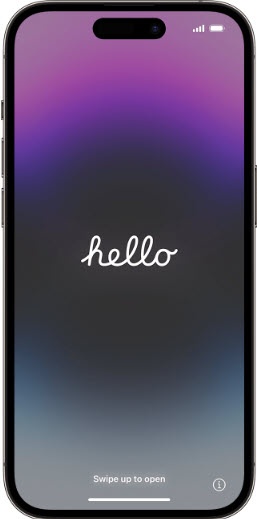
5G devices purchased from Verizon include a pre-installed 5G SIM card. Don't remove this SIM card as it may prevent your device from being correctly provisioned for Verizon's 5G network.If you're only activating the eSIM in your iPhone 13, remove the pre-installed 5G SIM card to access Verizon's 5G network.If this is an upgrade or your phone wasn't activated after purchase, refer to activate a new iPhone. - From the 'Hello' screen, swipe up from the bottom of the screen to choose a language then tap your country or region.
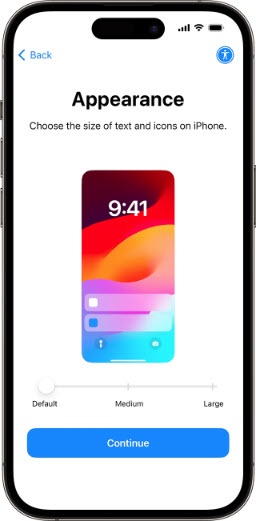
- From the Appearance screen select the preferred size (e.g., Default, Medium, Large) then tapContinue:
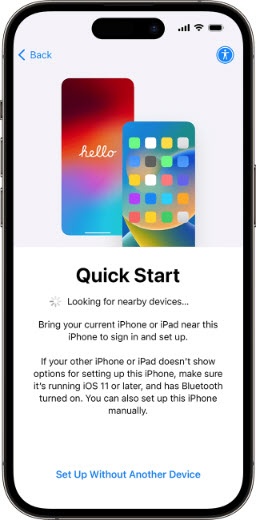
- From the 'Quick Start' screen, tapSet Up Without Another Device.If you have a previous device running iOS 11 or later, use Quick Start to complete auto sign-in.
- Tap the Wi-Fi network; enter the Wi-Fi password, then tapJoin(upper-right).If activating using eSIM, a Wi-FI network is required.If a Wi-Fi network is not available and activating using a phyiscal SIM card, tapContinue Without Wi-Fito activate over the Verizon network.Allow a few moments for the activation process to complete.
- From the Data & Privacy section, tapContinue.
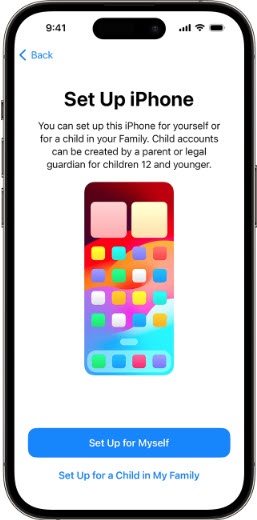
- From the Set Up iPhone screen select one of the following:
- Set Up for Myself
- Set Up for a Child in My Family
- To set up Face ID, tapContinuethen follow the on-screen instructions.To skip this step, tap Set Up Later.
- Enter a 6-digit passcode, then re-enter the passcode.To choose a different numeric code, tapPasscode Optionsthen select from the following options:
- Custom Alphanumeric Code
- Customer Numeric Code
- 4-Digit Numeric Code
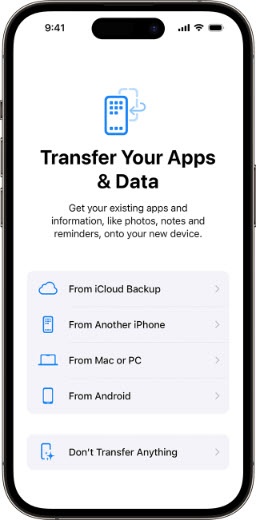
- Tap a transfer apps & data option:Restoring from a backup can take up to 30 minutes to complete.
- From Another iPhoneIf your trading in your device, once the transfer is completed follow the prompts on your old device to Erase the iPhone and disable the activation lock / Find My settings.
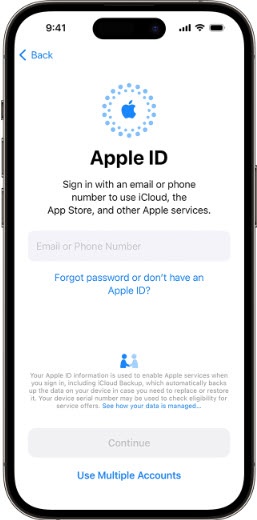
- Enter your Apple ID and password then tapContinue.If you have an Apple ID already in use on another device, a verification code is sent to that device; you must enter this code to proceed with activation.If you don't have an Apple ID or have forgotten your sign-in info, refer to one of the following:
- To continue, review the Terms and Conditions then tapAgree.
- To set up your phone with the recommended settings, tapContinue.If you'd like to customize your settings, tapCustomize.If Continue is selected, the remaining steps in the activation process will vary.
- From the 'Keep Your iPhone Up to Date' screen, tapContinue.If you'd like to manually choose when updates are installed, tapInstall Updates Manuallyto get the latest features, security, and improvements automatically.
- If prompted, from the 'iMessage & FaceTime' screen, tapContinueorNot Now.If 'Continue' is selected, the remaining steps in the activation process will vary.
- From the 'Location Services' screen, review then tapEnable Location ServicesorDisable Location Servicesto continue.
- From the 'Set Up Cellular' screen, tap one of the following:This step only applies to BYOD (Bring Your Own Device).Remaining steps for activation will vary based on the option selected.
- Transfer From Nearby iPhoneThis only applies when transferring from an iPhone 11 and newer running on iOS 15.6.1 or later.
- Use QR CodeQR is not required for iPhone SE (3rd Gen) and iPhone 12 and newer models
- To set up Apple Pay, tapContinuethen follow the on-screen instructions.To skip this step, tapSet Up Later in Wallet.
- To set up Siri, tapContinuethen follow the on-screen instructions.To skip this step, tapSet Up Later in Settings.
- To receive weekly reports about your screen time and set limits for apps you want to manage, tapContinue.To skip this step, tapSet Up Later in Settings.
- To share app activity and crash data with app developers, tapShare with Apple.If you don't want to share app activity and crash data with app developers, tapDon't Share.
- To share app activity and crash data with app developers, tapShare with App Developers.If you don't want to share app activity and crash data with app developers, tapDon't Share.
- From the 'Appearance' screen, select a light or dark appearance for your iPhone then tapContinue.Selected when a checkmark is present.
- Select the desired Display Zoom then tapContinue.Selected when a checkmark is present.
- Once setup is completed, swipe up from the bottom of the screen to get started using your iPhone; confirm the status bar at the top of the screen changes from No Service to Verizon.This process may take 2-3 minutes. If the activation fails, view this support info.
- Accounts (e.g., Gmail, Cloud, etc.) should be set up after activating the device (see Related Info section at the bottom of this page).
iPhone 13 models don't have a charging block or earbuds included in the box. If necessary, charging blocks / earbuds can be purchased from any Verizon store or online.