Verizon Cloud - Website - Manage Picture / Video Albums
Here's how to manage your pictures via the Verizon Cloud website.
- From a web browser on a computer, sign in to My Verizon.
- Navigate: .
- From the 'Verizon Cloud' section, clickManage.
- ClickAccess Verizon Cloud.
- From the 'How to access Verizon Cloud' page, clickVerizon Cloud web portal(in the 'Access my Cloud' section).
- Click thePhotos & Videos tab(at the top).
- Do one of the following:
- To add a picture/video to an album:
- Select a category (e.g., Photos, Videos, etc.).
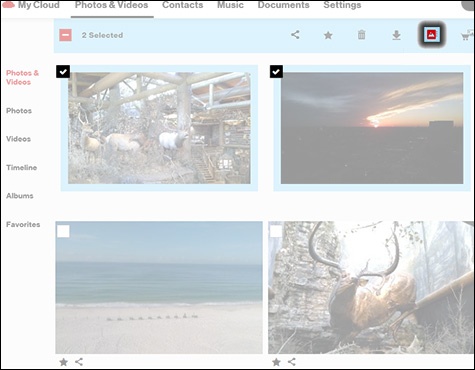
- Select the desired photo(s)/video(s) then click theAdd to album icon.File is selected when a checkmark is present.
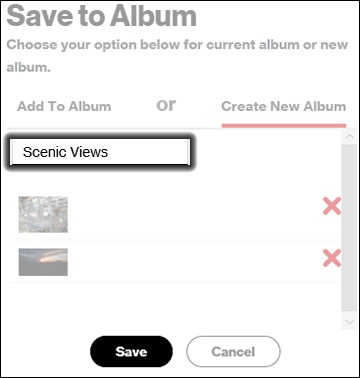
- ClickCreate New Album.To add to an existing album, click the name of the album then clickSave.
- Enter a album name then clickSave.
- ClickOK.
- To remove a picture/video from an album:
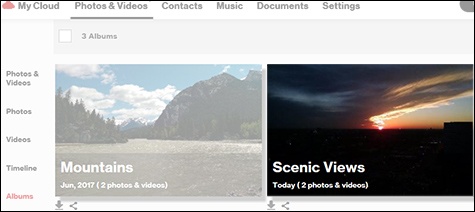
- Click theAlbums tab.
- Select the desired album.
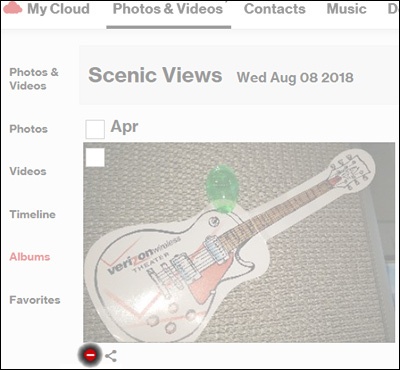
- Click theRemove iconbelow the item you want to remove.
- ClickOK.
- To rename an album:
- Click theAlbums tab.
- Select the desired album.
- ClickEdit Album.
- Enter the new album name then clickSave.
- To delete an album:
- Click theAlbums tab.
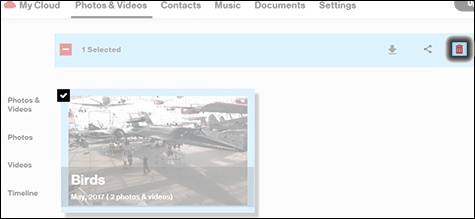
- Select (check) an album then click theDelete icon.
- ClickOK.