Verizon Cloud - Website - Manage Music Playlists
Here's how to manage your music via the Verizon Cloud website.
To manage your music via the Verizon Cloud website, view this info.
- From a web browser on a computer, sign in to My Verizon.
- Navigate: .
- From the 'Verizon Cloud' section, clickManage.
- ClickAccess Verizon Cloud.
- From the 'How to access Verizon Cloud' page, clickVerizon Cloud web portal(in the 'Access my Cloud' section).
- Click theMusic tab(at the top).
- Do one of the following:
- To add songs to a playlist:
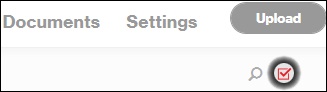
- Click theSelect icon.
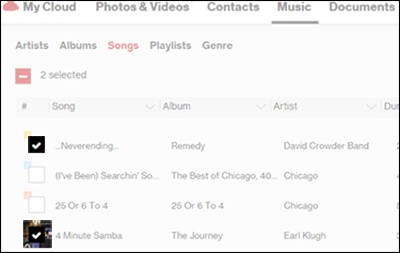
- Navigate to then select the song(s).A song is selected when a checkmark is present.
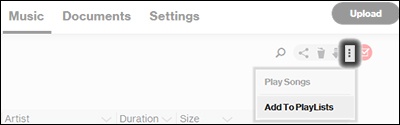
- Click theMore menuicon then clickAdd To PlayLists.
- ClickCreate New Playlist.To add to an existing playlist, click the name of the playlist then clickOK.
- Enter a playlist name then clickSave.
- ClickOK.
- To remove songs from a playlist:
- Click thePlaylists tab(at the top).
- Click theExpand icon
on the desired playlist.
- Hover over the song in the playlist to be removed then click theRemove Song icon
.
- To rename a playlist:
- Click thePlaylists tab(at the top).
- Hover over a playlist then click theEdit Playlist icon
.
- Click the Playlist name field, update the playlist name then clickLeave Edit Modeto save the changes.
- To delete a playlist:
- Click thePlaylists tab(at the top).
- Hover over a playlist then click theDelete Playlist icon
.
- ClickOKto confirm.