Verizon Cloud - Website - Upload Media
Here's how to upload your music, pictures, videos and documents via the Verizon Cloud website.
If you receive a warning message from your browser, refer to these FAQs regarding outdated browsers.
- Online content (including social media) or content on external hard drives and/or backup servers should be transferred to your computer from the appropriate service first.
- When downloading content from a third-party provider or platform, reach out to their support staff for assistance exporting content.
- From a web browser on a computer, sign in to My Verizon.
- Navigate: .
- From the 'Verizon Cloud' section, clickManage.
- ClickAccess Verizon Cloud.
- From the 'How to access Verizon Cloud' page, clickVerizon Cloud web portal(in the 'Access my Cloud' section).
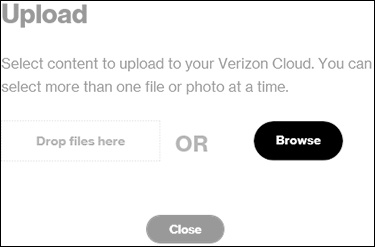
- ClickUpload(upper-right).
- ClickBrowse.
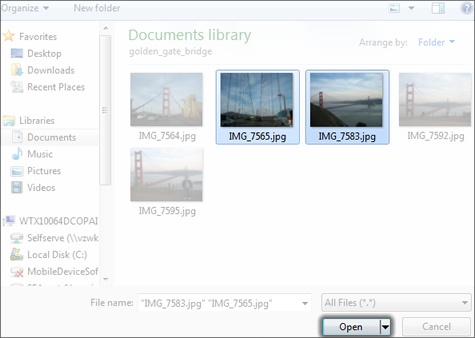
- Navigate to then select the desired file(s)then clickOpen.
- ClickDone.