Samsung Galaxy A51 5G UW - Activate / Set Up Device
Here's how to quickly set up your Galaxy A51 5G UW.
If you need to transfer contacts and media from one device to another, follow these step-by-step instructions before activating your new Galaxy A51 5G UW.
Always click the
Activate button
on the 'My Orders' page if a customer calls in for assistance with an activation or a failed activation. - Using the activation button ensures that any new features on the orders are activated.
- Manually activating the phone using IMEI/ICCID through the service change flow must be attempted if the activation button failed to activate service.
- For additional info, refer to the Power on Activation OST.
- To promote a better customer experience advise the customer to set up their accounts (e.g., Gmail, email, etc.) after completing activation.
- If Google™ account sign-in is required during initial setup, Android Factory Reset Protection was previously enabled on the device.
For info on prepaid service activation, refer to Set up Verizon Prepaid Service.
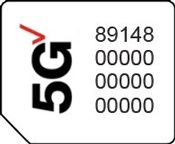
- Ensure a 5G SIM card is inserted into the device prior to powering on.To avoid potential activation / service issues, don't insert a 4G SIM card.5G Devices purchased from Verizon include a pre-installed 5G SIM card.
- If powered off, press and hold thePower button(upper-right edge) until the Samsung Galaxy A51 5G UW screen appears then release.
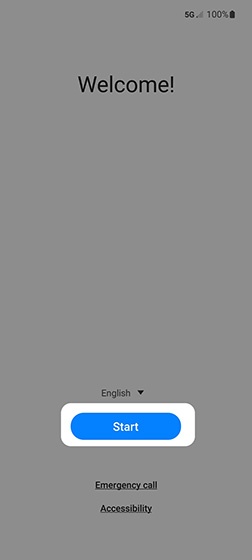
- From the 'Welcome' screen, select the appropriate language then tapStart.
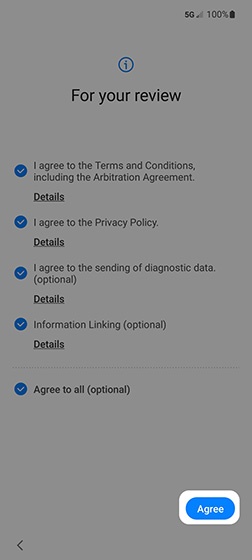
- To continue, select (check) the following from the 'For your review' screen then tapAgree(lower-right):Review the info before continuing.
- Terms and conditionsMust be selected to continue.
- Privacy PolicyMust be selected to continue.
- Send Diagnostic data (optional)
- Information Linking (optional)
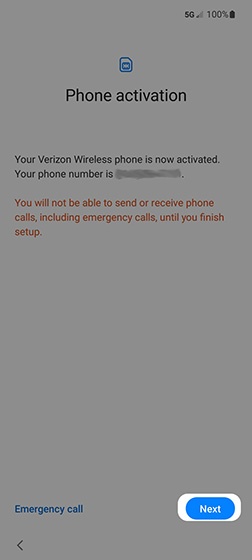
- From the 'Phone activation' screen, ensure the appropriate mobile number is listed then tapNext.If prompted, enter the account PIN then follow the onscreen prompts (see Account PIN FAQs for additional info).If activating a new phone, ensure the old phone is powered off.
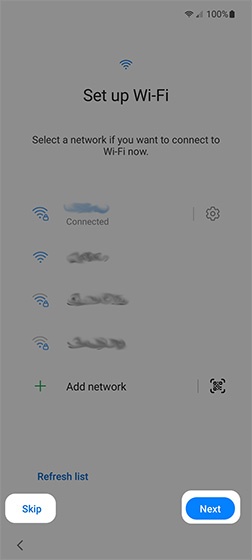
- Select a network from the 'Set up Wi-Fi' screen, enter the password then tapNext.TapSkipto add a Wi-Fi network after setup is complete.
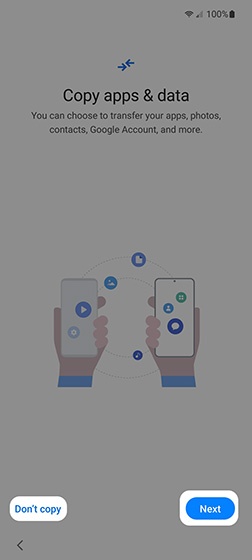
- From the 'Copy apps and data' screen, tapNext.To skip the step, tapDon't copy.If troubleshooting, choose this option and don't restore the device until all testing has been completed.
- If backing up from your old device, ensure you have your old Android™ , iPhone® or iPad® present when prompted with 'Use your old device' then tapNext.If you're unable to use your old device, tapCan't use old phone?to skip the step.
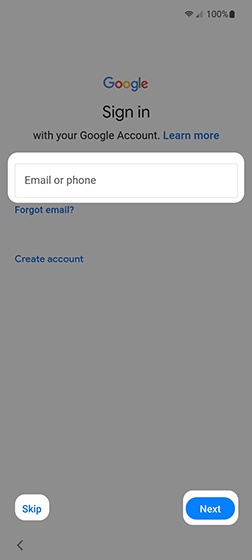
- Sign in to your existing Google account or create a new one.TapSkipto add your Google account after setup is complete.
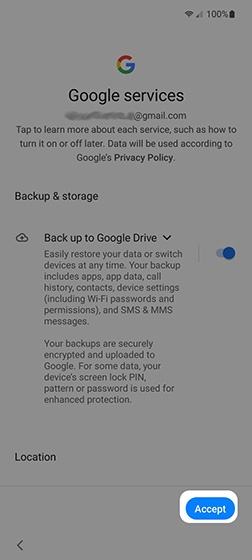
- From the 'Google Services' screen, tap the applicable switch(es) to turn on
or off
then tap
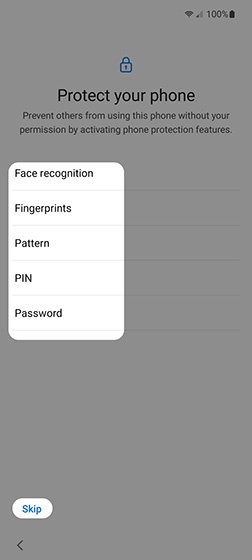
Accept(lower-right).If necessary, swipe up to review additional services. - From the 'Protect your phone' screen, select a protection option then follow the on-screen prompts
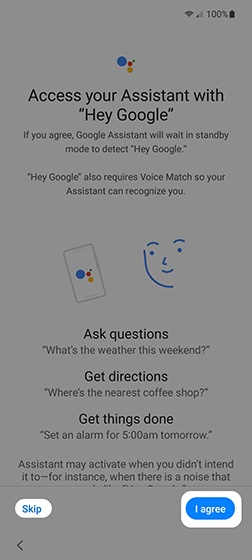
- From the 'Access your Assistant with....' screen, tapI agreeto use Google Assistant with the command 'Hey Google'.To bypass this step, tapSkip.
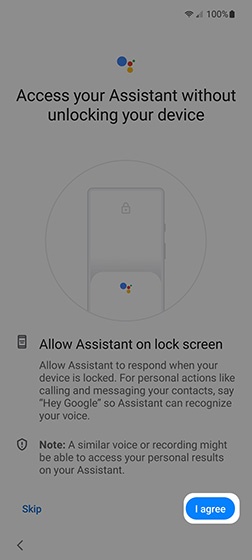
- From the 'Access your Assistant without....' screen, tapI agreeto use Google Assistant without unlocking your device.To bypass this step, tapSkip.
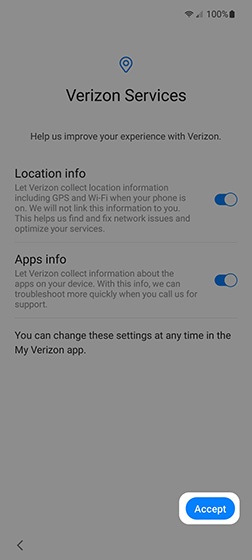
- From the 'Verizon Services' screen, tap the applicable switch(es) to turn the available options (e.g., Location info, Apps info) on or off then tapAccept.
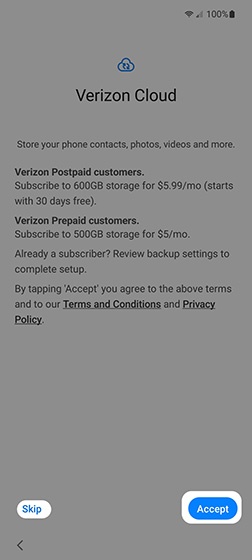
- Review the info from the 'Verizon Cloud' screen then tapAccept.TapSkipto set up Verizon Cloud after setup is complete.
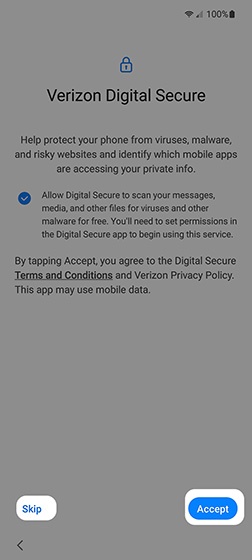
- From the 'Verizon Digital Secure' screen, review the info then tapAccept.TapSkipto set up Digital Secure (through the app) after setup is complete.
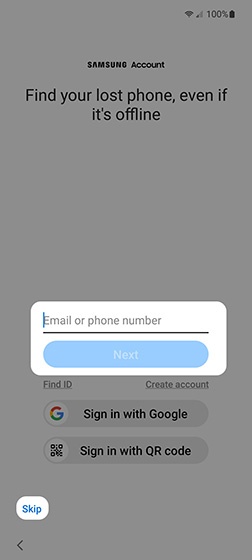
- From the 'Samsung account' screen, use your existing account, create a new Samsung account or continue with a Google account.TapSkipto add a Samsung account after setup is complete.
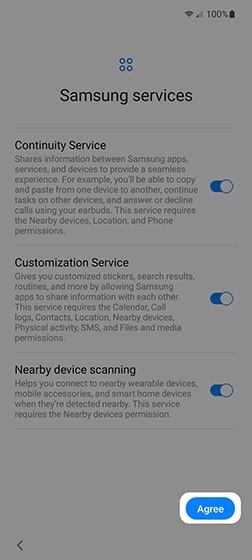
- From the 'Samsung services' screen, tap the applicable switch(es) to turn on or off then tapAgree.If necessary, swipe up to review additional services.
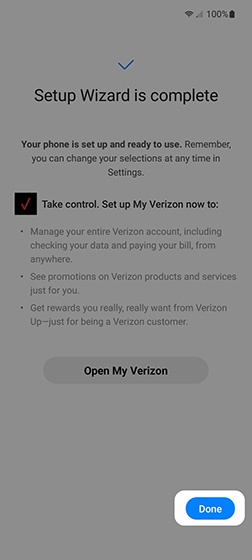
- From the 'Setup Wizard is complete' screen, tapDone.