Verizon Cloud - Website - Find / Remove Duplicate Contacts
Here's how to link or unlink duplicate contacts in your Verizon Cloud.
Check out the Verizon Cloud FAQs to learn more.
If you receive a warning message from your browser, refer to these FAQs regarding outdated browsers.
Only compatible info is synced to the device.
- From a web browser on a computer, sign in to My Verizon.
- Navigate: .
- From the 'Verizon Cloud' section, clickManage.
- ClickAccess Verizon Cloud.
- From the 'How to access Verizon Cloud' page, clickVerizon Cloud web portal(in the 'Access my Cloud' section).
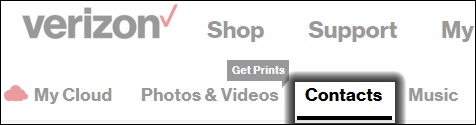
- ClickContacts.
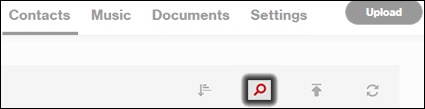
- Click theSearch icon.
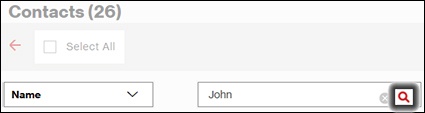
- Select an option from the search type dropdown menu, enter the identifying info of the duplicate contacts (i.e., name, phone number, etc.) then click theSearch icon:
- Name
- Email
- Phone
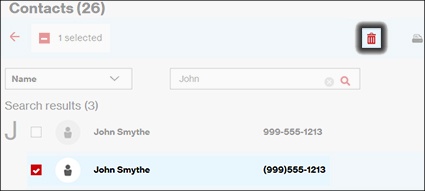
- Select the desired contact then click theDelete icon.Contact is selected when a checkmark is present.
- ClickDelete to confirm.
- ClickOK.
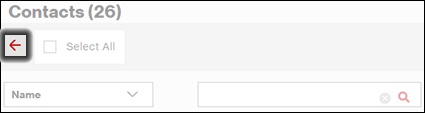
- Click theBack arrow.
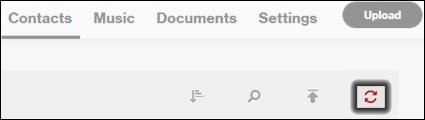
- Click theSync icon.