Verizon Cloud - Website - Export Contacts
Here's how to export contacts via the Verizon Cloud website.
Check out the Verizon Cloud FAQs to learn more.
- Only compatible info is synced to the device.
- Some special characters in the contact info may not translate correctly.
- From a web browser on a computer, sign in to My Verizon.
- Navigate: .
- From the 'Verizon Cloud' section, clickManage.
- ClickAccess Verizon Cloud.
- From the 'How to access Verizon Cloud' page, clickVerizon Cloud web portal(in the 'Access my Cloud' section).
- ClickContacts.
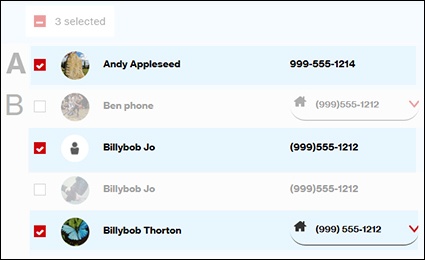
- Select the appropriate contacts.Select all contacts by clickingSelect All(upper-left).Select All is replaced by the number of contacts selected when contact(s) are selected.Contact is selected when a checkmark is present.
- Click theExport icon.
- Select an option:
- Outlook CSV
- CSV
- vCard
- Enter a name for the file then clickExport.
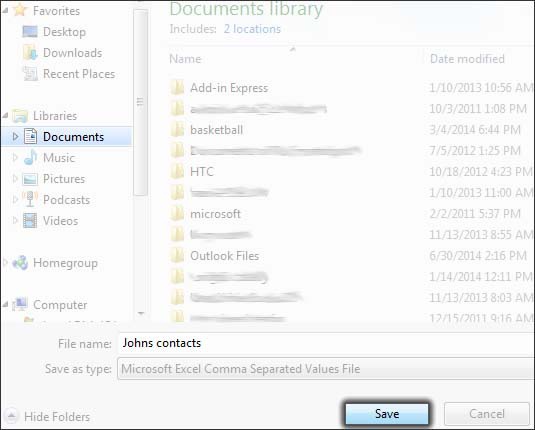
- ClickSave as, navigate to the intended storage location then clickSave.Depending on browser settings, file may automatically save to a predetermined location.