Verizon Cloud - Website - Restore / Recover Deleted Files
Here's how to restore deleted files that are in the trash can via the Verizon Cloud website.
Check out the Verizon Cloud FAQs to learn more.
Only compatible info is synced to the device.
- From a web browser on a computer, sign in to My Verizon.
- Navigate: .
- From the 'Verizon Cloud' section, clickManage.
- ClickAccess Verizon Cloud.
- From the 'How to access Verizon Cloud' page, clickVerizon Cloud web portal(in the 'Access my Cloud' section).
- ClickSettings(upper-right).
- ClickTrash(at the top).
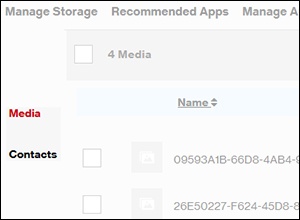
- Click an option:
- Media
- Contacts
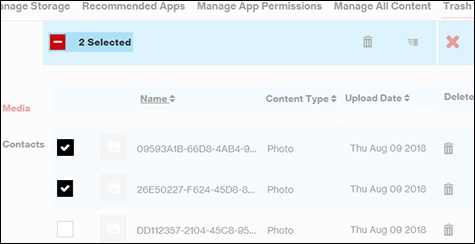
- Select the media you want to restore by clicking the box next to that line item.File selected when a checkmark is present.To select all the items, check the box next to the number of files listed in the folder (# Contacts / # Media).
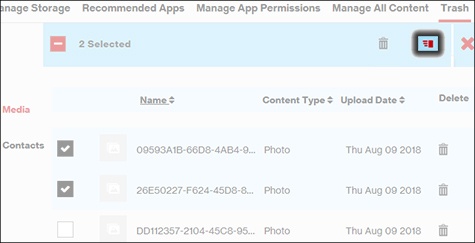
- Click theRestore icon.
- ClickOKin the Restore Trash Content dialog box.