My Verizon Website - Manage Perks
Here's how to add, activate or remove a plan perk via the My Verizon website.
- Only the Account Owner / Managers can add and remove perks. Anyone on the account can activate perks.
- Optional $10 perks are available to lines with Unlimited Ultimate, Unlimited Plus, Unlimited Welcome and Welcome Unlimited.To change to a qualifying plan, refer to My Verizon Website - Manage Plan.Welcome Unlimited is no longer available.
- For additional info visit the Unlimited Ultimate FAQs, Unlimited Plus FAQs or Unlimited Welcome FAQs.
Add a Perk
- The 100 GB Mobile Hotspot perk isn't available with Welcome Unlimited.
- If you have an existing subscription account, (e.g., Disney+, Apple Music®, etc.) refer to the Unlimited Ultimate FAQs, Unlimited Plus FAQs or Unlimited Welcome FAQs for info before activating.
- From a web browser, sign in to My Verizon as an Account Owner / Manager.
- From the My Verizon Home page, navigate:If accessing from a mobile browser, select theMenu icon
(upper-right) then navigate: .
- From the 'Choose a line' section (on the left), select the desired line.
- From the 'Perks' section (on the right, may require scrolling), selectAdd perks.
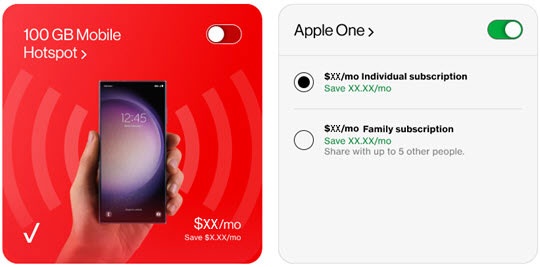
- From the 'Choose your perks' page, select the switch to turn the perk(s) on
then select the desired subscription if necessary.
Some subscriptions offer multiple options. Option selected when black dot appears.Image below is an example. - SelectContinue(lower-right).
- From the 'Review your plan changes' screen, selectConfirm(at the bottom).
- From the 'Your plan has been changed' screen, selectGet started.To activate your subscription (e.g., Disney Bundle, Walmart+ membership, etc.) you must activate the perk.The change may take up to 15 minutes to appear on your account.
Activate a Perk
- To activate your subscription perks (e.g., Disney Bundle, Walmart+ membership, etc.) you must open an account with the service or activate it with an existing account.If you have an existing subscription account, (e.g., Disney+, Apple Music®, etc.) refer to the Unlimited Ultimate FAQs, Unlimited Plus FAQs or Unlimited Welcome FAQs for info before activating.
- Changes may take up to 15 minutes to appear on your account.
- From a web browser, sign in to My Verizon after a perk has been added.
- From the My Verizon Home page, navigate: .If accessing from a mobile browser, select theMenu icon
- Select Services & perks overview.
- From the 'Manage Services & Perks' section, selectSee Allthen selectManagenext to the desired perk.
- From the 'Alerts' section, selectSet upto the right of the applicable perk.
- Select 'Get link' or 'Register'.Steps vary by subscription and offer provider.If prompted, continue to the provider's app or website to create login credentials and complete the account creation to activate the promotion.
Remove a Perk
- From a web browser, sign in to My Verizon as an Account Owner / Manager.
- From the My Verizon Home page, navigate: .If accessing from a mobile browser, select theMenu icon
- Select Services & perks overview.
- From the 'Manage Services & Perks' section, selectSee All.
- From the 'Active' section, selectManagenext to the applicable perk.
- From the 'Manage lines' section, selectRemovenext to the appropriate mobile number.
- Review the info then clickConfirm.The change may take up to 15 minutes to appear on your account.