Add Disney Bundle (Disney+, Hulu and ESPN+) - My Verizon Website
Here's how to add the Disney Bundle, which includes Disney+, Hulu and ESPN+ via the My Verizon website.
Effective December 8, 2022, the Disney Bundle can only be added to accounts with select Unlimited calling plans. Refer to the Disney Bundle FAQs for more info.
Add Disney Bundle
- From a web browser, sign in to My Verizon.
- From the My Verizon Home screen, navigate: .If accessing from a mobile browser, select theMenu icon
(upper-right) then navigate: .
Only the Account Owner or Account Manager can perform these steps; here's additional info on account roles. - Scroll to the 'Entertainment' section then selectLearn morein the 'Disney Bundle' section.
- SelectGet it now(upper-right).Section only appears for eligible accounts. For Disney Bundle eligibility and promotional offers, check out these Disney Bundle FAQs.To subscribe to Disney+ without Hulu™ or ESPN+, refer to Add Disney+ - My Verizon Website.
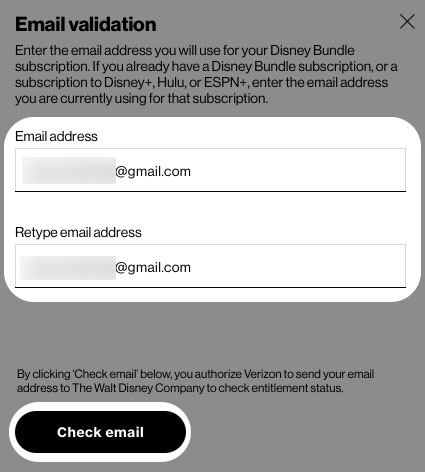
- Enter then re-enter the email address you wish to use with your Disney Bundle subscription then selectCheck email.If you already have a Disney+, Hulu™ or ESPN+ subscription, enter the email address associated with one of those subscriptions.
- If you receive a message referring to an existing subscription, review the info then selectContinue.For additional info on managing your existing subscriptions, check out these Disney Bundle FAQs.
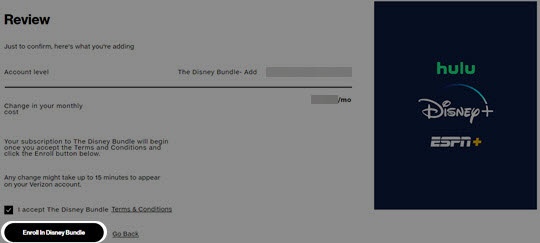
- SelectEnroll in Disney Bundle.This can only be clicked if the 'I accept the Disney Bundle Terms & Conditions' has been checked.
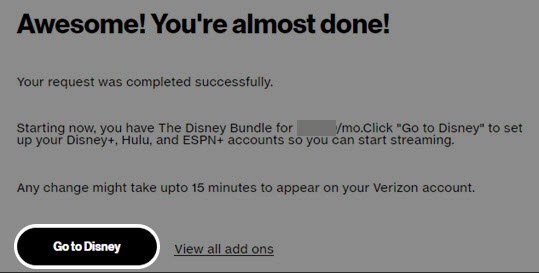
- Review the info then selectGo to Disney.
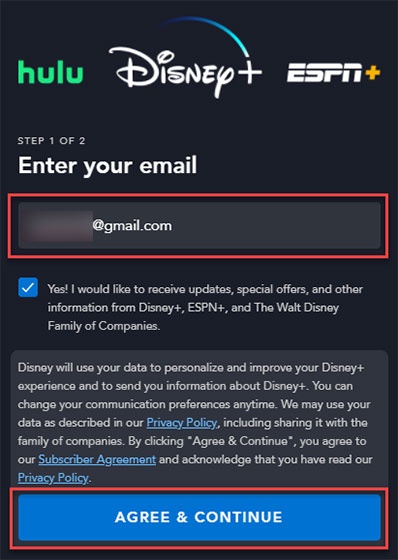
- From the Disney website, enter your email, review the 'Privacy Policy' and 'Subscriber Agreement' then selectAGREE & CONTINUE.Ensure you enter the same email address used in step 6, otherwise, you won't receive the Disney Bundle through Verizon offer.
- Do one of the following:
- If you have an existing Disney+ account:
- Enter your password.
- SelectLOG IN.
- If you're creating a Disney account for the first time:
- Enter a password.The password must be a minimum of 6 characters with at least 1 number or special character.
- SelectContinue.
- From the 'Your Disney+ account is good to go' screen, select one of the following options:
- Activate Hulu
- Login to ESPN+
- START STREAMING DISNEY+By selecting this option, you can start streaming Disney+ from your desktop computer.To start streaming from your smartphone or tablet, install the Disney+ app from the Apple® App Store® or Google Play™ Store.
Activate Hulu
- Ensure the Disney Bundle has been added to your account.
- From a web browser, navigate to https://www.disneyplus.com using your computer.If continuing from the 'Your Disney+ account is good to go' screen during initial Disney Bundle sign up, selectActivate Hulu.
- If necessary, enter the same email address and password used when signing up for the Disney bundle in My Verizon then selectLog Into begin streaming from your desktop computer.
- Select the appropriate profile then navigate: .
- Do one of the following:
- If the email address used to sign up for the Disney Bundle on My Verizon is associated with an active Hulu account:
- Ensure the correct email address is listed then enter your password.If you forgot your password, selectForgot your password / email?, enter your email address then selectSEND ME A RESET LINK.A link to reset your password is sent and may take up to 15 minutes to be delivered.
- SelectLOG IN.
- If you need to create a Hulu account:
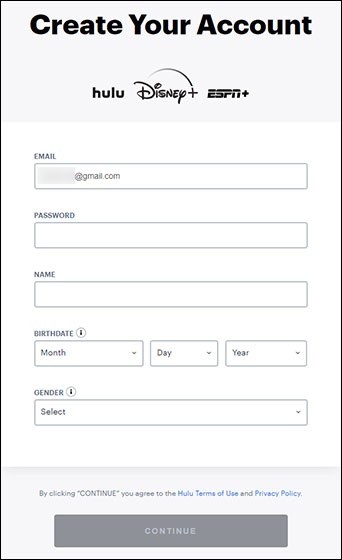
- Enter the required info (e.g., EMAIL, PASSWORD, etc.).
- Review the 'Hulu Terms of Use' and 'Privacy Policy' then SelectContinue.Ensure the same email address used for your Disney+ account is entered.
- SelectSTART WATCHING HULUto begin streaming your favorites from your desktop computer.To start streaming from your smartphone or tablet, install the Hulu app from the Apple App Store or Google Play Store.
Login to ESPN+
- Ensure the Disney Bundle has been added to your account.
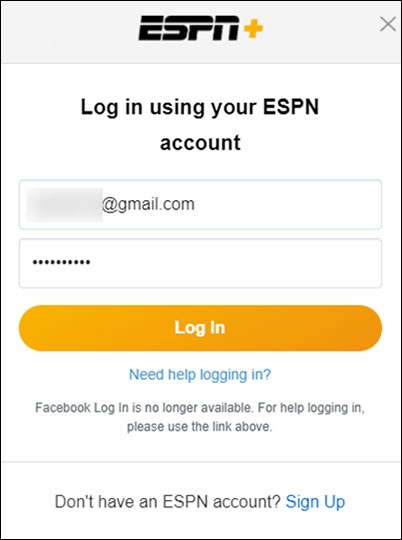
- From a web browser, navigate to https://plus.espn.com/ using your computer.If continuing from the 'Your Disney+ account is good to go' screen during initial Disney Bundle sign up, selectLogin to ESPN+.
- Enter the same email address and password used when signing up for the Disney bundle in My Verizon then selectLog Into begin streaming from your desktop computer.To start streaming from your smartphone or tablet, install the ESPN app from the Apple App Store or Google Play Store.