TCL 30 V 5G - Activate / Set Up Device
Here's how to quickly set up your TCL 30 V 5G
If you need to transfer contacts and media from one device to another, follow these step-by-step instructions before activating the new device.
For info on prepaid service activation, refer to Set up Verizon Prepaid Service.
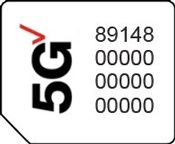
- Ensure a 5G SIM card is inserted into the device prior to powering on.To avoid potential activation / service issues, don't insert a 4G SIM card.5G Devices purchased from Verizon include a pre-installed 5G SIM card.
- Press and hold thePower button(right edge; below Volume buttons) until the TCL logo appears then release.
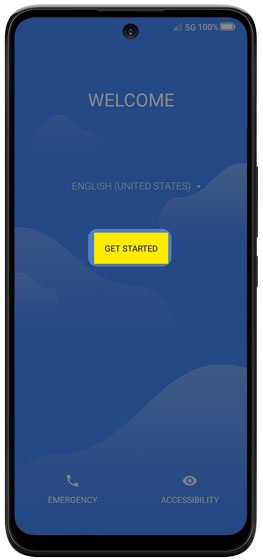
- Select the appropriate language then tapGet Started.
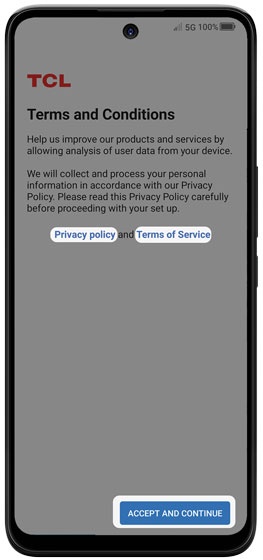
- From the 'Terms and Conditions' screen, review then tapAccept and continue.
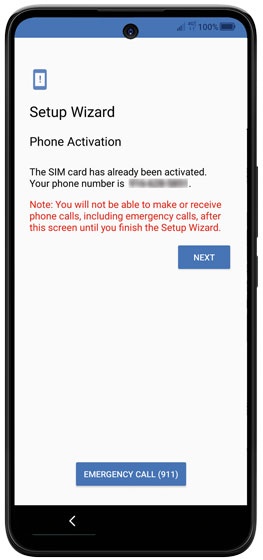
- From the 'Phone Activation' screen, tap NEXT or tap ACTIVATE (if available).If prompted, enter the account PIN then follow the onscreen prompts (see Account PIN FAQs for additional info).If activating a new phone, ensure the old phone is powered off.
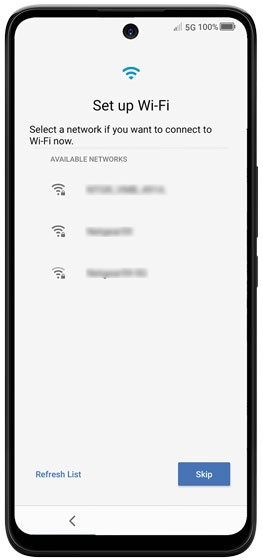
- From the 'Set Up Wi-Fi' screen, select a network then enter the password.TapSkipto add a Wi-Fi network after setup is complete.
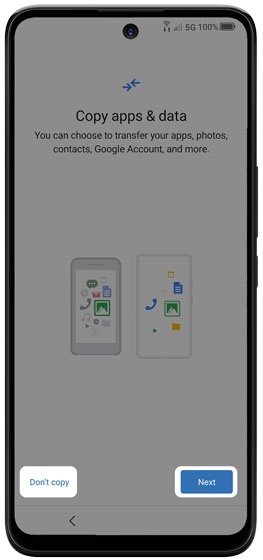
- From the 'Copy apps & data' screen tapNext, then follow the on-screen prompts to choose a transfer method.TapDon't copyto transfer your apps and data at a later time.If troubleshooting, don't restore the device until all testing has been completed.
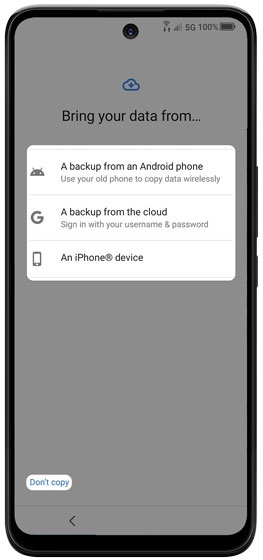
- From the 'Bring your data from…' screen, select an option then tapNextto continue.TapDon't copyto skip this step.
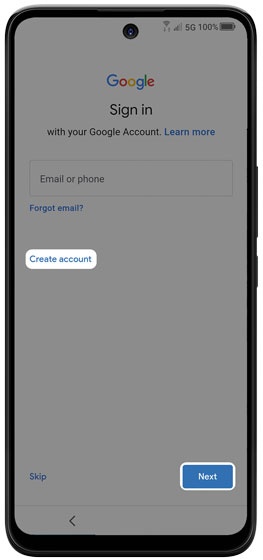
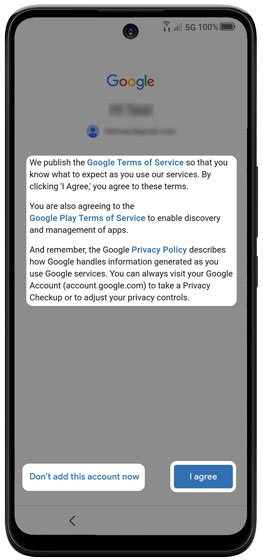
- Sign in to your existing Google™ account or create a new one.TapSkipto add your Google account after setup is complete.If you sign in to your Google account, review the Google Terms of Service, then tapI agree.
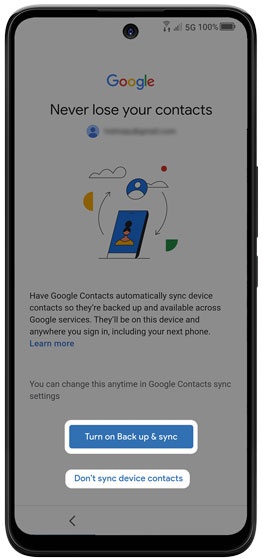
- TapTurn on Back up & syncto continue.TapDon’t sync device contactsto skip this step.When turned on, Google Contacts automatically syncs device contacts so they’re backed up and available across Google services.
- From the ‘Terms of Service’ screen, tapI agreeafter you've turned on all the services you want.TapDon’t add this account nowto skip this step.
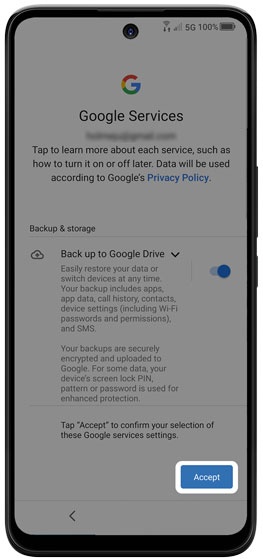
- From the 'Google services' screen tapMore, tapAcceptafter reviewing all info then tap any of the optional services to turn on
or off
.
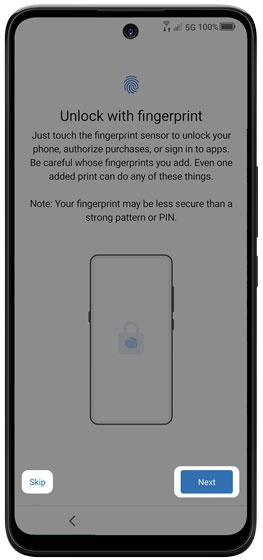
By tapping 'Accept', you're also agreeing to the Google Terms of Service. - From the 'Unlock with fingerprint' screen, tapNextthen follow the prompts.TapSkipto Set Up Fingerprint Recognition after setup is complete.
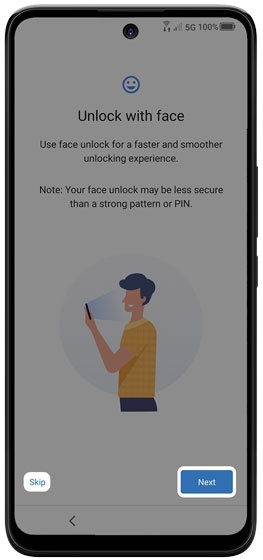
- From the 'Unlock with face' screen, tapNextto continue with setup.TapSkipto Set Up Face Recognition after setup is complete.When turned on, this function allows you to use your face to unlock your phone or approve purchases
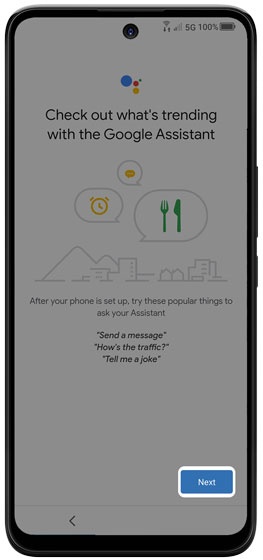
- From the 'Check out what's trending with Google Assistant' screen, tapNextto continue.
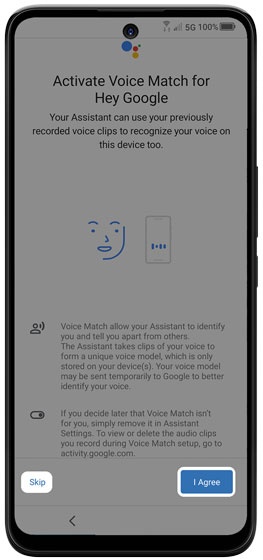
- From the 'Activate Voice Match for Hey Google' screen, tapI Agree.TapSkipto bypass this step.Voice Match allows your Assistant to identify you.
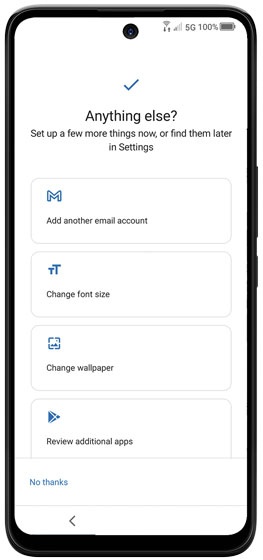
- Review the additional settings, select the appropriate option(s) or tapNo thanksto skip.
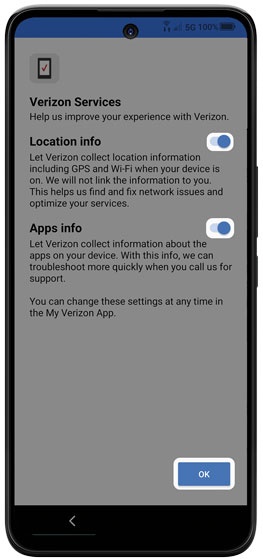
- From the 'Verizon Services' screen, tap any of the switches to turn on
then tap
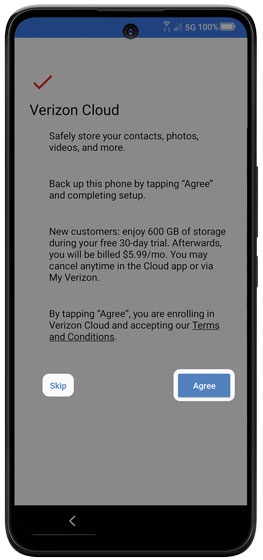
OK. - From the 'Verizon Cloud' screen, tapAgree.TapSkipto set up Verizon Cloud after setup is complete.
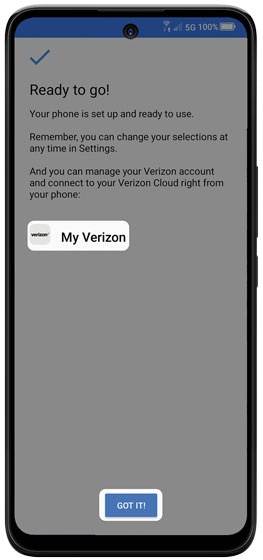
- From the 'Ready to go!' screen, tapGOT IT!to exit the device set up.