Kyocera DuraSport 5G UW - Activate / Set Up Device
Here's how to quickly set up your DuraSport 5G UW.
If you need to transfer contacts and media from one device to another, follow these step-by-step instructions before activating the new device.
To activate the device on prepaid service, refer to Set up Verizon Prepaid Service.
- Ensure a 5G SIM card is inserted into the device prior to powering on.5G Devices purchased from Verizon include a pre-installed 5G SIM card.To avoid potential activation / service issues, don't insert a 4G SIM card.
- If powered off, press and hold thePower buttonuntil 'Powered by android' appears then release.
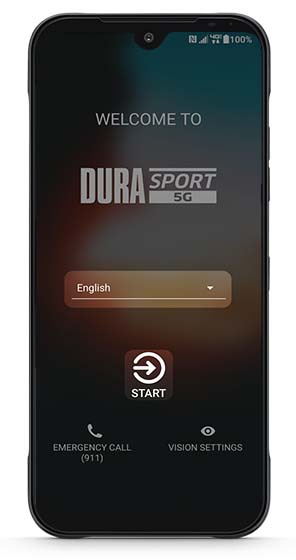
- Select the appropriate language then tapSTART.
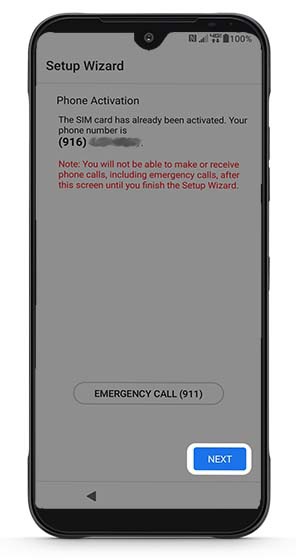
- If presented with the 'Phone Activation' screen, tapNEXT.If prompted, enter the account PIN then follow the on-screen prompts (see Account PIN FAQs for additional info.)If activating a new phone, ensure the old phone is powered off.
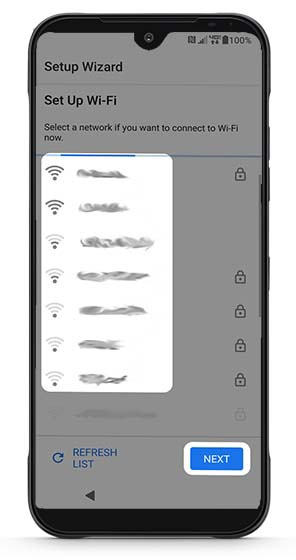
- From the 'Set Up Wi-Fi' screen, select a network then enter the password.If you choose 'NEXT', you can add Wi-Fi networks after setup is complete.
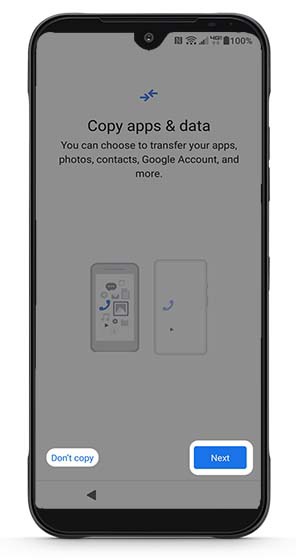
- If you'd like to restore your info from an old device, tapNext. If you'd like a fresh start, tapDon't copy.If troubleshooting, don't restore the device until all testing has been completed.
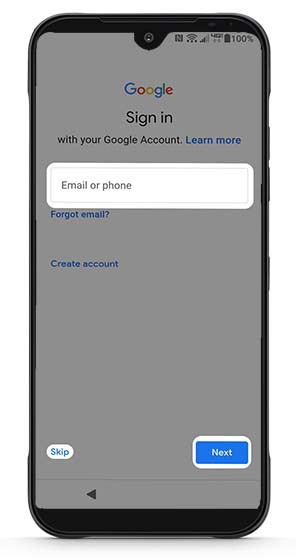
- Sign in to your existing Google™ account or create a new one, then tapNext.If you choose 'Skip', you can add your Google account after setup is complete.
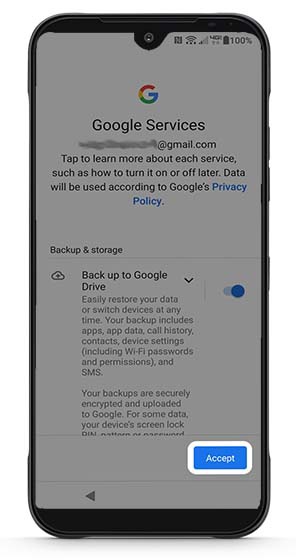
- From the 'Google services' screen, tap any of the switches to turn on
or off
then tap
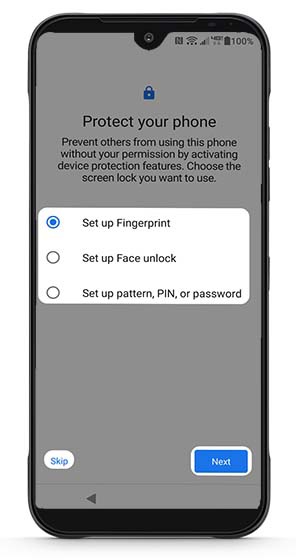
Accept(may require scrolling to the bottom). - From the 'Protect your phone' screen, select an option:If you choose 'Skip', you can set up fingerprint recognition, set up Face unlock or pattern, PIN, or password after setup is complete.
- Select the screen lock you want to use.Selected when a blue dot appears.
- TapNext.
- Follow the steps for setup.
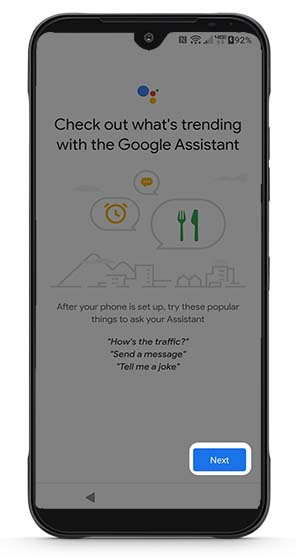
- From the 'Check out what's trending...' screen, tapNext.
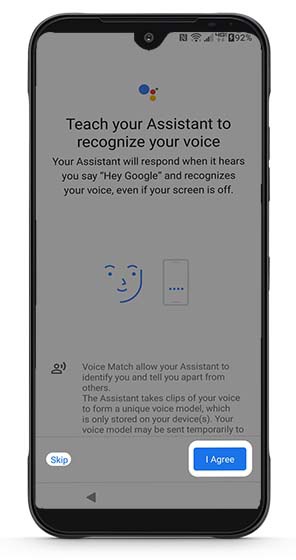
- From the 'Teach your Assistant to...' screen, read the disclaimer then tapI Agree.If you choose 'Skip', you can set up voice match at anytime using the Assistant button.
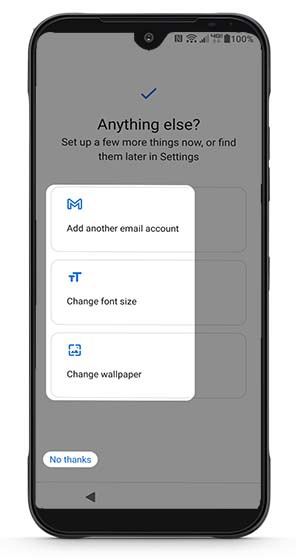
- From the 'Anything else?' screen, tap any of the options to set up.ChooseNo thanksto continue set up.
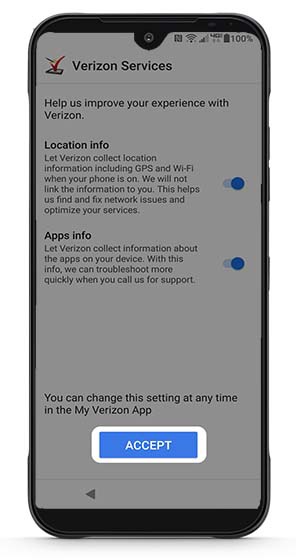
- From the 'Verizon Services' screen, tap theswitch(es)to turn on or off then tapACCEPT.
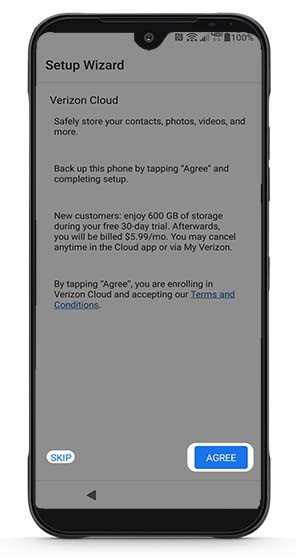
- Review the info from the 'Verizon Cloud' screen then tapAGREE.If you choose 'SKIP', you can set up Verizon Cloud after setup is complete.
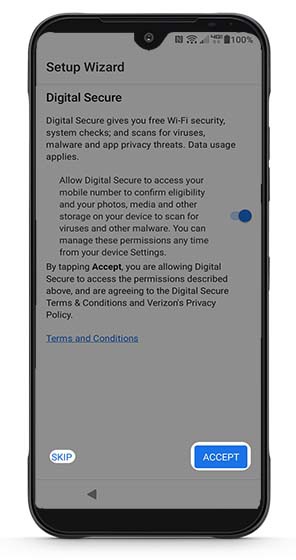
- From the 'Digital Secure' screen, review the info, tap theswitchto turn on or off then tapACCEPT.If you choose 'SKIP', you can set up Digital Secure (through the app) after setup is complete.
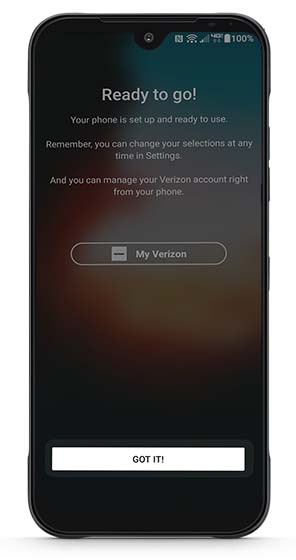
- From the 'Ready to go!' screen, tapGOT IT!to complete setup.