TCL SIGNA - Activate / Set Up Device
Here's how to quickly set up your SIGNA.
This device can only be activated on another network after 12 months from initial activation.
To activate the device on prepaid service, refer to Set up Verizon Prepaid Service.
- If powered off, press and hold thePower button(located on the right edge of the device) until the TCL logo appears then release.
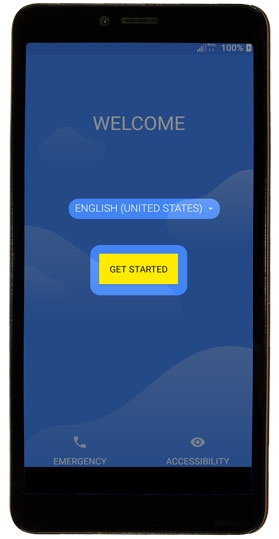
- Select the appropriate language then tapGet Started.
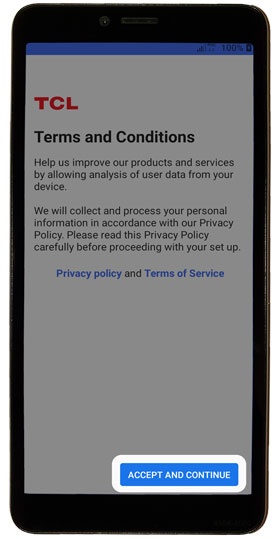
- From the 'Terms and Conditions' screen, review then tapAccept and continue.
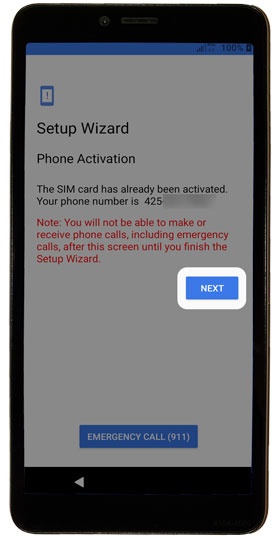
- From the 'Phone Activation' screen, tapNEXTor tap ACTIVATE (if available).If prompted, enter the account PIN then follow the onscreen prompts (see Account PIN FAQs for additional info).If activating a new phone, ensure the old phone is powered off.
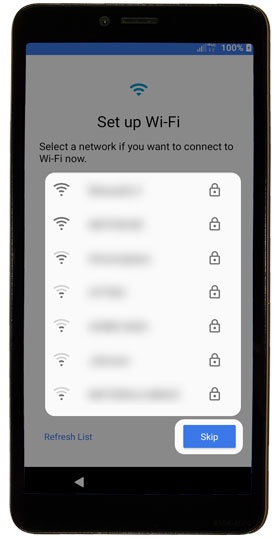
- From the 'Set Up Wi-Fi' screen, select a network then enter the password.TapSkipto add a Wi-Fi network after setup is complete.
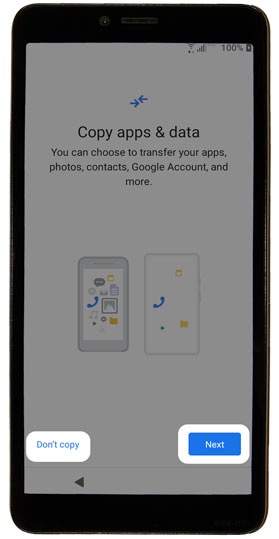
- From the 'Copy apps & data' screen tapNextthen follow the on-screen prompts to choose a transfer method.TapDon't copyto transfer your apps and data at a later time.If troubleshooting, don't restore the device until all testing has been completed.
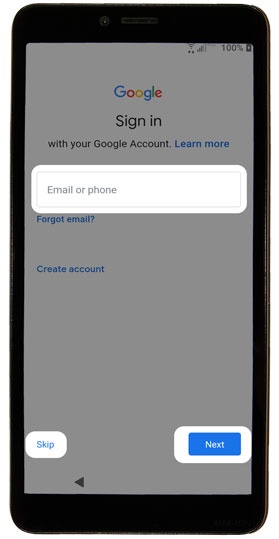
- Sign in to your existing Google™ account or create a new one.TapSkipto add your Google account after setup is complete.If you sign in to your Google account, review the Google Terms of Service, then tapI agree.
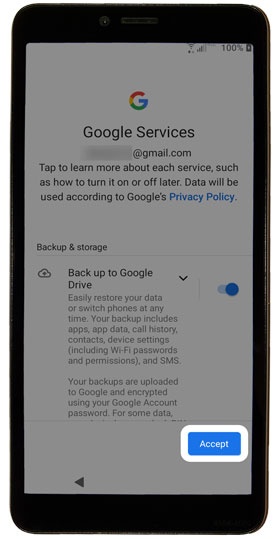
- From the 'Google services' screen tapMore, tapAcceptafter reviewing all info then tap any of the optional services to turn on
or off
.
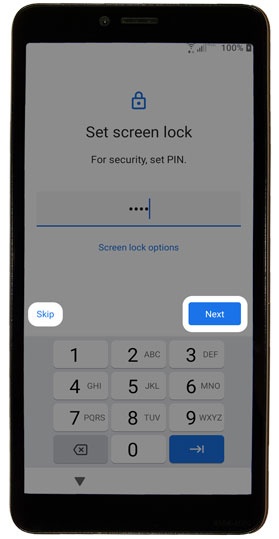
By tapping Accept, you are also agreeing to the Google Terms of Service. - From the 'Set screen lock' screen, enter a PIN (at least 4 digits) then tapNext.TapSkipto set up a screen lock after setup is complete.
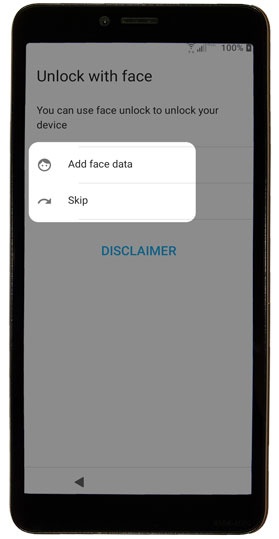
- From the 'Unlock with face' screen, tapAdd face data.TapSkipto Set Up Face Recognition after setup is complete.
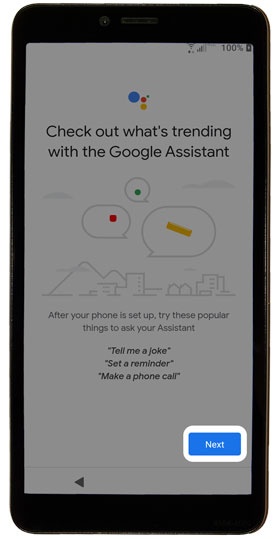
- From the 'Check out what's trending' screen, tapNext.
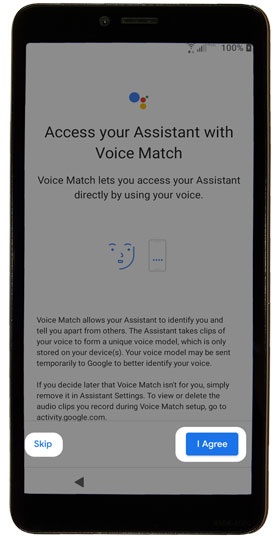
- From the 'Access your Assistant with Voice Match' screen, review then tap 'I agree' or 'Skip'.TapSkipto bypass this step.
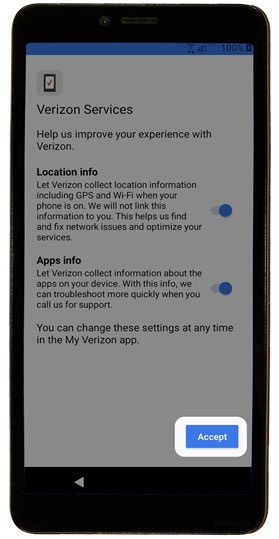
- From the 'Verizon Services' screen, tap any of the switches to turn onAccept.
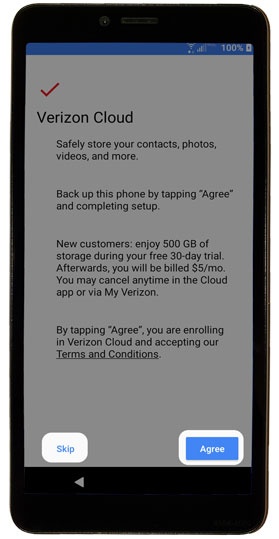
- From the 'Verizon Cloud' screen, tapAgree.TapSkipto set up Verizon Cloud after setup is complete.
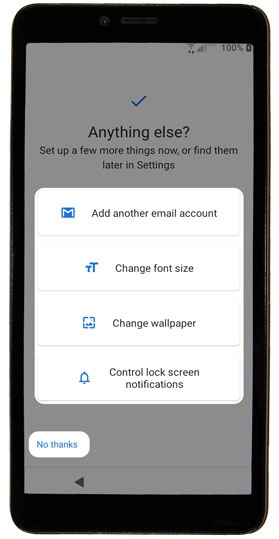
- From the 'Anything else?' screen, review then tap any additional settings or tapNo Thanksto skip.
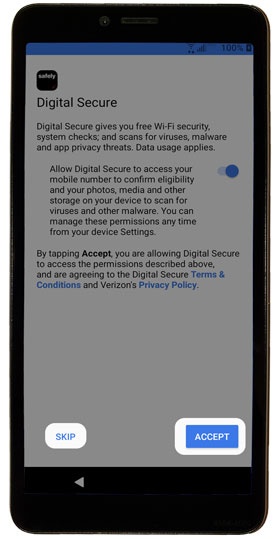
- From the 'Digital Secure' screen, tap theswitchto turn onACCEPT.
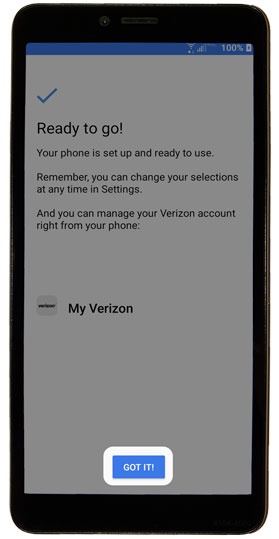
- From the 'Ready to go!' screen, tapGOT ITto exit the device set up.