Add Disney Bundle (Disney+, Hulu and ESPN+) - My Verizon app
Here's how to add the Disney Bundle, which includes Disney+, Hulu and ESPN+, via the My Verizon app.
Effective December 8, 2022, the Disney Bundle can only be added to accounts with select Unlimited calling plans. Refer to the Disney Bundle FAQs for more info.
- Ensure your app is up to date as the following steps apply to the most recent version.If you're not able to access the My Verizon app, you can also visit the My Verizon website to manage your account.
- To subscribe to Disney+ without Hulu™ or ESPN+, refer to Add Disney+ - My Verizon app.
- Subscribing to the Disney Bundle isn't available in the My Verizon app on Apple devices unless included in your plan. Refer to Add Disney Bundle (Disney+, Hulu and ESPN+) - My Verizon Website to manage your subscription through a browser.For Disney Bundle eligibility and promotional offers, check out these Disney Bundle FAQs.To add the Disney perk to Unlimited Ultimate, Unlimited Plus or Unlimited Welcome refer to My Verizon app - Manage Perks.
Add Disney Bundle
- Open theMy Verizon app
.
- Tap theAccount tab(at the bottom).If prompted, enter your password, fingerprint or Face ID.Only Account Owners or Account Managers can perform these steps, here's additional info on account roles.
- TapServices & perks.
- TapSee allin the 'Entertainment' section then tapLearn morein the 'Disney Bundle' section.If previously added, tapSee Allfrom the 'Manage Services & Perks' section then tapManagein the 'Upgrade to The Disney Bundle' section.
- Review the info then tapGet it now(upper-right).Section only appears for eligible accounts. For Disney Bundle eligibility and promotional offers, check out these Disney Bundle FAQs.
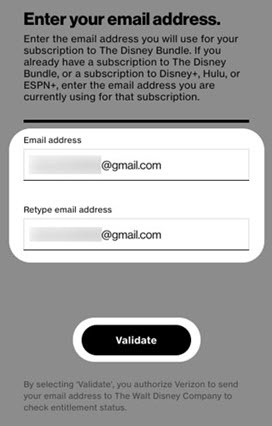
- Enter then re-enter the email address you wish to use with your Disney Bundle subscription then tapValidate.If you already have a Disney+, Hulu or ESPN+ subscription, enter the email address associated with that subscription.
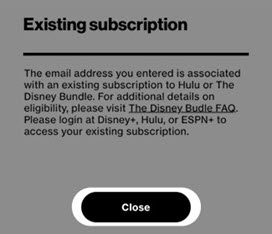
- If you receive a message that states 'The email address you have entered is associated with an existing subscription...', review the info then tapClose.For additional info, check out the Disney Bundle FAQs.
- To continue, accept the 'Terms & Conditions' by selecting thecheckboxthen tapConfirm.
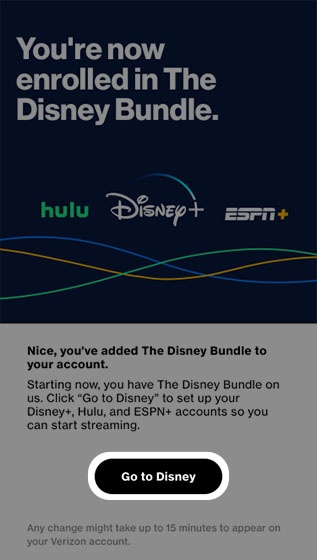
- Review the info then tapGo to Disney.
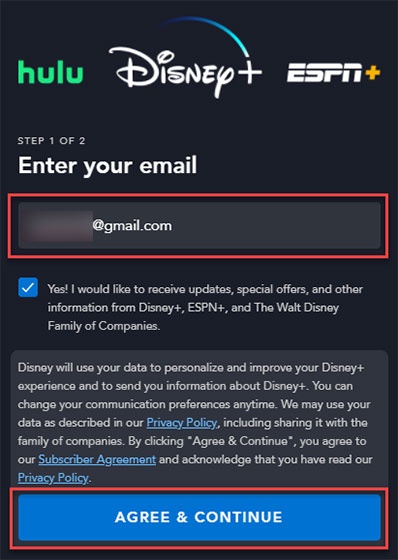
- From the Disney website, enter your email, review the 'Privacy Policy' and 'Subscriber Agreement' then tapAGREE & CONTINUE.Ensure you enter the same email address used in step 5, otherwise, you won't receive the Disney Bundle through Verizon offer.
- Do one of the following:
- If you have an existing Disney+ account:
- Enter your password.
- TapLOG IN.
- If you're creating a Disney+ account for the first time:
- Enter a password.The password must be a minimum of 6 characters with at least 1 number or special character.
- TapContinue.
- From the 'Your Disney+ account is good to go' screen, tap one the following then follow the on-screen instructions:To start streaming Disney+, install the Disney+ app from the Apple App Store® or Google Play™ Store.
- Activate Hulu
- Log in to ESPN+
Activate Hulu
- After activating the Disney Bundle, tapActivate Hulufrom the 'Your Disney+ account is good to go' screen.Hulu can also be activated through a browser if necessary:
- Visit www.disneyplus.com from your web browser.
- Log in to your Disney+ account using the email address and password used to add Disney bundle.
- If necessary, select the appropriate profile.
- Tap theProfile icon(lower-right) then tapAccount.
- Under 'My Disney Services' tapHulu(may only be visible by scrolling down).
- Do one of the following:
- If the email address used to sign up for the Disney Bundle is associated with an active Hulu account:
- Ensure the correct email address is listed then enter your password.If you forgot your password, tapForgot your password/email?, enter your email address then tapSEND ME A RESET LINK.A link to reset your password is sent and may take up to 15 minutes to be delivered.
- TapLOG IN.
- If you need to create a Hulu account:
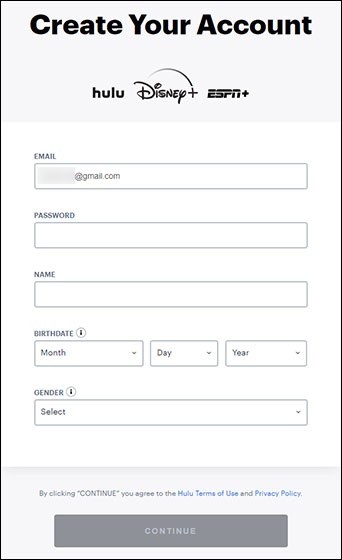
- Enter the required info (e.g., EMAIL, PASSWORD, etc.).
- Review the 'Hulu Terms of Use' and 'Privacy Policy' then tapContinue.Ensure the same email address used for your Disney+ account is entered.
- TapOPEN THE HULU APPto begin streaming your favorites.
- To start streaming Hulu content, install the Hulu app from the Apple App Store or Google Play Store.
Log in to ESPN+
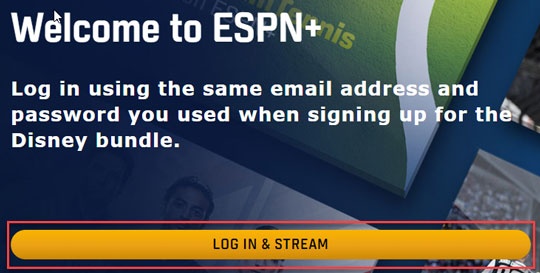
- After activating the Disney BundleLog in to ESPN+from the 'Your Disney+ account is good to go' screen.ESPN can also be accessed by visiting plus.espn.com/activate directly.
- From the 'Welcome to ESPN+' screen, tapLOG IN & STREAM.
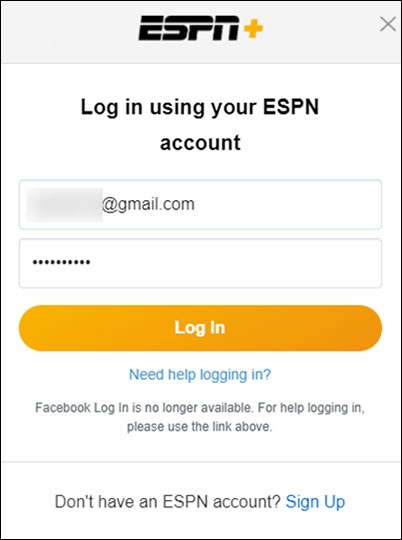
- Enter the same email address and password used when signing up for the Disney bundle then tapLog Into begin streaming.If necessary, install the ESPN app from the Apple App Store or Google Play Store.
- If you need to set up your Hulu account, return to the Disney website by entering www.disneyplus.com in your device's web browser.