Add Disney+ - My Verizon app
Here's how to add a Disney+ subscription via the My Verizon app.
Effective December 8, 2022, Disney+ can only be added to accounts with select Unlimited calling plans. Refer to the Disney+ FAQs for more info.
- Ensure your app is up to date as the following steps apply to the most recent version.If you're not able to access the My Verizon app, you can also visit the My Verizon website to manage your account.
- Subscribing to Disney+ isn't available in the My Verizon app on Apple devices unless included in your plan. Refer to Add Disney+ - My Verizon Website to manage your subscription through a browser.Select plans include a Disney+ promotional offer. For more info, check out these Disney+ FAQs.
- To subscribe to the Disney Bundle, which includes Disney+, Hulu™ and ESPN+, refer to Add Disney Bundle - My Verizon app.To add the Disney perk to Unlimited Ultimate, Unlimited Plus or Unlimited Welcome refer to My Verizon app - Manage Perks.
- Open theMy Verizon app
.
- Tap theAccount tab(at the bottom).If prompted, enter your password, fingerprint or Face ID.Only Account Owners or Account Managers can perform these steps, here's additional info on account roles.
- TapServices & perks.
- TapSee allin the 'Entertainment' section.
- TapLearn morein the 'Disney+' section.
- Review the info then tapGet it now(upper-right).
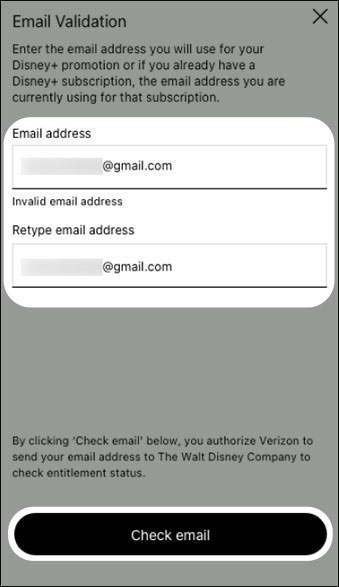
- Enter then re-enter the email address you wish to use with your Disney+ subscription then tapCheck email.If you already have a Disney+ subscription, enter the email address associated with that subscription.
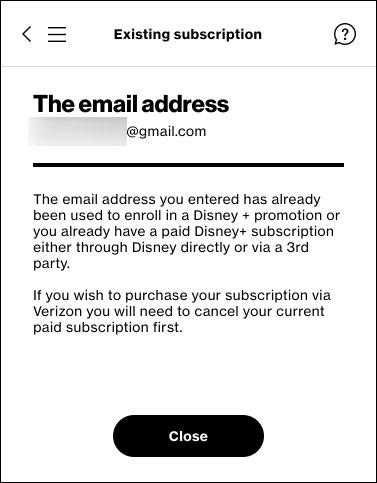
- If you receive a message that states 'The email address you have entered has already been used to enroll in...', review the info then tapClose.
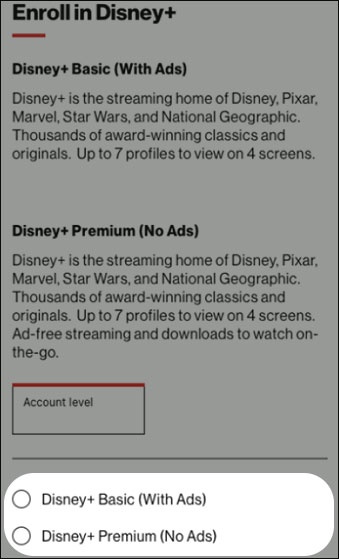
- From the in 'Enroll in Disney+' screen, select the preferred option then tapContinue(at the bottom).
- Disney+ Basic (With Ads)
- Disney+ Premuim (No Ads)
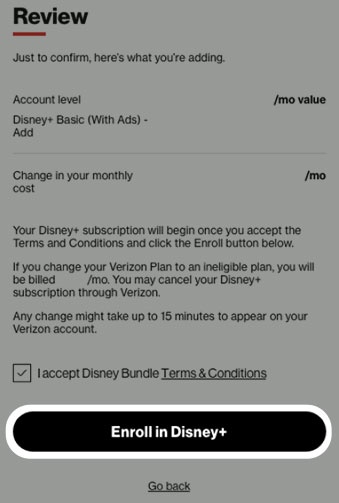
- To continue, accept the Terms & Conditions by selecting thecheckboxthen tapEnroll in Disney+.Image below varies by plan.
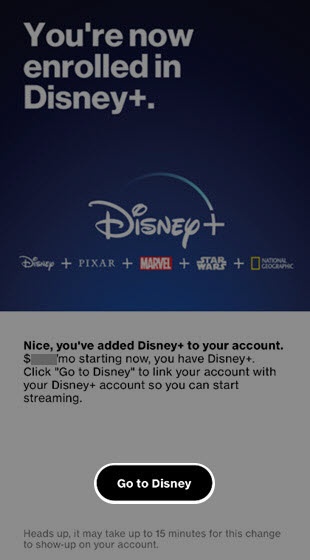
- Review the info then tapGo to Disney.You're redirected to the Disney+ Account Creation page to finish the account setup, where you're required to enter your email address and given Disney+ app installation instructions.
- From the 'Let's complete your setup' page, enter your email then tapAGREE & CONTINUE.If you already have a Disney+ account, skip to step 15.
- Enter a password then tapCONTINUE.
- Install the Disney+ app from the Apple App Store® or Google Play™ Store.
- Open the Disney+ app on your device, tapLOG INthen enter your Disney+ email and password.