motorola razr - Activate / Set Up Device
Here's how to quickly set up your razr.
If you need to transfer contacts and media from one device to another, follow these step-by-step instructions before activating the new device.
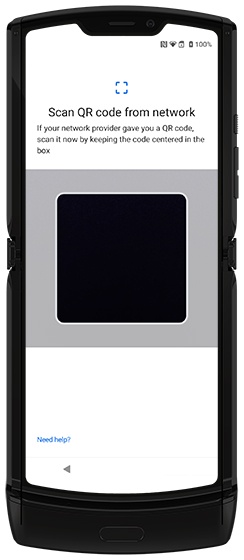
The motorola razr doesn't support a physical SIM card. It is an eSIM-only device, and should already be loaded with an eSIM loaded when it comes out of the box. However, if this isn't the case, Verizon can provide an eSIM for download using a QR code (see step 5 in this article for more info).
- To activate the device on prepaid service, refer to Set up Verizon Prepaid Service.
- Depending on the options selected, some steps may not appear.
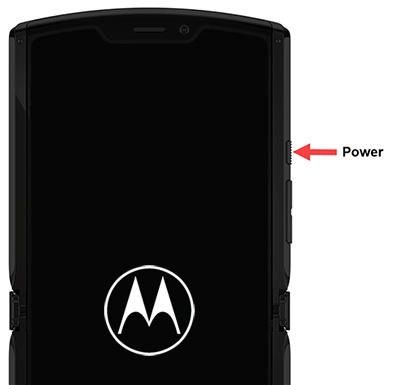
- If powered off, press and hold thePower buttonuntil the Motorola logo appears then release.
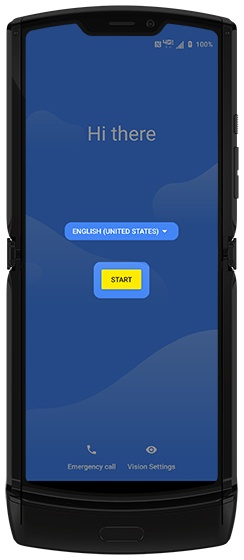
- Select the appropriate language then tapSTART.
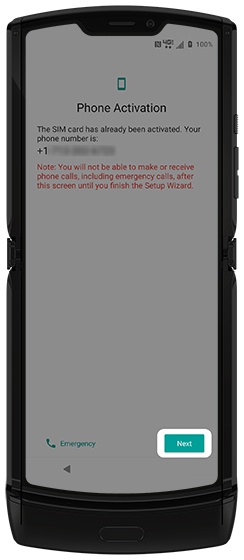
- If presented with the 'Phone Activation' screen, tapNext.This screen only appears if the phone already has an eSIM profile.If prompted, enter the account PIN then follow the on-screen prompts (see Account PIN FAQs for additional info).If activating a new phone, ensure the old phone is powered off.
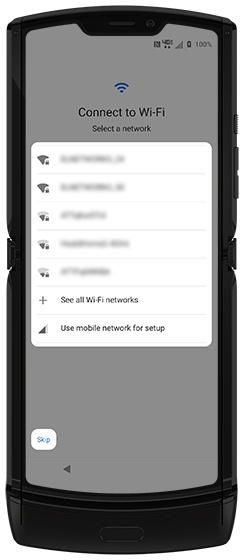
- From the 'Connect to Wi-Fi' screen, select a network then enter the password.Alternately, selectUse mobile network for setupif you want to add a Wi-Fi network later.TapSkipto add Wi-Fi networks after setup is complete.
- Do one of the following:
- If the phone doesn't already have an active eSIM profile, scan the QR code provided to you by Verizon.If you didn't receive a QR code, contact us so we can send you one.
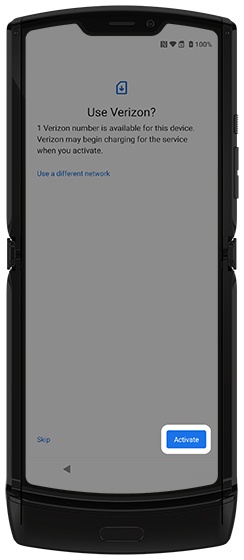
- From the 'Use Verizon?' screen, tapActivate.
- From the 'Verizon is active' screen, tapNext.
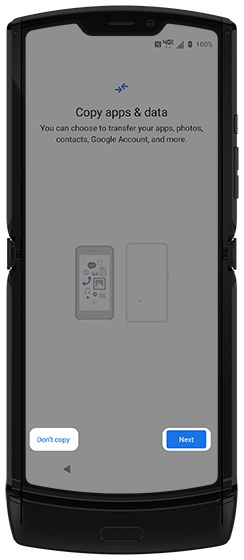
- If you'd like to restore your info from an old device tapNextthen follow the on-screen options.If you'd like a fresh start tapDon't copy.If troubleshooting, don't restore the device until all testing has been completed.
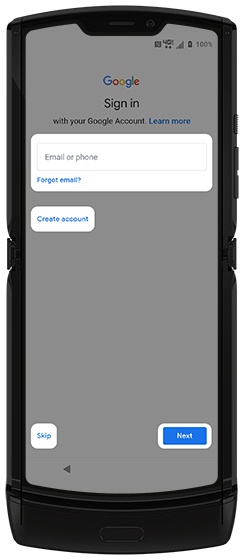
- Sign in to your existing Google™ account or create a new one.TapSkipto add your Google account after setup is complete. If skipping Google account setup, skip to step 12.
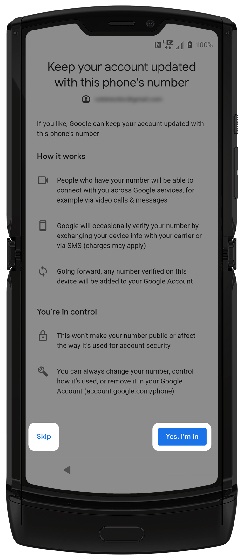
- If prompted with 'Keep your account updated with this phone's number', scroll to the bottom of the screen then tapYes, I'm in.To bypass this step tapSkip.
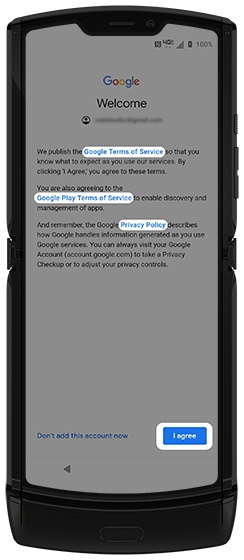
- From the Google 'Welcome' screen, tap the appropriate link to view the Terms of Service and/or Privacy Policy then tapI agree.
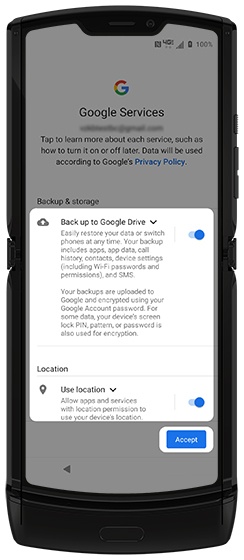
- From the 'Google services' screen, tap any of the switches to turn on
or off
then tap
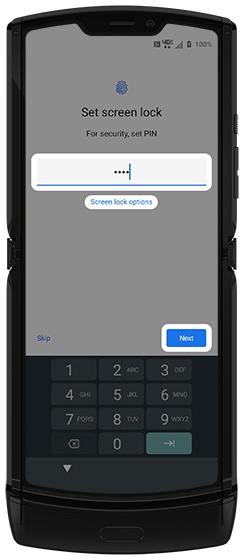
Accept(may require scrolling to the bottom). - From the 'Set screen lock' screen, enter a PIN (at least 4 digits) then tapNext.TapScreen lock optionsfor other screen lock types (e.g., Password, Pattern).TapSkipto set up a screen lock after setup is complete.
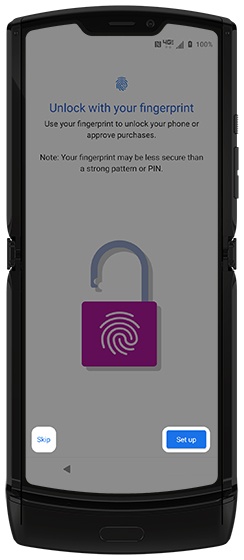
- From the 'Unlock with your fingerprint' screen, tapSet upthen follow the steps.TapSkipto set up fingerprint recognition after setup is complete.In order to turn on the fingerprint unlock feature, a secure screen lock must be set up.
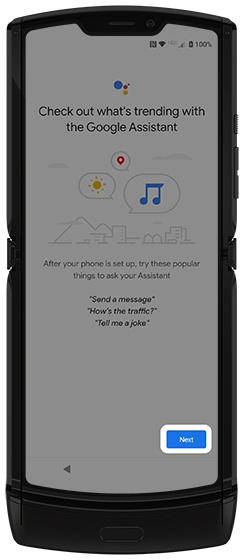
- From the 'Google Assistant' screen, tapNext.If you didn't add a Google account in step 9, skip to step 20.
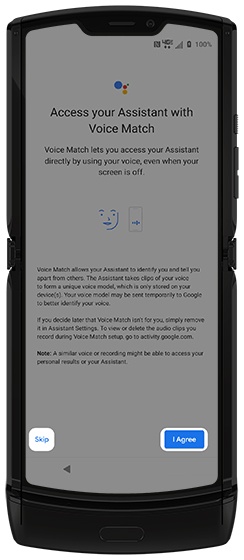
- From the 'Access your Assistant...' screen, tapI Agreeto set up Voice Match.To bypass this step tapSkip.
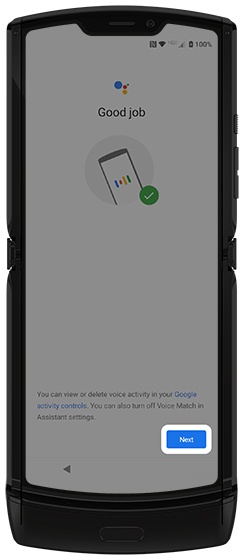
- View the Voice Match info then tapNext.
- From the Google Pay screen, tapAdd a cardthen follow the on-screen prompts.To bypass this step tapSkip.
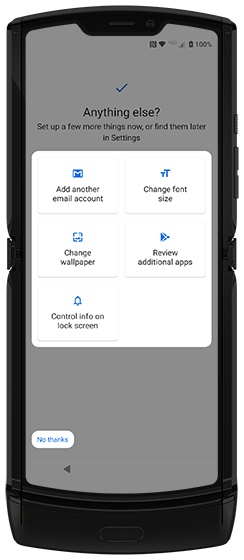
- From the 'Anything else?' screen, tap an option.TapNo thanksto bypass this step.Available selections may vary depending on the options selected previously.
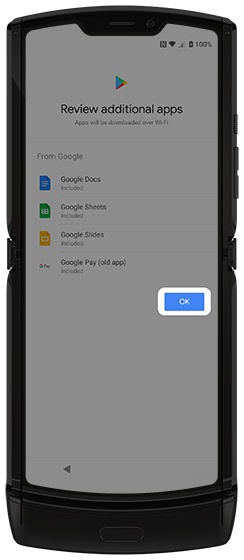
- If a Google account wasn't added, the phone automatically downloads certain Google apps. TapOKto confirm.
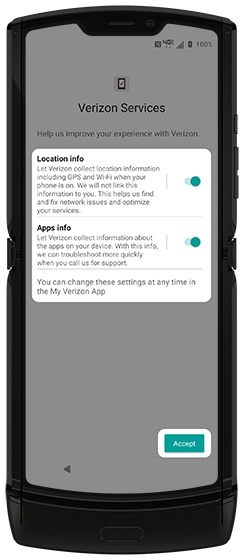
- From the 'Verizon Services' screen, tap any of the switches to turn on
or off
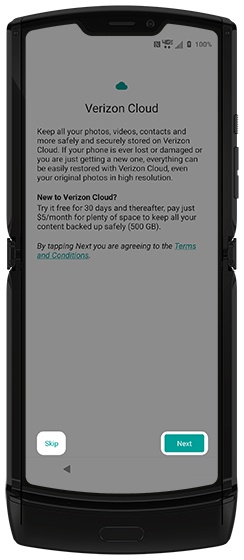
Accept. - From the 'Verizon Cloud' screen, tapNext.This screen doesn't appear if you skipped downloading an eSIM profile in step 5.TapSkipto set up Verizon Cloud after setup is complete.
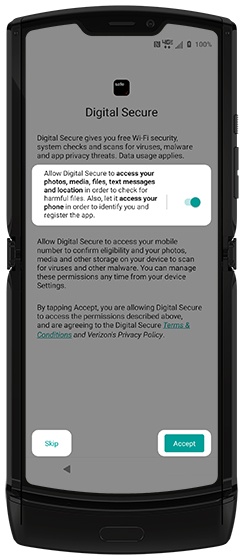
- From the Digital Secure screen, tap theswitchto turn on or off then tapAccept.To bypass this step tapSkip.
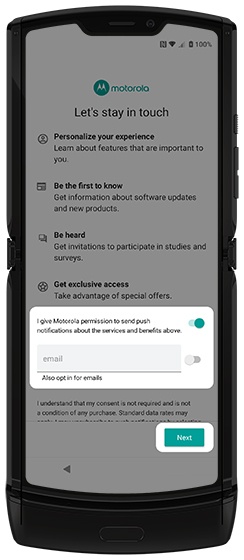
- From the Privacy and software updates' screen, read the privacy notice, tap the switch(es) to turn on or off, enter an email address (if choosing to opt in for emails) then tapAccept & continue.
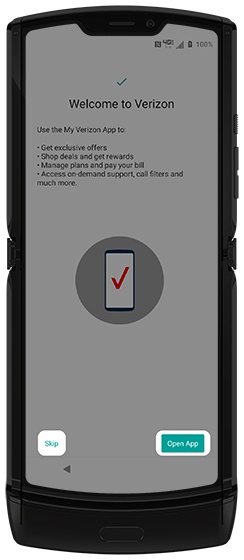
- From the 'Welcome to Verizon' screen, tapOpen Appto set up My Verizon.To bypass this step tapSkip.
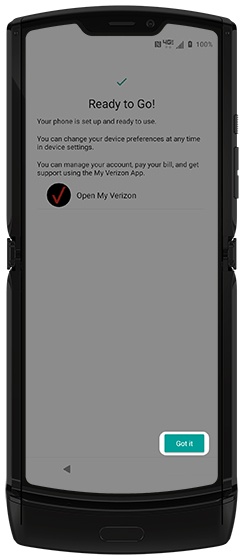
- From the 'Ready to Go!' screen, tapGot itto complete setup.