Add Disney+ - My Verizon Website
Here's how to add a Disney+ subscription via the My Verizon website.
Effective December 8, 2022, Disney+ can only be added to accounts with select Unlimited calling plans. Refer to the Disney+ FAQs for more info.
- From a web browser, sign in to My Verizon.
- From the My Verizon Home screen, navigate: .If accessing from a mobile browser, select theMenu icon
(upper-right) then navigate: .
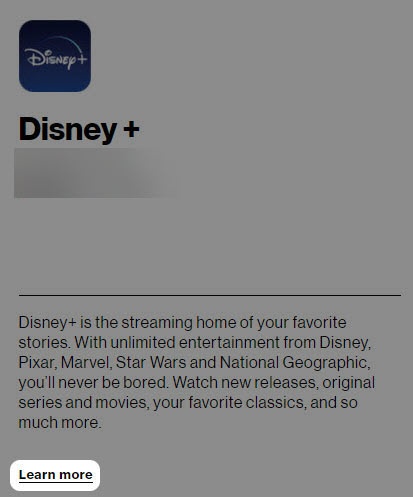
Only the Account Owner or Account Manager can perform these steps; here's additional info on account roles. - Select Services & perks overview then scroll to the 'Entertainment' section and selectLearn morein the 'Disney+' section.Section only appears for eligible accounts. For Disney+ eligibility and promotional offers, check out these Disney+ FAQs.To subscribe to the Disney Bundle, which includes Disney+, Hulu™, and ESPN+, refer to Add Disney Bundle - My Verizon Website.
- SelectGet it now(upper-right).
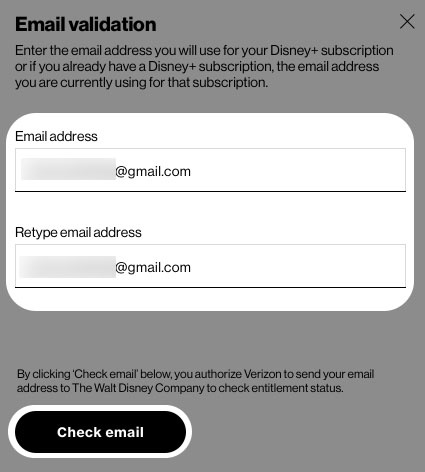
- Enter then re-enter the email address you wish to use with your Disney+ subscription then selectCheck email.If you already have a Disney+ subscription, enter the email address associated with that subscription.
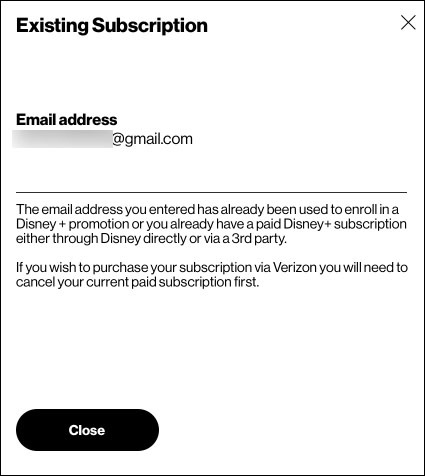
- If you receive a message that states 'The email address you have entered has already been used to enroll in...', review the info then selectClose.For additional info, check out the Disney+ FAQs.
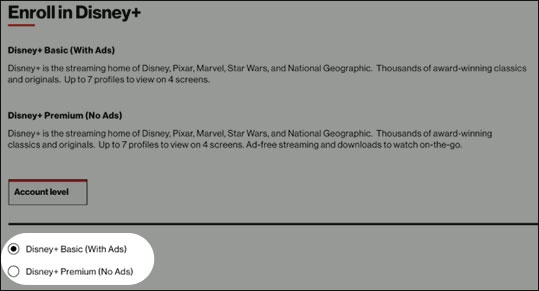
- From the in 'Enroll in Disney+' screen, select the preferred option then selectContinue.Selected when a dot is present.
- Disney+ Basic (With Ads)
- Disney+ Premuim (No Ads)
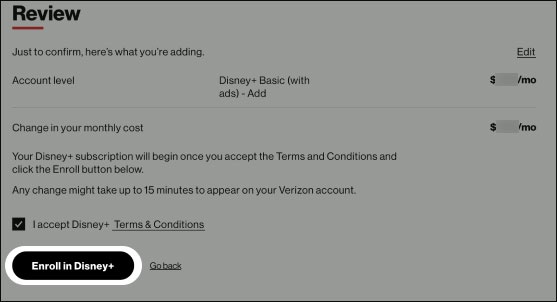
- To continue, accept the Terms and Conditions then selectEnroll in Disney+.
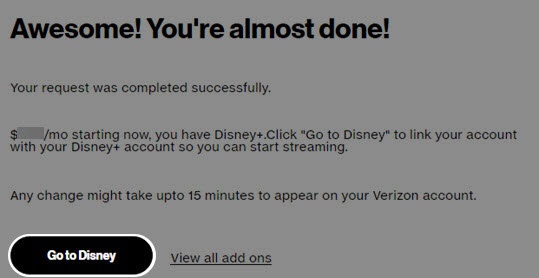
- Review the info then selectGo to Disney.You're redirected to the Disney+ Account Creation page to finish the account setup, where you're required to enter your email address and be provided with Disney+ installation instructions.To qualify for the Disney+ promotion, you must use an email address that isn't linked to an active Disney+ account.
- From the 'Let's complete your setup' page, enter your email then selectAGREE and CONTINUE.If you already have a Disney+ account, skip to the installation steps.
- Enter a password then selectCONTINUEto complete the account setup.
- From the 'Congratulations!' screen, you can begin streaming Disney+ content on your computer or mobile device.
Stream Disney+ on your Mobile Device
- Once you've created a Disney+ account, install the Disney+ app from the Apple App Store or Google Play™ Store.
- Open the Disney+ app on your device, tapLOG INthen enter your Disney+ email and password.