Apple iPhone - Add Cellular Plan Using an eSIM
Here's info on how to add a cellular plan for your eSIM to your dual SIM capable iPhone.
Before completing the steps below, verify:
- You have one of the following Apple® iPhone® models:
- iPhone XS / XS Max or newer
- iPhone SE (3rd Gen)
- Your device is connected to the Verizon wireless network or has a Wi-Fi connection.The eSIM won't activate if you're outside of the Verizon wireless coverage area. Ensure you activate the eSIM prior to traveling abroad.
- iPhone 14 models should be connected to Wi-Fi as the Primary method for activation. If Wi-Fi isn't available, you can continue.iPhone 13 or older requires Wi-Fi for activation.
- Your device is unlocked:Only unlocked devices are eligible for the dual SIM functionality.
- Your eSIM activation has been processed:
- QR code is not required, for an iPhone 12 or newer, or the iPhone SE (3rd Gen).The QR code can be seen in step 2.
- From a Home screen, tapSettings
.
If an app isn't available on your Home screen, swipe left to access the App Library. - Tap theSet Up Cellular(top of the Settings menu) then tapContinue.If unavailable, do the following:
- TapCellular.
- TapSet Up CellularorAdd eSIM.
- From the 'Set Up Cellular' screen, do one of the following:To transfer the eSIM or physical SIM card from your iPhone to an eSIM on your Bring Your Own Device (BYOD) iPhone, refer to Transfer SIM / eSIM.
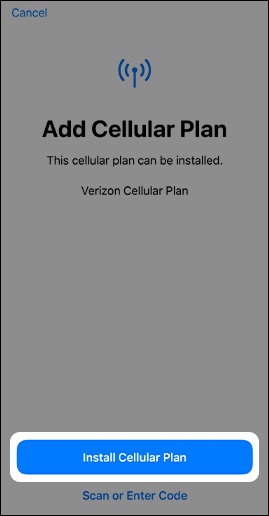
- TapInstall cellular plan.Only appears for iPhone 12 or newer, and iPhone SE (3rd Gen).
- TapUse QR Code.
- Scan this QR code using your iPhone's camera then follow the prompts to complete activation.QR is not required for iPhone 12 or newer, and iPhone SE (3rd Gen).The Enter Details Manually option isn't supported at this time.
- Allow a few moments for the activation to complete.
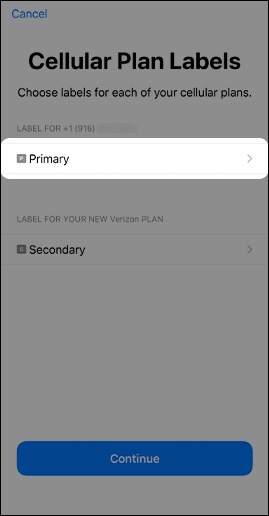
- If you have an activated physical SIM card in your iPhone, do the following:iPhone 14 models do not use a physical SIM card.
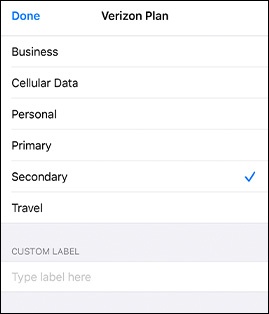
- From the 'Cellular Plan Labels' screen, tapPrimary.
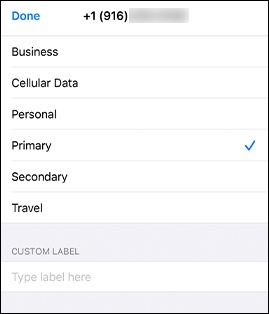
- Tap the desired label then tapDone(upper-left).
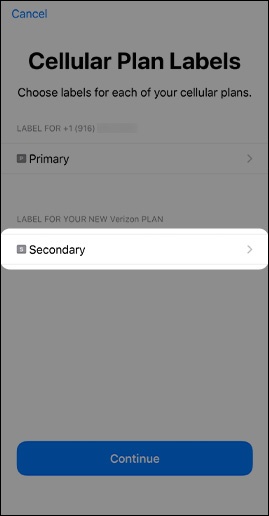
- TapSecondary.This is the newly added plan.
- Select the desired label then tapDone(upper-left).
- TapContinue.
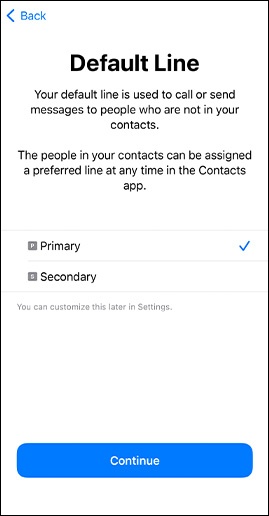
- Tap the default line (e.g., Primary, Secondary, etc.) used to call or send messages to people who aren't in your contacts then tapContinue.Selected when a checkmark is present.
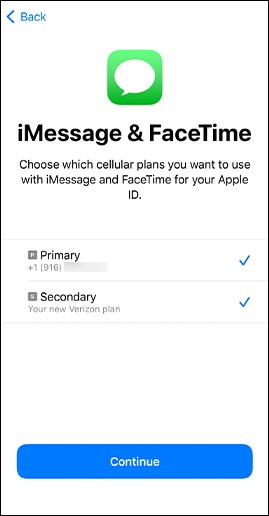
- Tap (check) the cellular plan(s) you want to use for iMessage® and FaceTime® then tapContinue.
- Tap the default line (e.g., Primary, Secondary, etc.) used for cellular data then tapContinue.Tap theAllow Cellular Data Switching switch
to allow your phone to use cellular data from both lines depending on coverage and availability.

- If you're new to Verizon, refer to Join Verizon.
- For additional info, check out this Apple article.