Apple iPhone - Dual SIM with an eSIM - Remove Cellular Plan
Here's how to remove a cellular plan from your dual SIM capable iPhone.
If you need to remove one of the cellular plans set up on your Dual SIM with an eSIM capable Apple® iPhone®, follow these step-by-step instructions.
- The steps below apply to the iPhone XS / XS Max and newer models.
- Removing a cellular plan doesn't cancel your service. To cancel your service, contact your carrier.
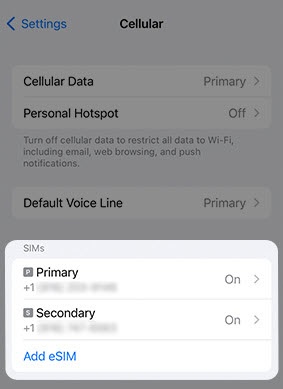
- From a Home screen, navigate:.SettingsCellularIf an app isn't available on your Home screen, swipe left to access the App Library.
- From the 'SIMs' section, tap the desired number.This option is only available when using Dual SIM.
- TapDelete eSIM.This option only appears if an eSIM is activated.
- To confirm, tapDelete eSIM.
- Review the prompt, then tapDelete eSIM.
- From the 'SIMs' section, tapNo SIMthen tapUpdate Contacts.

For additional info, check out this Apple article.