Apple Watch - Remove Device Password
Here's how to reset your Apple Watch if you forgot your passcode and are unable to unlock it.
The steps below apply to the Apple Watch® Series 3 and newer models.
If you can't unlock your Apple Watch, do one of the following to remove your passcode:
Use Your Paired iPhone
Ensure your Apple Watch and the paired iPhone are kept close together when resetting from the iPhone Watch app.
- From your iPhone, open theWatch app.
- Tap theMy Watch tab(lower-left).
- TapGeneralthen tapReset.
- TapErase Apple Watch Content and Settings.
- To confirm, tapErase Apple Watch Content and Settingsagain to complete the Watch Reset.You may be required to enter your Apple ID password.
- Tap one of the following (options may vary based on model):
- Erase All and Keep PlanChoose this option if you have an Apple Watch Series 3 as it must remain paired with an iPhone.
- Erase All
- Cancel
- After the reset is complete, do one of the following:

Use Locked Watch
- Connect your watch to the charger.
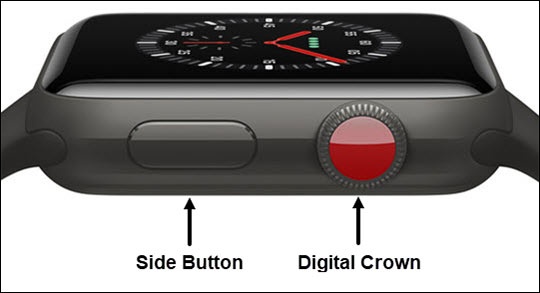
- Press and hold theSide button.
- When presented with the 'Power Button icon' (upper-right), press and hold theDigital Crownuntil the 'Erase all content and settings' prompt appears.
- TapReset.
- To confirm, tapReset.
- After the reset is complete, do one of the following: