Apple Watch - Enable / Disable / Modify Screen Lock
Here's how to set up, change or disable the screen lock option (e.g., passcode, pattern, etc.) for your Apple Watch.
The steps below apply to the Apple Watch Series® 3 and newer models.
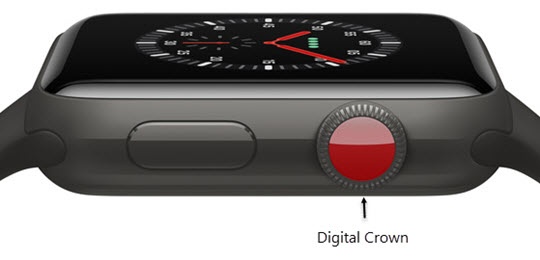
- From the Watch face screen, press theDigital Crownto access the Apps screen.Setting up a passcode can also be completed during the initial setup.
- TapSettings icon.
- TapPasscode.
- Do one of the following:
- Set up screen lock:
- TapTurn Passcode On.
- Enter a 4-digit passcode then re-enter to confirm.
- Tap theWrist Detectionswitch turn on
or
off.
Phone locks if the wrist is not detected (when not being worn) to keep personal info safe.
- Disable screen lock:
- TapPasscodethen tapTurn Passcode Off.
- TapTurn Offthen enter your current passcode.
- Change passcode:
- TapChange Passcode.
- Enter your current passcode then enter the new one.
- To confirm, re-enter your new passcode.