One Talk Mobile App - Activate / Set Up Call-Through
Here's how to configure your One Talk mobile app to use the Call-Through feature.
The Call-Through feature allows a user's One Talk phone number to use their phone's native dialer for improved call quality.
Users can set up Call-Through within the One Talk app using one of two methods:
During Initial One Talk Mobile App Setup
Depending on whether or not Call-Through has been set up on this device before, some of the following steps may not display.
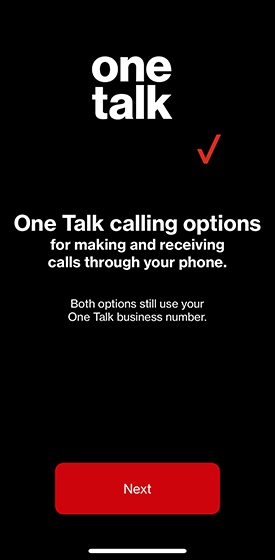
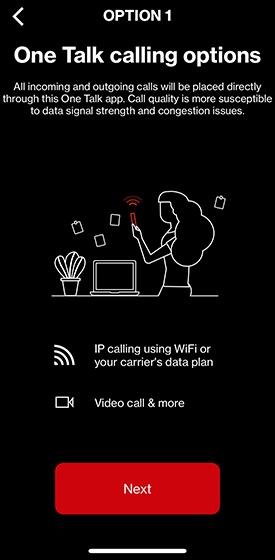
- At the 'Option 1' screen, review the explanation of App Calling then tapNext.
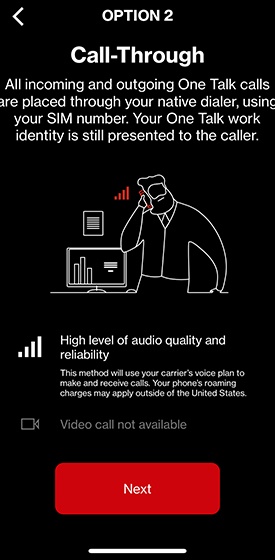
- At the 'Option 2' screen, review the explanation of Call-Through then tapNext.
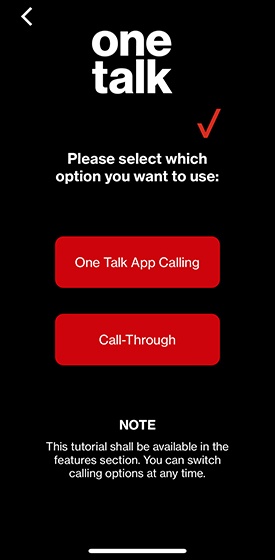
- When prompted to select an option, tapCall-Through.
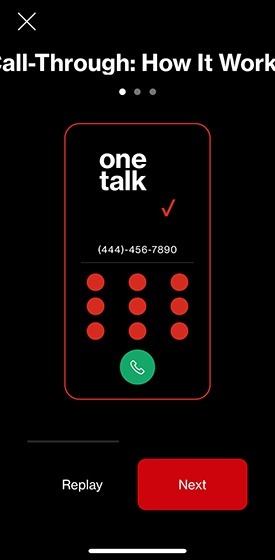
- Review the screens explaining how Call-Through works then tapNext.
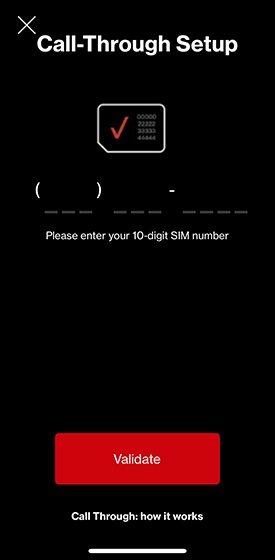
- Enter your 10-digit mobile number then tapValidate.This should reflect the number of the phone on which you're setting up Call-Through.
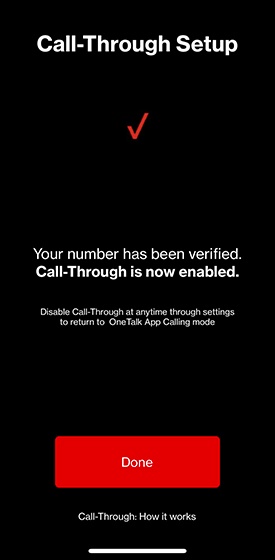
- TapDone.
After Initial One Talk Mobile App Setup
- From the One Talk app, tap theMenu icon
(upper-left).
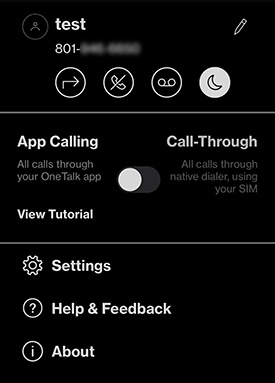
- Tap theCalling mode switch(center of the screen) to switch between App Calling and Call-Through.
- If prompted, review the screens explaining how Call-Through works then tapNext.
- Enter your 10-digit mobile number then tapValidate.This should reflect the number of the phone on which you're setting up Call-Through.The phone number is pre-populated if Call-Through has been set up before.
- TapDone.