One Talk Mobile App - Download and Install
Here's how to install the One Talk mobile app on your Android or iOS device.
- Activation requires a valid US address for E911 functionality.
- Wi-Fi Calls always originate in the U.S., even when you're outside of the US.
- Calls to US numbers are not billed (except for 411 or other premium calls).
- Calls to international numbers are billed according to the your international long distance plan.
- A soft reset must be performed on the desk phone when a new endpoint is added to the One Talk MDN.
- Download the Verizon One Talk app from the App Store or Google Play™ Store.The One Talk app is supported on the following operating systems:
- iOS 10.3 and above
- Android™ 8.0 and above
- Open theOne Talk app.Splash screen displays for a short while.
- If presented, tapGet Startedto accept app permissions.
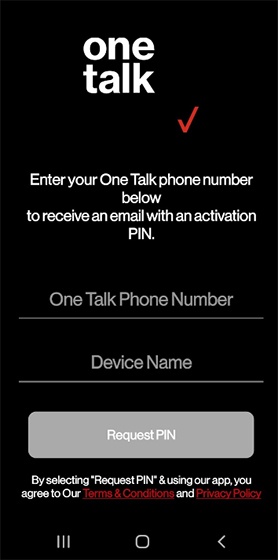
- Enter the One Talk number and the preferred name then tapRequest PIN to be sent by email.Ensure the user assigned to the line has a valid email address in My Business.If an email isn't received the user should engage their IT team to whitelist this email domain: vzwmail@ecrmemail.verizonwireless.com
- Enter the PIN sent via email then tapActivate PIN.If you receive provisioning error (-23) when requesting the PIN, this generally indicates a data connectivity issue. Turn off Wi-Fi and try again. If the issue persists, contact Tech Support.
- From 'Setup your Device & Profile' screen, enter the appropriate info then tapNext:
- Name
- Company (Optional)
- Position (Optional)
- Device Name
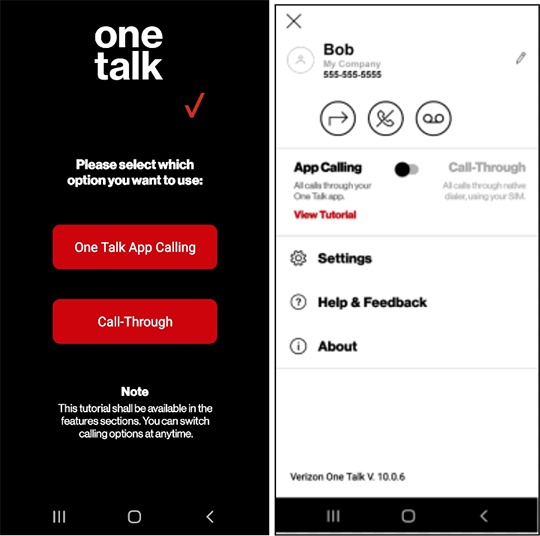
- Select the preferred calling mode:
- App Calling: All calls are made and received through the One Talk app. Call quality is reliant on data connectivity and susceptible to congestion.
- Call Through: All calls are made and received through the native device phone number, however callers see and interact with your One Talk number instead. This provides a higher level of audio quality.For detailed instructions on setting up this feature, refer to Set Up Call-Through.
- Set up basic Visual Voicemail service:
- Tap theMenu icon.
- Tap theVoicemail icon, which places a call to the voicemail system.
- Follow the prompts to finish setting up Voicemail.
- When complete, a Voicemail icon displays.
- TapHelp & Feedbackfor helpful tutorials and to provide feedback to the app developers.