Google Pixel Watch - Connect to New Phone
Here's how to connect your existing Pixel Watch to a new phone.
- The steps below only apply when you need to connect your existing Pixel Watch to a new Android™ smartphone.
- For first-time setup / activation of a new Pixel Watch, refer to one of the following:
From the Watch
From the Companion Device
- Ensure the Pixel Watch is charged and powered on.If necessary, tap the watch display to begin.
- Open theGoogle Pixel Watch appon your companion device.
- TapSystem.
- TapReset and unpair watch.
- To confirm tapReset.Optional: tap 'Erase downloaded SIM'.
- Open theGoogle Pixel Watch app.
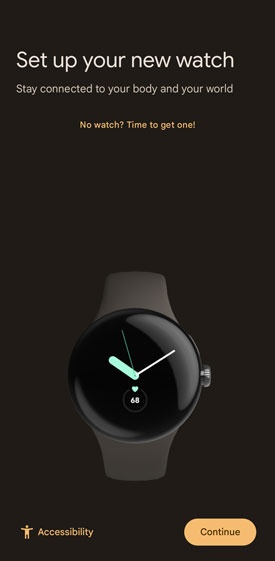
- From the 'Set up your new watch' screen, tapContinue.
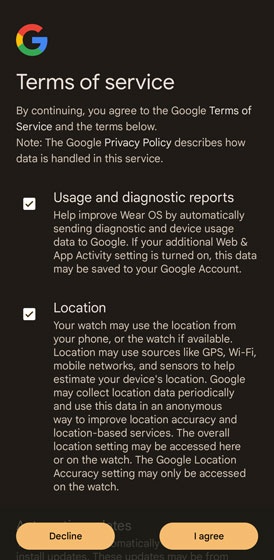
- To proceed, from the 'Terms of service' screen, review then tapI agree.
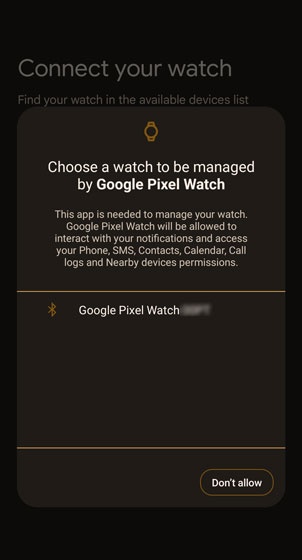
- From the 'Connect your watch' screen, tapGoogle Pixel Watchthen if prompted, tapAllowto approve the necessary permissions.
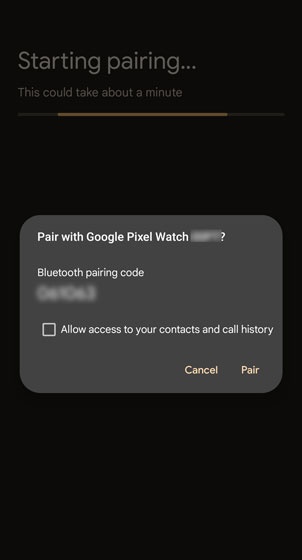
- From the 'Starting pairing' screen, ensure the passkey matches what's displayed on the Pixel Watch then tapPair.
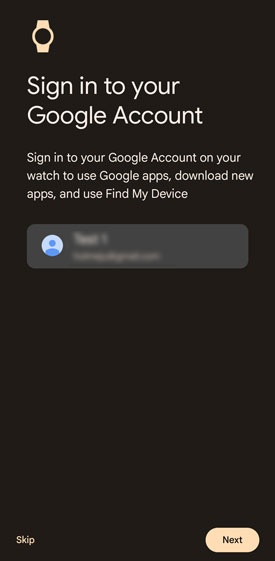
- From the 'Sign in to your Google Account' screen, add your Google Account, tapNextor skip this step.
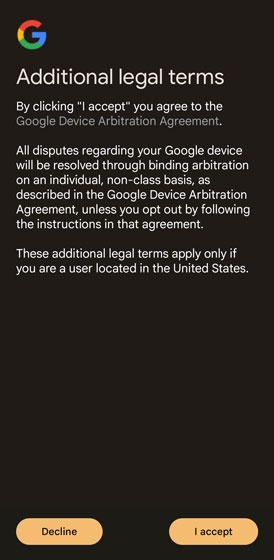
- From the 'Additional legal terms' screen tapI accept.
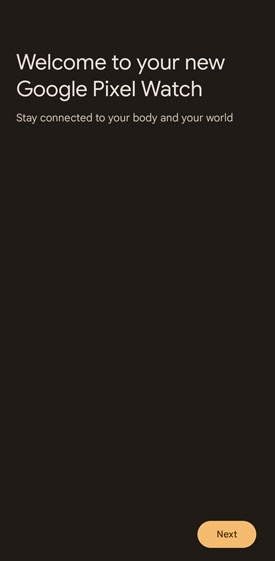
- From the 'Welcome to your new Google Pixel Watch' screen, tapNext.
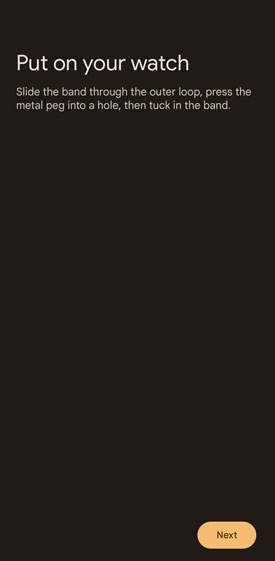
- From the 'Put on your watch' screen, put on your watch as instructed then tapNext.
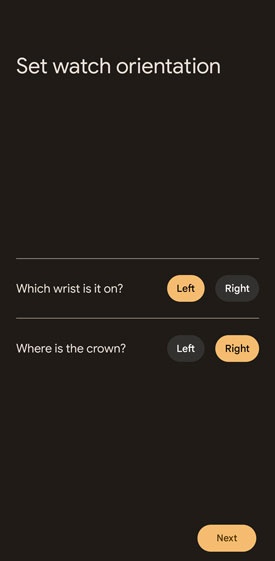
- From the 'Set watch orientation' screen, select the desired options then tapNext.
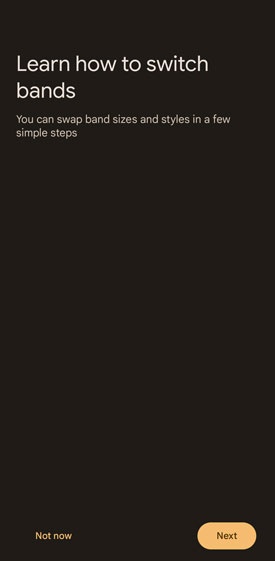
- From the 'Learn how to switch bands' screen, tap 'Next' or 'Not now'.
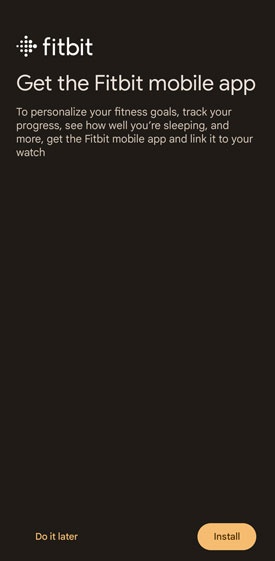
- From the 'Fitbit' screen, tap 'Install' or 'Do it later'.
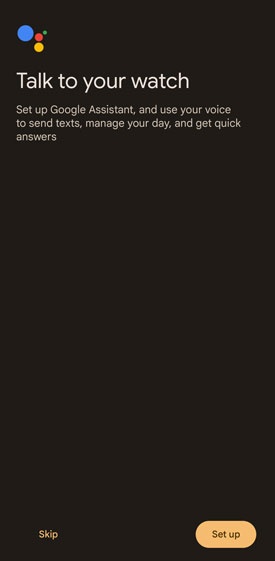
- From the 'Talk to your watch' screen, tap 'Set up' or 'Skip'.
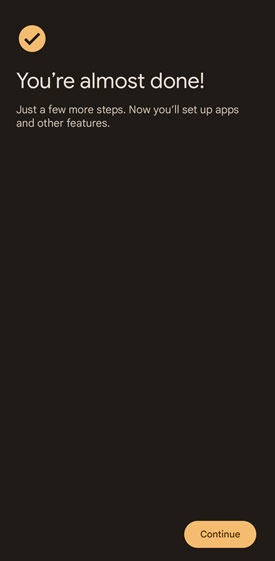
- From the 'You're almost done!' screen, tapContinue.
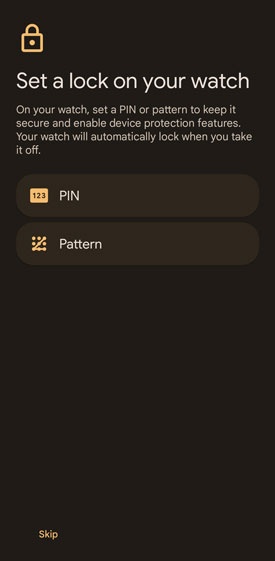
- From the 'Set a lock on your watch' screen, select a lock option (PIN or pattern) for the watch or tap 'Skip'.
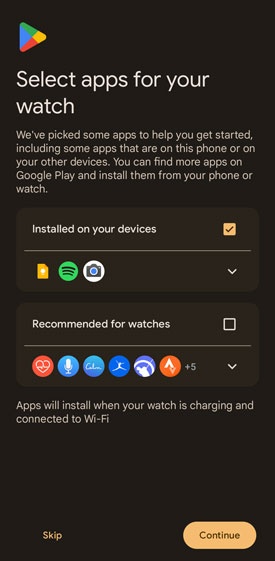
- From the 'Select apps for your watch' screen, select desired apps, tapContinueor you can choose to skip this step.
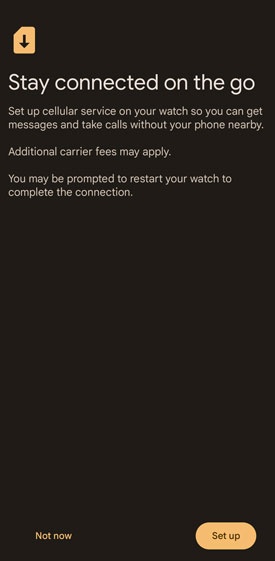
- From the 'Stay Connect on the go' screen, tap 'Set up' or 'Not now'.
- From the 'Connect to Verizon network' screen, select an option or tap 'Not now'.
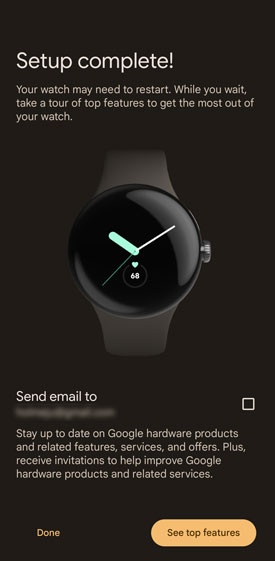
- From the 'Setup complete!' screen, tapDoneor 'See top features'.