Google Pixel Watch - Activate / Set Up Device
Here's how to quickly set up your Pixel Watch.
If the Pixel Watch was purchased outside of Verizon, contact us to start a line of service for your device.
- The Pixel Watch is not compatible with Apple devices.
- The Pixel Watch can be set up via Number Share. To set up with Number Share, the companion smartphone must be activated on the same Verizon account as the Pixel Watch.
- If you're pairing an existing Pixel Watch with a new Android smartphone, refer to Connect to New Phone.
- Before completing the steps below, verify:
- your companion Android™ smartphone has a cellular or Wi-Fi connection.
- you're in a Verizon coverage area.
- your eSim activation has been processed.
- Ensure the Pixel Watch is charged and powered on.If necessary, tap the watch display to begin.
- Install the Pixel Watch app on the companion Android smartphone via the Google Play™ Store.
- Open theGoogle Pixel Watch app.
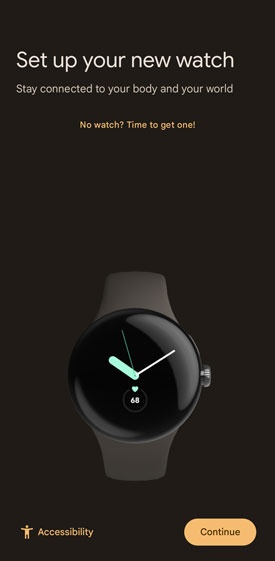
- From the 'Set up your new watch' screen, tapContinue.
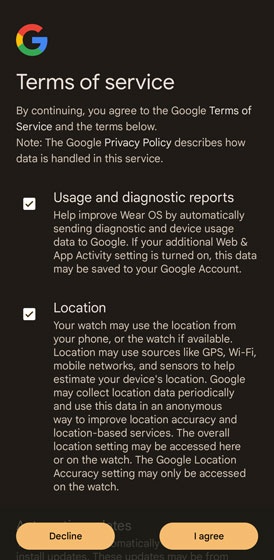
- To continue, from the 'Terms of service' screen, review then tapI agree.
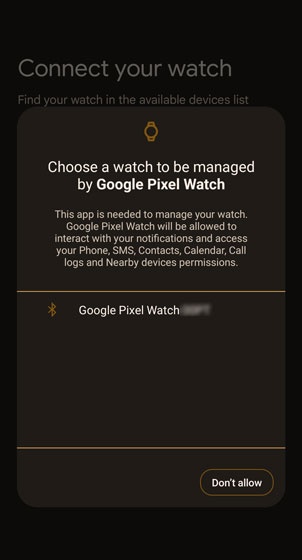
- From the 'Connect your watch' screen, tapGoogle Pixel Watchthen if prompted, tapAllowto approve the necessary permissions.
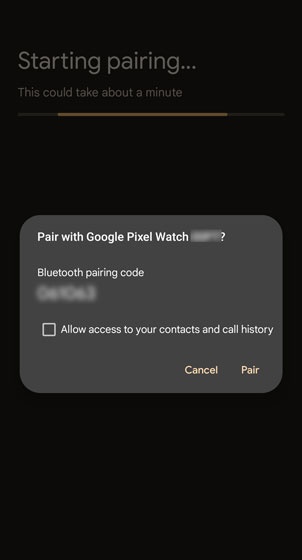
- From the 'Starting pairing' screen, ensure the passkey matches what's displayed on the Pixel Watch then tapPair.
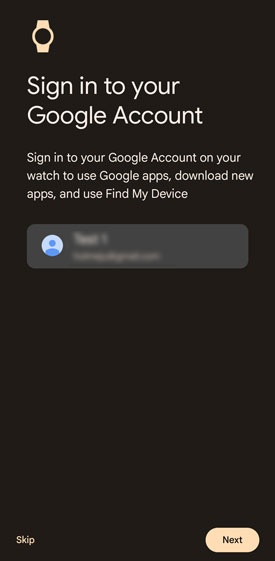
- From the 'Sign in to your Google Account' screen, add your Google Account, tapNextor skip this step.
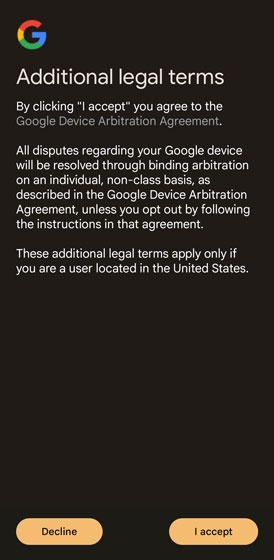
- From the 'Additional legal terms' screen, tapI accept.
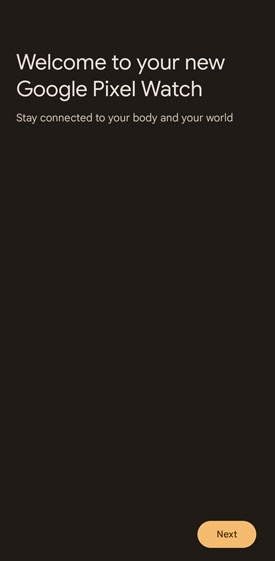
- From the 'Welcome to your new Google Pixel Watch' screen, tapNext.
- From the 'Put on your watch' screen, put on your watch as instructed then tapNext.
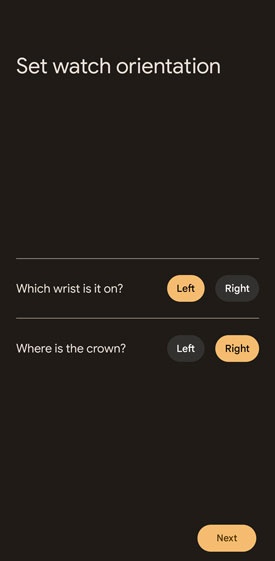
- From the 'Set watch orientation' screen, select desired options then tapNext.
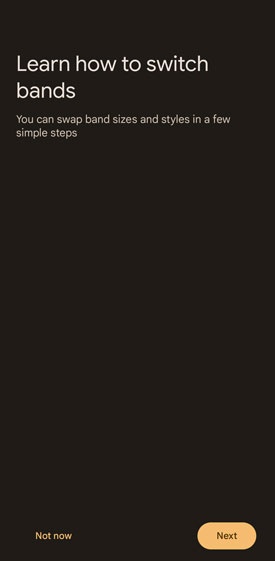
- From the 'Learn how to switch bands' screen, tap 'Next' or 'Not now'.
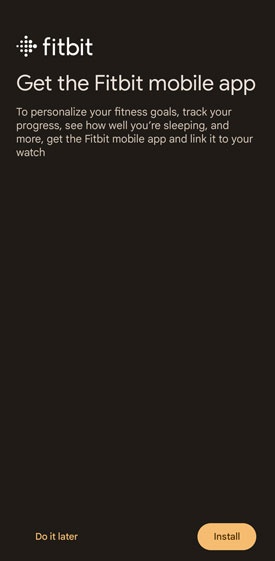
- From the 'Fitbit' screen, tap 'Install' or 'Do it later'.
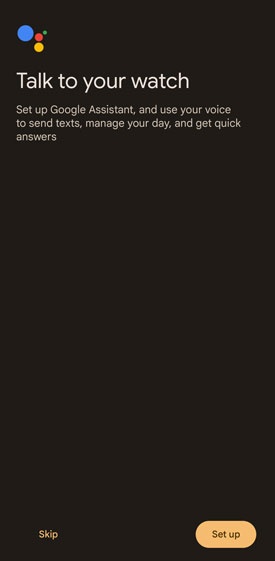
- From the 'Talk to your watch' screen, tap 'Set up' or 'Skip'.
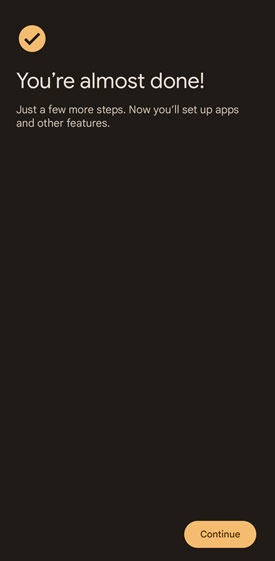
- From the 'You're almost done!' screen, tapContinue.
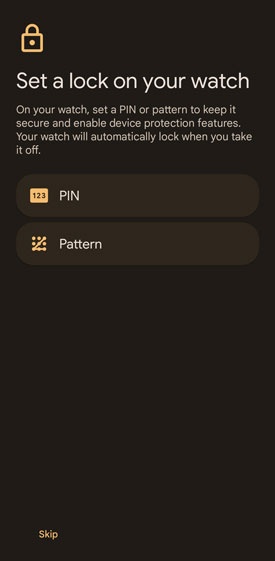
- From the 'Set a lock on your watch' screen, select a lock option for the watch (PIN or pattern) or tap 'Skip'.
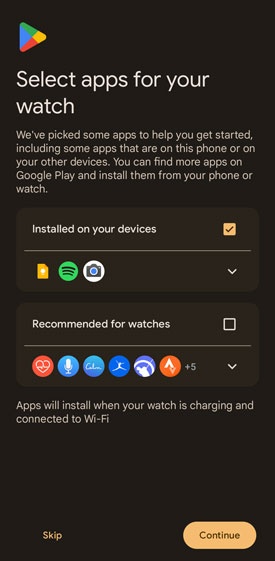
- From the 'Select apps for your watch' screen, select desired apps, tapContinueor you can choose to skip this step.
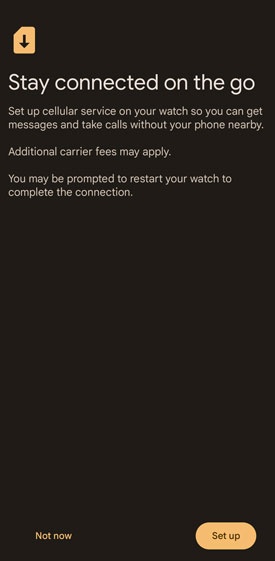
- From the 'Stay Connect on the go' screen, tap 'Set up' or 'Not now'.
- From the 'Connect to Verizon network' screen, select an option or tap 'Not now'.If you skip this step, you can add a cellular plan later.
- From the 'Connect to Verizon network' screen, then follow on the on-screen instructions.
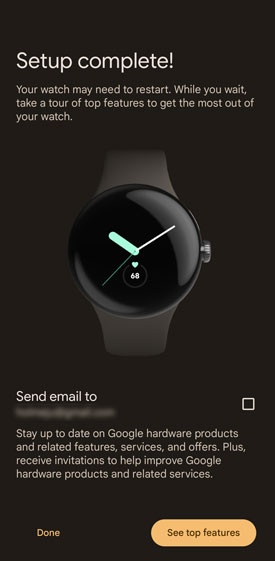
- From the 'Setup complete!' screen, tap 'Done' or 'See top features'.