Samsung Galaxy A02s - Activate / Set Up Device
Here's how to quickly set up your Galaxy A02s.
If you need to transfer contacts and media from one device to another, follow these step-by-step instructions before activating your new Galaxy A02s.
To activate your device on prepaid service, refer to Set up Verizon Prepaid Service.
- If activating a new phone and your previous phone can be powered on, ensure your device is backed up using one of the following recommended methods:
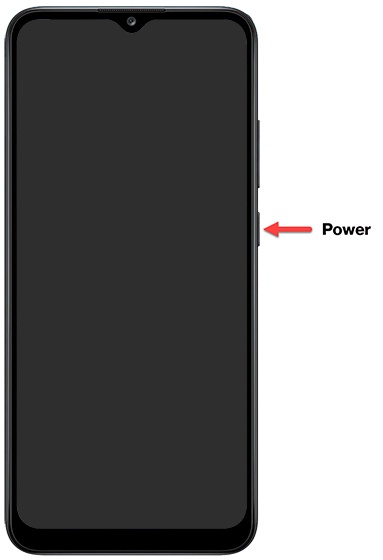
- If powered off, press and hold thePower button(right edge, below the Volume buttons) until the Samsung Galaxy A02s screen appears then release.
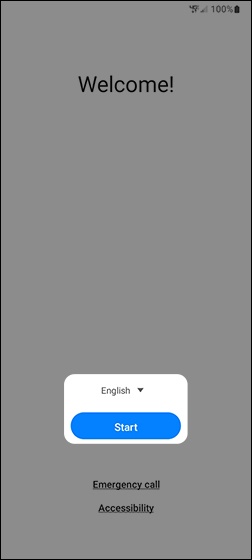
- Select the appropriate language then tapStart.
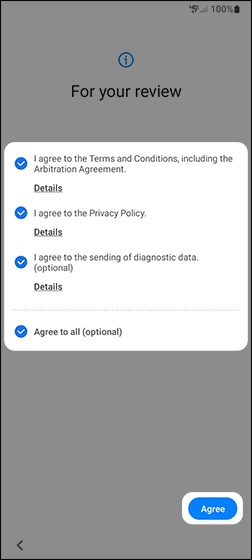
- To continue, select (check) the following then tapAgree(lower-right):TapDetailsto review the info before continuing.
- Terms and conditionsMust be selected to continue.
- Privacy PolicyMust be selected to continue.
- Send Diagnostic data (optional)
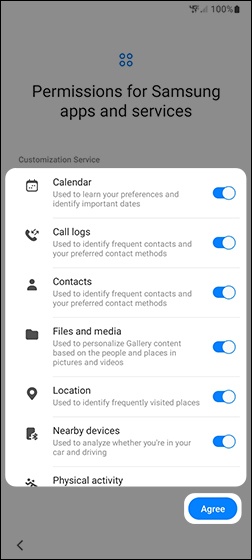
- Tap any of the switches to turn Samsung app permissions on
or off
then tap
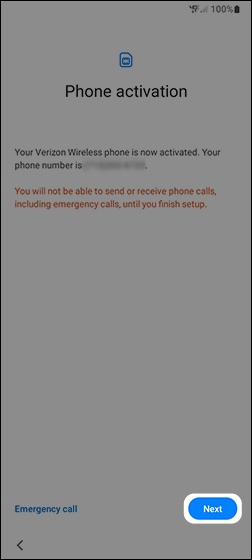
Agree. - Ensure the appropriate mobile number is listed then tapNext.If prompted, enter the account PIN then follow the on-screen prompts (see Account PIN FAQs for additional info).If activating a new phone, ensure the old phone is powered off.
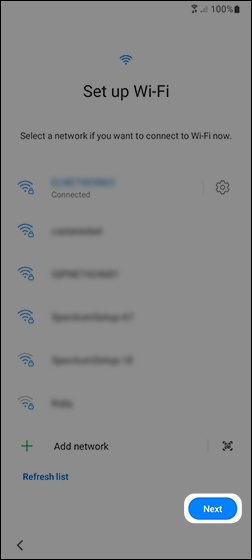
- From the 'Set up Wi-Fi' screen, select a network, enter the password when prompted then tapNext.TapSkipto add Wi-Fi networks after setup is complete.
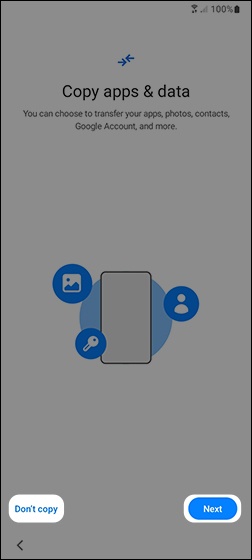
- From the 'Copy apps & data' screen, tapNextthen follow the on-screen instructions.To skip the step, tapDon't copy.If troubleshooting, choose the 'Don't copy' option and don't restore the device until all testing has been completed.
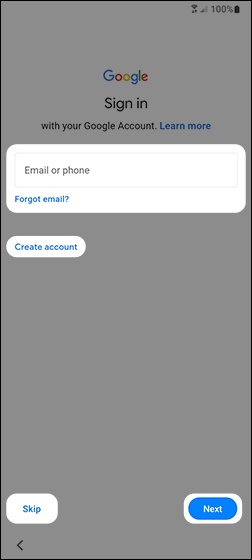
- From the 'Google Sign in' screen, sign in to your existing Google™ account or create a new one.TapSkipto add your Google account after setup is complete.If a Google account isn't added, skip to step 11.
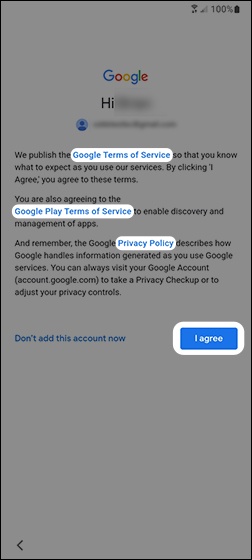
- From the Google welcome screen, tap the appropriate link to view the Terms of Service and/or Privacy Policy then tapI agree.
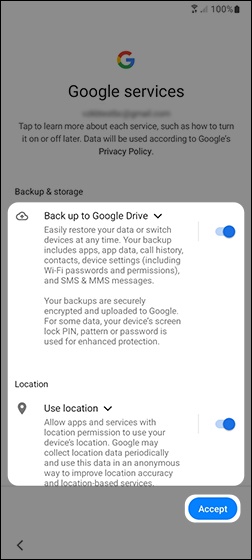
- From the Google Services screen, tap the applicable switch(es) to turn on
or off
Accept(lower-right).If necessary, swipe up to review additional services. - From the 'Protect your phone' screen, select a protection option then follow the on-screen prompts.
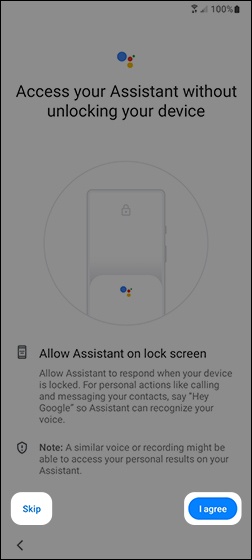
- From the 'Access your Assistant' screen, review the info then tap 'I agree' or tap 'Skip' to opt out or set up later.If a Google account wasn't added in step 9, skip to step 15.
- Review the 'Allow Assistant on lock screen' info then tap 'I agree' or tapTapSkipto opt out or set up later.
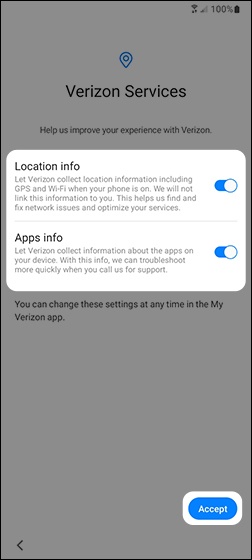
- From the Verizon Services screen, tap the applicable switch(es) to turn the available options (e.g., Location info, Apps info) on or off then tapAccept.
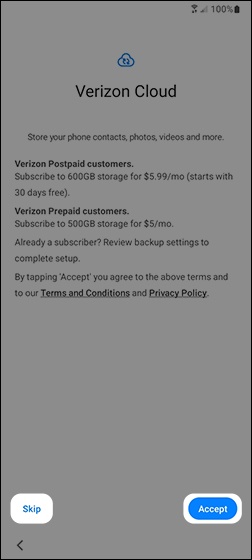
- From the Verizon Cloud screen, review the info then tapAccept.TapSkipto set up Verizon Cloud after setup is complete.
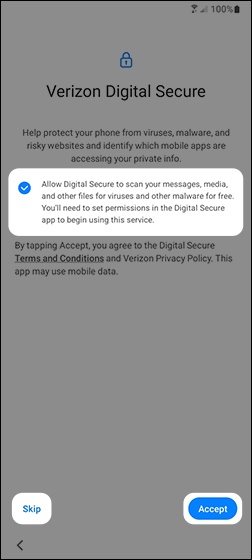
- From the Verizon Digital Secure screen, review the info then tap 'Accept' or 'Skip' to opt out or set up later.TapSkipto opt out or set up later.
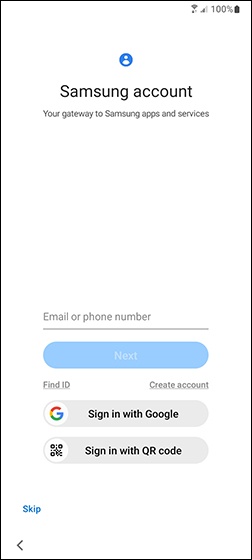
- Sign into your existing Samsung account or create a new one.TapSkipto add a Samsung account after setup is complete.
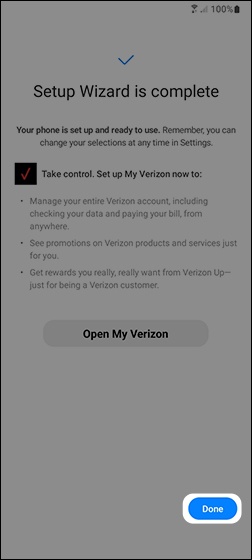
- From the 'Setup Wizard is complete' screen, tapDone.