Apple iPad - Add Cellular Plan - Bring Your Own Device (BYOD) - Add a New Line Using eSIM
Here's info on how to join Verizon with an eSIM on your iPad.
- The steps below apply to the following Apple® iPad® models:
- iPad (2021) and newer models
- iPad (7th generation and 8th generation) on a business account.
- For the Apple iPad Pro (2021) and newer models:
- This device ships without a physical SIM card.If a physical SIM card is preferred, ensure a 5G SIM card is inserted after the eSIM profile is activated.
- Don't swap a SIM card from a previous 4G iPad as it can result in activation issues.
- The Apple iPad Pro (2021) and newer models only use one active SIM profile at a time and are not Dual SIM Dual Standby compatible at this time.
- Only unlocked devices are eligible for eSIM activation with Verizon.iPads purchased directly from Apple are always unlocked.
New Customer
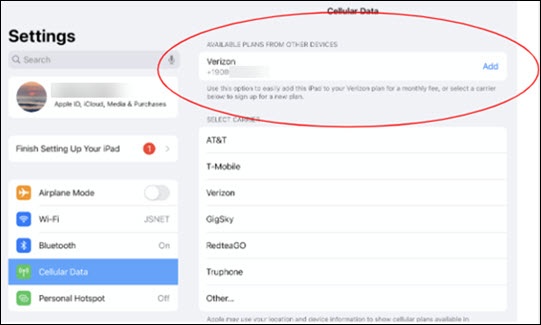
- From the Home screen, navigate:.SettingsCellular DataIf you're powering your Apple iPad on for the first time, follow the activation steps listed in Activate / Set Up Device.
- Under the 'CELLULAR PLANS' section, tapAdd a New Plan.
- SelectVerizonfrom the available list of carriers.The list of options presented varies based on location.If you are signed into an iPhone with your iCloud account and then sign into your iPad with the same iCloud® account, you may selectAddnext to the appropriate Verizon number you wish to add this iPad line to.
- From the Verizon 'Let's activate your device...' prompt selectNew Customer.
- From the 'Select a plan type' screen selectUnlimited Planthen tapNext.
- From the 'Plans' screen, scroll through the available plans then tapSelect this planwhile the desired plan displays.
- From the 'Important Plan Information' screen, review the disclosures then tapGot it.
- From the 'Important Broadband Info' screen, review the disclosures then tapGot it.
- From the 'Tell us about yourself' screen, enter the following info then tapNext:
- First and Last name
- Billing Phone Number
- Email
- Confirm Email
- From the 'Fill out your billing info' screen, enter your billing address then tapNext.
- From the 'Do you want to use this service address...' screen, review the info, select 'Yes' or 'No' then tapNext.
- From the 'Credit Check Information' screen, enter the following info:
- Social Security Number
- Date of Birth
- To continue, accept the 'Terms and Conditions' by selecting thecheckboxthen tapRun my credit check.
- From the 'Account PIN' screen, create and enter a four digit account PIN then tapSave my PIN.
- From the 'Account Review' screen, confirm the plan and account info is accurate, review and accept the 'Terms and Conditions' by selecting thecheckboxthen tapConfirm.
- From the 'Order Complete' screen, review the account info once more, then tapNextto continue.
- Once your order has been successfully completed, install the My Verizon app from the App Store®.If applicable, tapDoneto exit the Order completion screen.Continue to follow the prompts until the My Verizon app registration is completed.

If you're having issues activating your new line, contact Consumer Sales.
New Customer - Prepaid
- From the Home screen, navigate:.SettingsCellular DataIf you're powering your Apple iPad on for the first time, follow the activation steps listed in Activate / Set Up Device.
- Under the 'CELLULAR PLANS' section, tapAdd a New Plan.
- SelectVerizonfrom the available list of carriers.The list of options presented varies based on location.If you are signed into an iPhone with your iCloud account and then sign into your iPad with the same iCloud account, you may selectAddnext to the appropriate Verizon number you wish to add this iPad line to.
- From the Verizon 'Let's activate your device...' prompt selectNew Customer.
- From the 'Select a plan type' screen selectPrepaidthen tapNext.
- From the 'Plans' screen, scroll through the available plans then tapSelect this planwhile the desired plan displays.
- From the 'Tell us about yourself' screen, enter the following info then tapNext:
- First and Last name
- Billing Phone Number
- Email
- Confirm Email
- From the 'Fill out your billing info' screen, enter your billing address then tapNext.
- From the 'Payment Options' screen, select one of the following then tapContinue:
- Credit or Debit Card
- Verizon Wireless Prepaid Refill Card
- From the 'Payment Options' screen, enter your credit / debit card info then tapContinue.Select any of the following check boxes to enroll:
- Save this card to my account
- Enroll Auto Pay
- From the 'Account Security' screen, select a security question / answer and a 4-digit security code then tapNext.
- From the 'Create your My Verizon account' screen, create and confirm a new password.
- To continue, accept the 'Terms and Conditions' by selecting thecheckboxthen tapNext.
- From the 'Account Review' screen, confirm the plan and account / billing info is accurate, review and accept the 'Terms and Conditions' by selecting thecheckboxthen tapConfirm.
- From the 'Order Complete' screen, review the account info once more, then tapNextto continue.
- From the 'Your iPad is currently active on the Verizon network' screen, tapGot it.Once you select Got it, please allow a few moments for the device to be activated.
- Once your order has been successfully activated, install the My Verizon app from the App Store®.
If you're having issues activating your new line, contact Consumer Sales.
Existing Customer
- From the Home screen, navigate:.SettingsCellular DataIf you're powering your Apple iPad on for the first time, follow the activation steps listed in Activate / Set Up Device.
- Under the 'CELLULAR PLANS' section, tapAdd a New Plan.
- SelectVerizonfrom the available list of carriers.The list of options presented varies based on location.If you are signed into an iPhone with your iCloud account and then sign into your iPad with the same iCloud account, you may selectAddnext to the appropriate Verizon number you wish to add this iPad line to.
- From the Verizon 'Let's activate your device...' prompt selectExisting Customer.
- From the 'Sign in' screen, enter your User ID and Password then tapSign in.If you have an existing Prepay account, the following steps may vary.
- From the 'Account' screen, tapContinue.A list of your active Verizon lines displays on this screen.
- Continue to follow the on-screen prompts to select the appropriate plans and services for your device.
- From the 'Important Plan Information' screen, review the disclosures then tapGot it.
- From the 'Important Broadband Info' screen, review the disclosures then tapGot it.
- From the 'Do you want to use this service address...' screen, review the info, select Yes or No then tapNext.
- From the 'Do you want to use this service address...' screen, review the info, select 'Yes' or 'No' then tapNext.
- From the 'Account Review' screen, review the plan and account info for accuracy, then accept the 'Terms and Conditions' by selecting thecheckboxthen tapConfirm.
- From the 'Order Complete' screens, review the account information once more, then tapNextto continue.
- Once your order has been successfully completed, install the My Verizon app from the App Store® to sign into your account.If applicable, tapDoneto exit the Order completion screen.
If you're having issues activating your new line, contact Consumer Sales.