Cancel Google Play Pass Subscription - My Verizon app
Here's how to cancel your Google Play Pass subscription via the My Verizon app.
- Cancellation of the Google Play Pass promo (not paid service & perk) is blocked for 7 days after enrollment.
- Ensure your app is up to date as the following steps apply to the most recent version.If you're not able to access the My Verizon app, you can also visit the My Verizon website to manage your account.
- Changes to these items may take up to 15 minutes to appear on your account.
- Managing your Google Play Pass subscription isn't available in the My Verizon app on Apple devices unless included in your plan. Refer to Cancel Google Play Pass Subscription - My Verizon Website to manage your subscription through a browser.For Apple Arcade eligibility and promotional offers, check out these Google Play Pass FAQs.
- Open theMy Verizon app
.
- Tap theAccount tab(at the bottom).If prompted, enter your password, fingerprint or Face ID.Only Account Owners or Account Managers can perform these steps, here's additional info on account roles.
- TapServices & perks.
- SelectSee Allfrom the 'Manage Services & Perks' section then tapManagein the 'Google Play Pass' section.
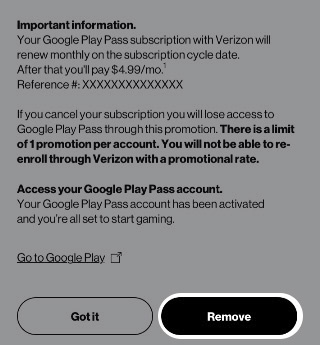
- From the 'Google Play Pass' screen, review the message then tapRemove.
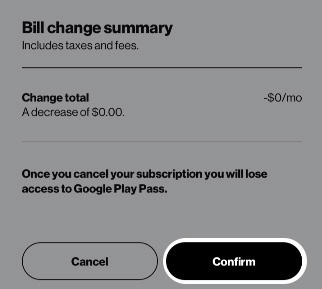
- To continue, review the changes then tapConfirm.
- From the Confirmation screen, tapGot it.It may take up to 24 hours for these changes to take effect.