Care Smart watch - Activate / Set Up Device
Here's how to set up your Care Smart watch using the app.
- Prior to activating your Care Smart watch, ensure:
- the companion smartphone is connected to a cellular or Wi-Fi network.
- all devices (Administrators, Trusted Contacts, etc.) update the Care Smart app (Google Play™ Store or Apple® App Store® ).
- the date and time settings on the parent device are set automatically.
- you don't have a data, text or Caller ID block on either the Care Smart watch or the administrator's smartphone.
- If you're activating a replacement device, delete the previous Care Smart watch.
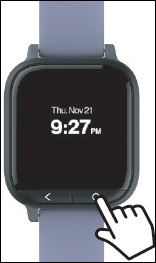
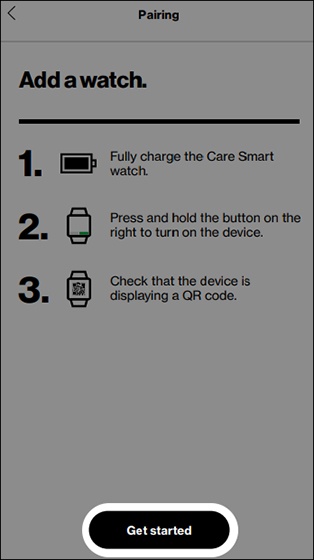
- Power the watch on by holding thePower button.Your Care Smart watch should start activating automatically the first time you turn it on.
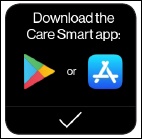
- Open theCare Smart appon the companion smartphone.If necessary, install the Care Smart app via the Play Store or App Store.
- To continue, tap theCheckmark icon
on the watch.
- Wait for the watch to activate.Once your watch is activated, a voice prompt plays and your watch's unique identifier displays.
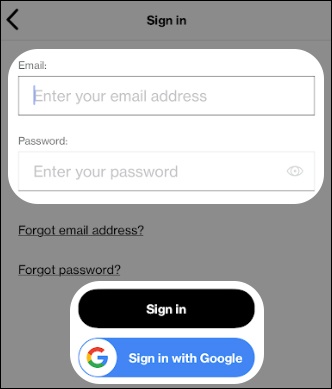
- Open the Care Smart app on your smartphone then from the 'Let's get started' screen, choose one of the following:
- Sign In
- Enter your email address and password, then tapSign In.To sign in with a Google™ account, tapSign in with Google.
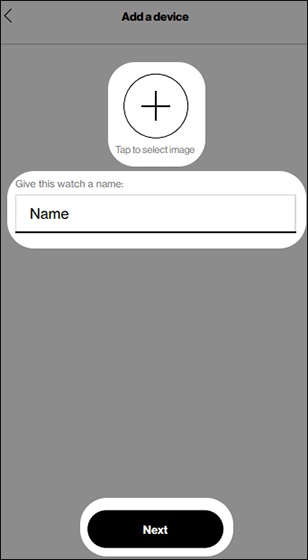
- From the 'Add a device' screen, enter the watch name and thePlus icon
to select an image for the device then tap
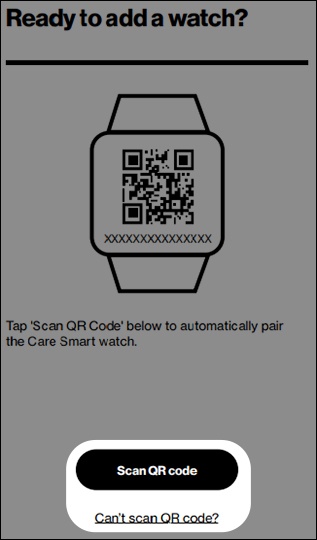
Next. - Choose how you want to pair the Care Smart watch with the Care Smart app:
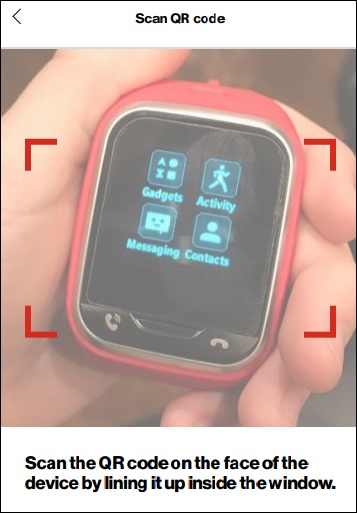
- If you've selected Scan QR code:If prompted to grant Care Smart access to your camera, tap 'OK' or 'Allow'.
- the watch automatically pairs by using a QR code.
- the QR code only appears on the Care Smart watch after the device is activated.
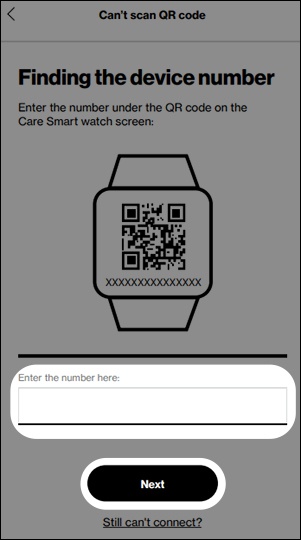
- If you've selected Can't scan QR code:
- The watch manually pairs by entering the unique identifier.
- Enter the watch's unique identifier then tapNext.
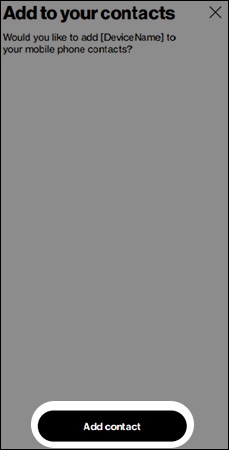
- TapAdd contactto add the Care Smart watch mobile number to your smartphone's contacts.
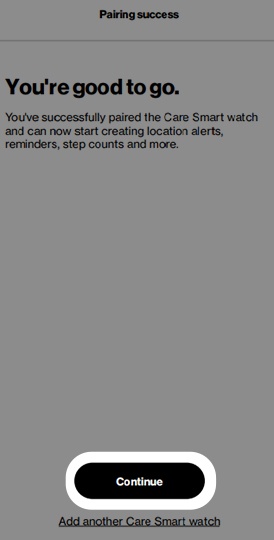
- From the 'Pairing success' screen, tapContinueto set up watch functions.
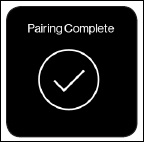
- On the watch, tap thecheckmark icon
to complete the setup.