Lenovo tab 4 8 PLUS - Activate / Set Up Device
Here's how to quickly set up your Tab 4 8 PLUS.
If you need to transfer contacts and media from one device to another, follow these step-by-step instructions before activating the new device.
To activate the device on prepaid service, refer to Set up Verizon Prepaid Service.
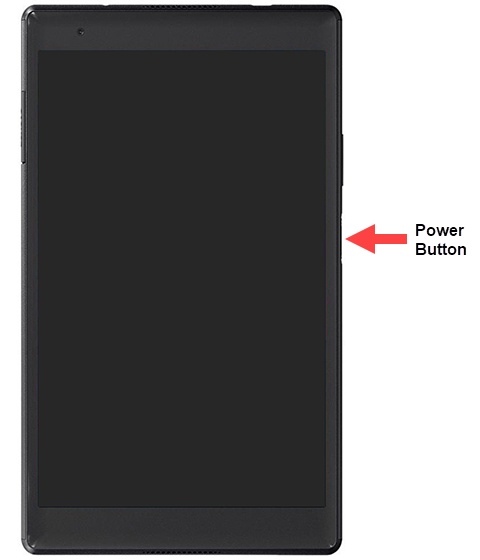
- If powered off, press and hold thePower buttonuntil the Lenovo screen appears then release.
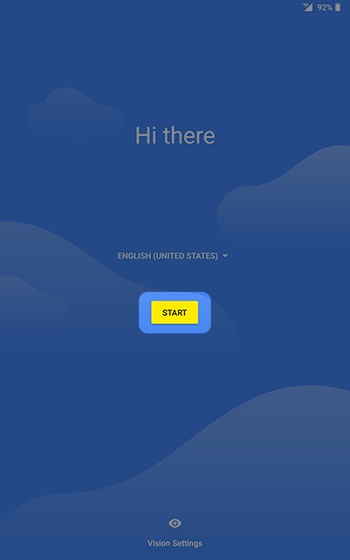
- From the 'Hi there' screen, select the appropriate language then tapSTART.
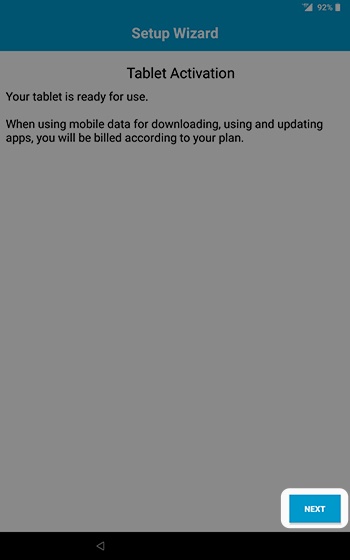
- From the 'Tablet Activation' screen, tapNEXT.If prompted, enter the account PIN then follow the onscreen prompts (see Account PIN FAQs for additional info).If activating a new tablet on an existing phone number, ensure the old device is powered off.
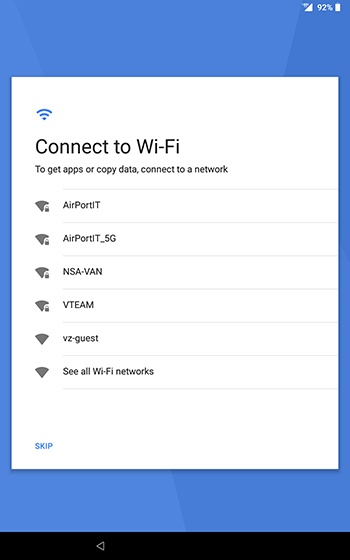
- From the 'Connect to Wi-Fi' screen, select a network then enter the password.If you choose 'SKIP', you can add Wi-Fi networks after setup is complete.
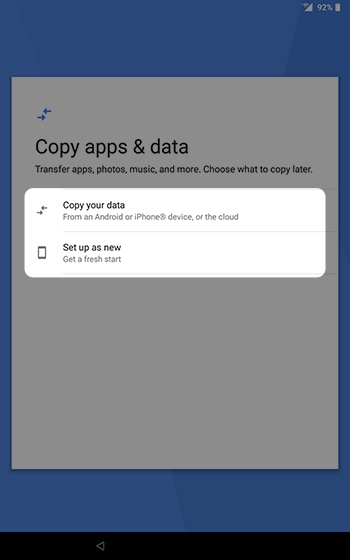
- From the 'Copy apps & data' screen, tapSet up as new.If you want to restore from a previous backup, tap 'Copy your data' and follow the on-screen instructions.If troubleshooting, don't restore the device until all testing has been completed.
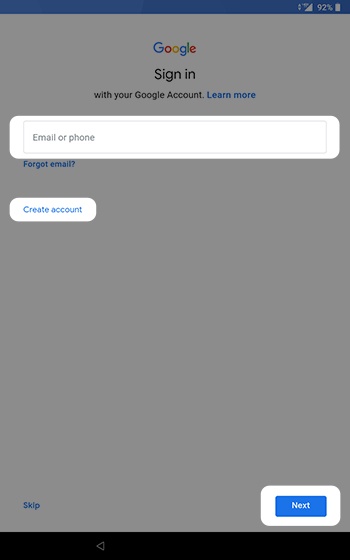
- Sign in to your existing Google™ account or create a new one.If you choose 'Skip', you can add a Google account after setup is complete.
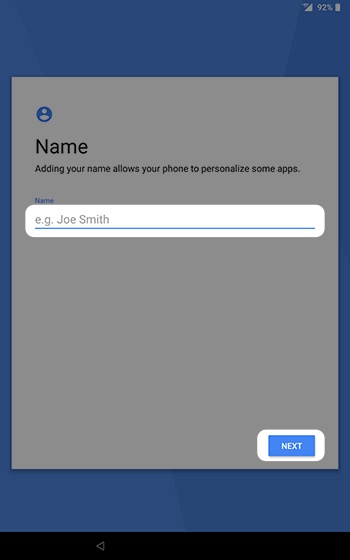
- From the 'Name' screen, enter your name then tapNEXT.This screen only appears if Google sign-in or account creation was skipped.
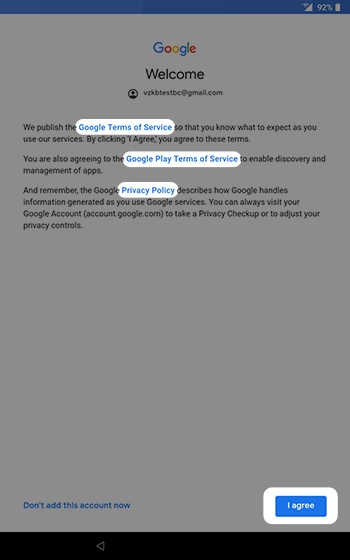
- From the 'Welcome' screen, tapI agree.Tap the appropriate links to view the Google / Google Play Terms of Service and Privacy Policy.
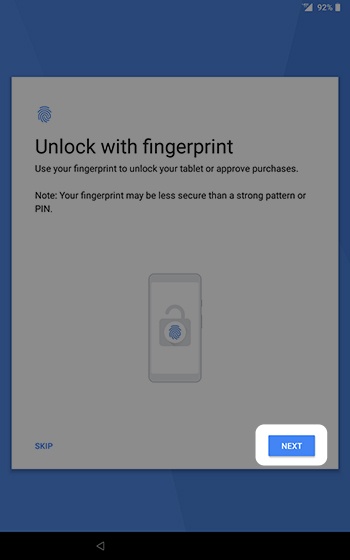
- From the 'Unlock with fingerprint' screen, tapNEXTto add fingerprints.If you choose 'SKIP', you can set up fingerprint recognition after setup is complete.
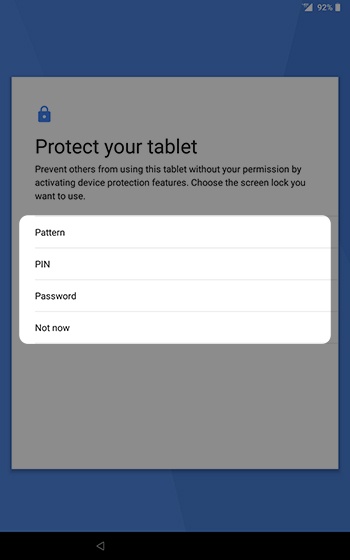
- From the 'Protect your tablet' screen, select an option.If you choose 'Not now', you can set up a screen lock after setup is complete.
- From the 'Google services' screen, select any of the preferred options to turn on
or off
then tap
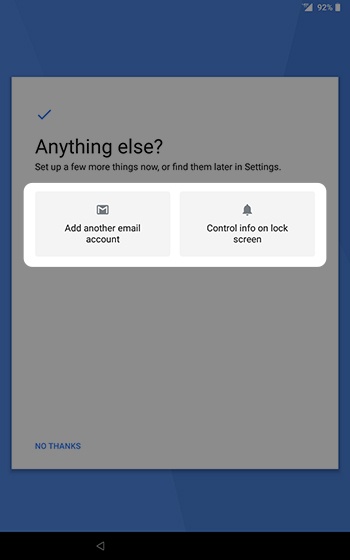
ACCEPT. - From the 'Anything else?' screen, tapDONE FOR NOWto continue.Select either of the options to set up additional email accounts or lock screen notifications.If you choose 'NO THANKS', you can add email accounts or set up lock screen notifications after setup is complete.
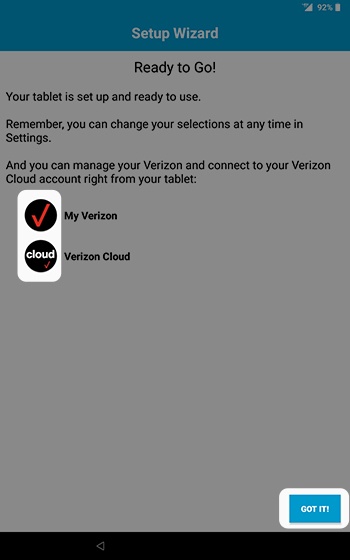
- From the 'Ready to Go!' screen, tapGOT IT!to complete setup.Tap the My Verizon or Verizon Cloud icon(s) to set up the respective applications. These can also be configured after setup is complete.