Lenovo tab 4 8 PLUS - Set Up Fingerprint Recognition
Here's how to set up fingerprint recognition on your Tab 4 8 PLUS.
- From a Home screen, swipe up from the center of the display to access the apps screen.
- Navigate:.SettingsSecurity & location
- From the 'Device security' section, tapFingerprint.
- Review the message then tapNEXT.
- Enter the current PIN, password, or pattern.If necessary, refer to Set Up Screen Lock for assistance.
- TapNext.
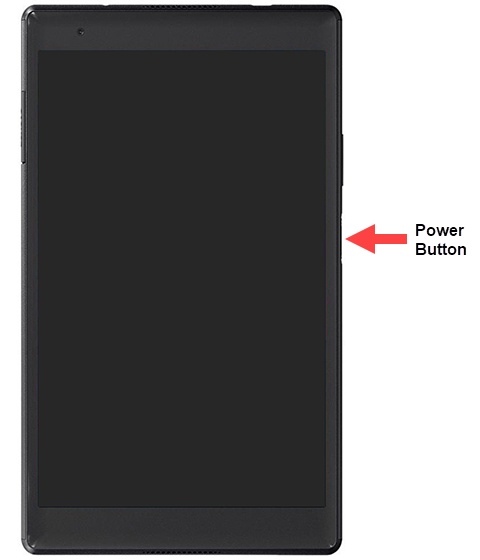
- Using on-screen prompts as a guide, lightly tap thePower buttonmultiple times to scan your fingerprint.Repeat this step until the process is complete.For greater accuracy, finger placement should vary slightly each time.For the fingerprint scanner to operate, hands must be clean and moisture-free.
- Tap 'DONE' when finished or 'ADD ANOTHER' to continue adding fingerprints.Up to 5 fingerprints can be registered on the device.