Verizon Cloud - Website - Macintosh - Download Media
Here's how to upload, download and manage your media and documents via the Verizon Cloud website on your Mac.
To upload, download and manage your music, pictures, videos and documents via the Verizon Cloud website, view this info.
If downloading a large amount of content via the Cloud website, your login session may expire while downloading and cause the resulting .zip file to be unusable. It is recommended to use the Cloud desktop app in these cases.
Media can also be downloaded viaWindows® Computers.
- From a web browser on a computer, sign in to My Verizon.
- Navigate: .
- From the 'Verizon Cloud' section, clickManage.
- ClickAccess Verizon Cloud.
- From the 'How to access Verizon Cloud' page, clickVerizon Cloud web portal(in the 'Access my Cloud' section).
- Click the appropriate tab:
- Photos & Videos
- Music
- Documents
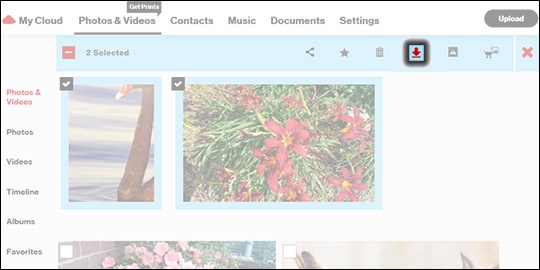
- Select the desired file(s) then click theDownload icon.Selected when a checkmark is present.
- ClickOK.Downloaded content is saved as a .zip file in the browser's default download location (usually the Downloads folder, but this can be changed in the Safari Preferences menu).
Check out these Verizon Cloud FAQs to learn more.