Apple iPhone - Family Sharing - Add / Remove Member
Here's how to use your iPhone to add or remove family members from your iCloud account.
- Family Sharing allows up to 6 people in your family to share each others iCloud® content purchases without sharing accounts. For assistance setting up Family Sharing, refer to Set Up Family Sharing.
- For info on Family Sharing and Kids, refer to Family Sharing and Apple IDs for Kids.
- To check what iOS verison you have navigate: then look under Software Version.
iOS 16 or later
- From the Home screen, tapSettings
.
If an app isn't available on your Home screen, swipe left to access the App Library. - Tap yourApple profileat the top of the Settings menu.
- TapFamily Sharing.
- Do one of the following:
- Add a Family Member:
- Tap theAdd Family Member icon
.
- Tap 'Invite Others' or 'Create Child Account'.Based on your choice, follow the on-screen instructions to complete setup.
- Remove a Family Member:
- Tap the added family member.You can't remove a child under 13 years old from a family.
- TapRemove.
iOS 15.7 or earlier
- From the Home screen, tapSettingsIf an app isn't available on your Home screen, swipe left to access the App Library.
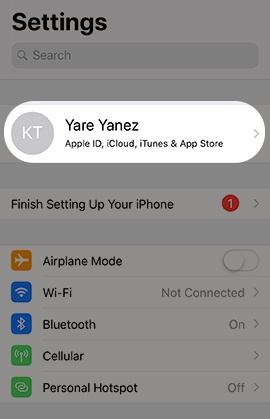
- Tap yourApple profileat the top of the Settings menu.
- TapFamily Sharing.
- Do one of the following:
- Add a Family Member:
- TapAdd Family Member.
- Tap 'Invite People' or 'Create an Account for a Child'.Based on your choice, follow the on-screen instructions to complete setup.
- Remove a Family Member:
- Tap the added family member.You can't remove a child under 13 years old from a family.
- TapRemove.