My Verizon app - Manage Services
Here's how to manage services (e.g., Verizon Cloud, Device Protection, etc.) via the My Verizon app.
- Ensure your app is up to date as the following steps apply to the most recent version.If you're not able to access the My Verizon app, you can also visit the My Verizon website to manage your account.
- Changes to these items may take up to 15 minutes to appear on your account.
- Available settings vary based on user type (e.g., Account Owner, Account Manager, Account Member).
- To manage $10 perks with select Unlmiited mobile plans, refer to My Verizon app - Manage Perks.
Enroll in a Service
Some products not available in the My Verizon app.
- Open theMy Verizon app
.
- Tap theAccount tab(at the bottom).If prompted, enter your password, fingerprint or Face ID.
- TapServices & perks.
- From the appropriate category (e.g., Entertainment, Safety, Protection & Security, etc.) tapSee all.
- TapLearn moreunder the desired service.
- Review the details then tapGet it now.
- If necessary, select the line(s) you'd like to enroll then tapEnroll(at the bottom).Selected when a checkmark is present.
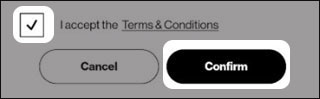
- After reviewing Terms and Conditions, tap the box to accept then tapConfirm.Selected when a checkmark is present.
For additional info check out these My Verizon app FAQs.
Unenroll in a Service
- Open theMy Verizon app
- Tap theAccount tab(at the bottom).If prompted, enter your password, fingerprint or Face ID.
- TapServices & perks.
- TapSee Allfrom the 'Manage Services & Perks' section.
- TapManagein the service you wish to unenroll from.
- Tap 'Unenroll' or 'Remove' next to the applicable phone number.
- If necessary, tapRemovethen tapContinue.
- To continue, review the Terms and Conditions, tap the box to accept then tapConfirm.Image below is an example.
For additional info check out these My Verizon app FAQs.