Verizon Cloud - Transfer Content - Android Smartphone
Here's how to use the Verizon Cloud app on your Android smartphone to transfer content between devices.
- Any contacts or media backed up to a cloud service (e.g., Verizon Cloud, iCloud® , Google Drive, etc.) aren't transferred by the Content Transfer process and must be restored to your device using that service.
- Content Transfer only transfers contacts, media, etc. to the new phone that hasn't already been backed up to a cloud service. To restore content from a Verizon Cloud backup, refer to Verizon Cloud - Restore Content (Android smartphone).
- Ensure both phones (old and new) are connected to Wi-Fi.
- OpenVerizon Cloud
on both phones.
- TapMore(lower-right).
- TapAccount & Content Tools.
- TapContent transfer.
- If prompted, review the 'Heads-up' info then tapContinue.
- On both phones, review the info then tapStart Transfer.
- On the new phone, tapThis is my new phonethen tapNext.
- On the old phone, tapThis is my old phonethen tapNext.
- If presented with a Wi-Fi disconnect message, tapI understand(on both phones).
- On both phones, select an option then tapNext.
- Android to Android
- iPhone to Android
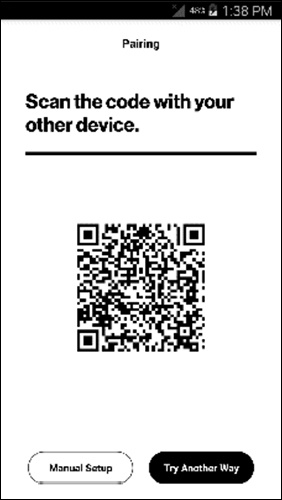
- Using the camera on the old phone, scan theQR codedisplayed on the screen of the new phone.If a phone name doesn't appear or you're using an older phone, tapManual Setupto transfer via Wi-Fi.
- On the new phone, tapAccept.
- On the old phone, select the desired media (e.g., Contacts, Photos, Videos, etc.) to transfer to the new phone then tapTransfer.Selected when a checkmark is present.A progress meter displays during the transfer.
- When the transfer is finished, tapDoneon both phones.
- From the 'Transfer Summary' screen, tapDone.
Transfer from the Old Device Using Wi-Fi
Ensure both phones are connected to the same Wi-Fi network.
- Ensure both phones (old and new) are connected to Wi-Fi.
- OpenVerizon Cloud
- TapMore(lower-right).
- TapAccount & Content Tools.
- TapContent transfer.
- If prompted, review the 'Heads-up' info then tapContinue.
- On both phones, review the info then tapStart Transfer.
- On the new phone, tapThis is my new phonethen tapNext.
- On the old phone, tapThis is my old phonethen tapNext.
- If presented with a Wi-Fi disconnect message, tapI understand(on both phones).
- On both phones, select an option then tapNext:
- Android to Android
- iPhone to Android
- On both phones, tapManual Setup.
- If prompted to connect the phones manually, on both phones, tapOK.
- On both phones, tapStart transfer.
- On the new phone, tapThis is my new phonethen tapNext.
- On the old phone, tapThis is my old phonethen tapNext.
- If presented with a Wi-Fi disconnect message, tapI understand(on both phones).
- On both phones, select an option then tapNext.
- Android to Android
- Android to iPhone
- Verify the phones are on the same Wi-Fi network then tapNext.
- On the old phone, enter the code displayed on the new phone then tapNext.
- On the old phone, select the desired media (e.g., Contacts, Photos, Videos, etc.) to transfer to the new phone then tapTransfer.Selected when a checkmark is present.
- When the transfer is finished, on both phones, tapDone.