Apple Watch - Factory Data Reset (Powered On)
Here's how to reset your Apple Watch if it has a blank or frozen screen or calling, app or audio issues.
Perform a factory data reset only if absolutely necessary as it removes all data from your Apple Watch® including system and app data and media.
From the Watch
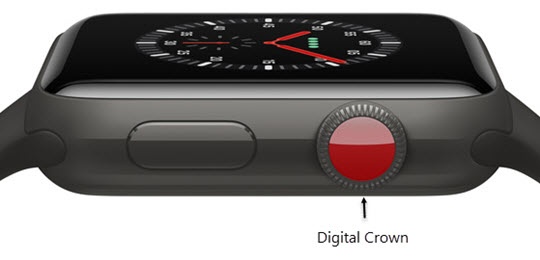
- Press theDigital Crownon your watch to see your apps.
- Tap theSettings icon
.
Swipe the screen up if you don't see the Settings icon. - TapGeneral.
- TapReset.
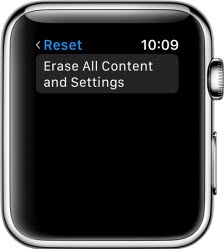
- TapErase All Content and Settings.
- If prompted, enter your passcode.
- Tap one of the following (options may vary based on model):Erasing does not remove Activation Lock; to disable, unpair your Watch from your iPhone to begin the reset process.
- Erase All and Keep PlanChoose this option if you have an Apple Watch Series 3 as it must remain paired with an iPhone.
- Erase All
- Cancel
From the Watch App on Your Paired iPhone
Ensure your Apple Watch and the paired iPhone are kept close together while completing the steps below.
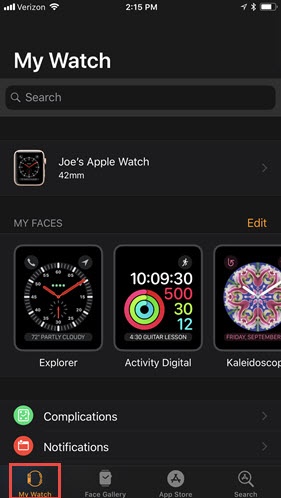
- From a Home screen, tap theWatch icon
.
- Tap theMy Watch tab.
- TapGeneralthen tapReset.
- TapErase Apple Watch Content and Settings.
- To confirm, tapErase All Content and Settings.
- Tap one of the following (options may vary based on model):
- Keep Cellular PlanChoose this option if you have an Apple Watch Series 3 as it must remain paired with an iPhone.
- Remove Cellular Plan
- Cancel Unpair