Apple iPhone - Volume Controls
Here's adjust the volume levels for your iPhone.
- From a Home screen, navigate:.SettingsSound & HapticsIf an app isn't available on your Home screen, swipe left to access the App Library.
- From the RINGER AND ALERT section, drag thesliderleft or right to adjust the level.
- Tap theChange with Buttons switchto turn on
or off
.

The volume can also be adjusted by pressing the 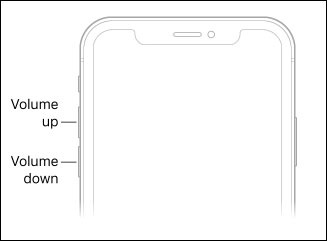
Volume buttons
(on the left edge of your Apple® iPhone®) up or down for the following: If you don't hear anything or the sound is distorted, get help with your speaker.
- earpiece volume while on a call
- media volume while listening to music or playing videos or games
- ringtone volume when not on a call and no media apps are actively used
- To limit the volume for music and videos:This setting is not available on iOS14.
- From a Home screen, navigate:.SettingsMusicVolume Limit
- Adjust the Volume Limit then tapMusic(upper-left).
- To adjust headphone audio level features on iPhone, refer to this Apple Support Page.

