Apple iPhone - Turn Do Not Disturb On / Off
Here's how to check Do Not Disturb settings if your iPhone isn't receiving calls or alerts for texts and email.
- If you're using an Apple Watch®, enabling Do Not Disturb via your Apple® iPhone® also enables it on your watch.Refer to Do Not Disturb for Apple Watch for more info.
- To check what iOS version you have, navigate: then look under Software Version.
iOS 15 and later
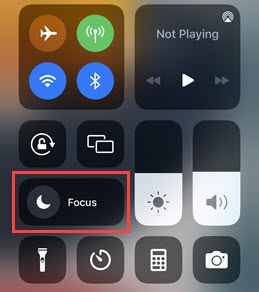
- Access the Control Center by swiping downward from the upper-right corner of the Home or Lock screen.For the iPhone with Touch ID, access the Control Center by touching the bottom of any screen then dragging upward.
- TapFocus.The Control Center screen may vary slightly depending on the device model.
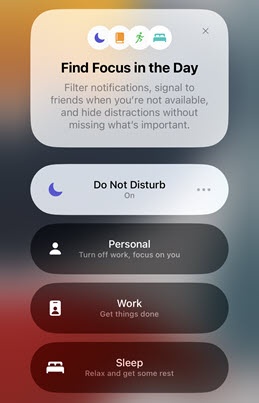
- TapDo Not Disturbto turn on or off.Do Not Disturb is on when the icon is highlighted.
For additional support, refer to this Apple Support page
iOS 14.8 or older
- From a Home screen, navigate:.SettingsDo Not DisturbIf an app isn't available on your Home screen, swipe left to access the App Library.
- Tap theDo Not Disturb switchto turn on
or off
.
Enabled whenis present.
- Tap theScheduled switchto turn on or off.If Scheduled is turned on:
- Tap theFrom To field.
- Set the From and To times.
- TapDo Not Disturb(upper-left).
- From the Silence section, select one of the following options:Enabled when a checkmark is present.
- Always
- While the iPhone is locked
- TapAllow Calls From.
- Select from the following options then tapBack:
- Everyone
- No One
- Favorites
- All Contacts
- Tap theRepeated Calls switchto turn on or off.
- From the 'Do Not Disturb While Driving' section, tapActivatethen select one of the following:
- Automatically
- When Connected to Car Bluetooth
- Manually
- TapDo Not Disturbto go back.
- TapAuto-Reply To, select the preferred option then tapDo Not Disturb:
- No One
- Recents
- Favorites
- All Contacts
- TapAuto-Replythen enter the text of the message sent into the field.Do Not Disturb switch must be turned on to enter a message.

