Check for Water Damage - Apple®
Here's how to remove the SIM and view an indicator to help determine if your device has liquid damage.
Use the provided info below to help determine if your device has water damage.
To identify if your device has water damage, review the following:
- Corrosion, discoloration, or fuzzy growth on the charging set, headset, SIM or memory port.
- Moisture under the display screen.
- Liquid Detection Indicator that has been activated.Apple uses a white field to indicate that a device has had no liquid contact. When the indicator comes in contact with liquid, the white field turns red.
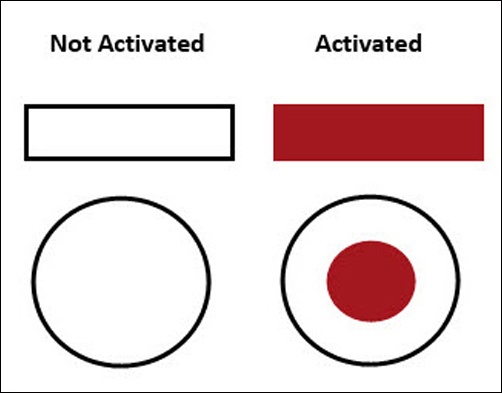
Check out this Apple Support page for help with locating the Liquid Detection Indicator for your specific iPhone model.
Depending on the model, additional indicators may be located in the headphone jack and charging ports.
If damage is found:
- Several replacement options may be available.
- If you have a LifeProof case, visit this support page. If you have a different protective case, contact the manufacturer to see if they have any guarantees against damage.
- Prepaid service customers: Visit a Verizon store to order warranty replacements. Orders for prepaid warranty issues can't be processed via Customer Service.
- Standard service customers: If you need to replace your device under warranty and the device is water damaged, broken, or has unreasonable wear and tear, you could be assessed a Damaged Device Fee.