Software Upgrade Assistant (LG) - Software Update
Here's how to update LG device software using a computer if an Over-the-Air update fails.
- Ensure the wireless device is powered on then connect it to a compatible computer using the supplied USB cable.
- The most recent software version becomes available on the SUA / SRA tool within a week of a new software update. During this time, the SUA/SRA is unavailable for usage.
The software update process may take up to 30-90 minutes. Do not disconnect the device from the computer during the repair process.
- Ensure the Software Upgrade Assistant (SUA) is already installed on your computer.Refer to Initial Setup - Software Upgrade Assistant for help installing.If the software doesn't download from your device after plugging into your computer, download from LG's website (enter your device name then choose your specific Verizon device model).
- After entering your device model, click theInstructions link.
- Click theSoftware Instructions link(located on the right-side of the page).
- Click theSoftware Update Tool link.
- Choose your operating system and connect your device to the computer.
- TapRunto load the software directly to the device or tapSaveto download the software update to your computer for a later installation.
- From the desktop, click theVZW Software Upgrade Assistant icon
located in the task bar (next to the date and time).
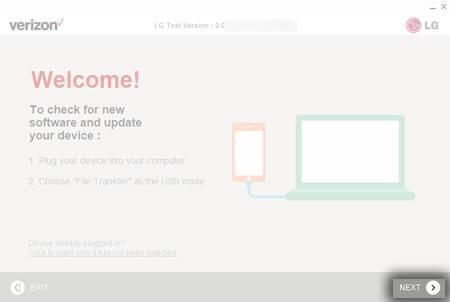
If not available on a Windows computer, navigate: .Allow up to 1 minute for the app to launch and check device info. - Ensure the wireless device is powered on then connect it to the computer via USB cable, chooseFile Transferas the USB mode then clickNEXT.
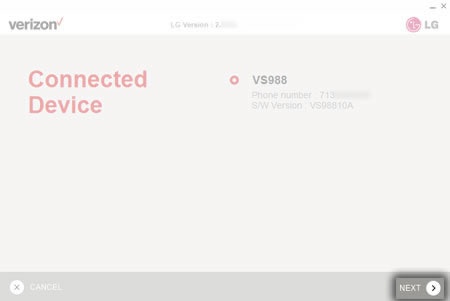
- As soon as the device is recognized (may take a few minutes), clickNEXT.
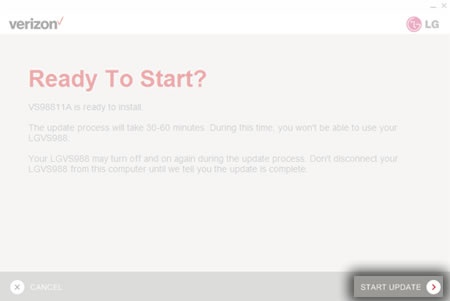
- The system checks for updates and prompts you to clickSTART UPDATEif one is available.Downloading the update can take from 30-60 minutes and installing the update can take an additional 30-60 minutes.
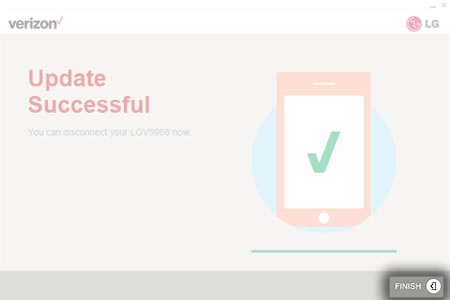
- After the update has completed, clickFINISH.If the update fails to install, please refer to the Software Repair Assistant for further assistance.Do not disconnect or power off the device until the Status indicator displays "Update Successful".