Software Upgrade Assistant (LG) - Repair Assistant
Here's how to repair LG device software using a computer if an Over-the-Air update fails.
This helps you repair the software on your LG device using your computer.
- Ensure the wireless device is powered on, unlocked (if device lock-enabled), then connect it to a compatible computer using the supplied USB cable.
- In some instances, the device must be in boot mode to complete the repair process. The SUA provides instructions to enable boot mode when required.
- The most recent software version becomes available on the SUA/SRA tool within a week of a new software update. During this time, the SUA/SRA is unavailable for usage.
The repair process may take up to 30-90 minutes. It's recommended to back up device data prior to repair as a precaution. Do not disconnect the device from the computer during the repair process.
- Ensure the Software Upgrade Assistant (SUA) software is installed. Refer to Initial Setup - Software Upgrade Assistant for assistance.If the software doesn't download from your device after plugging into your computer, download from LG's website (enter your device model name into the box and choose your specific Verizon device model and clickSearch).
- After entering your device model, click on theInstructionslink.
- If presented, click on the 'Software Instructions' or 'How to Update' link (located on the left-side of the page).
- Click theSoftware Update Toollink.
- Choose your Operating system and connect your device to the computer.
- Select 'Run' to load the software directly to the device or tap 'Save' to download the software update to your computer for a later installation.
- From the desktop, click theVZW Software Upgrade Assistant iconlocated in the task bar (next to the date and time).If not available on a Windows computer, navigate: .
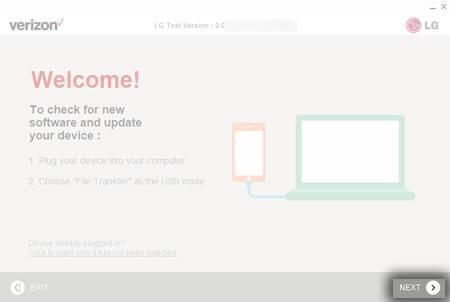
- Ensure the LG device is powered on, connect it to the computer using the USB cable, chooseFile Transferas the USB mode, then clickNEXT.
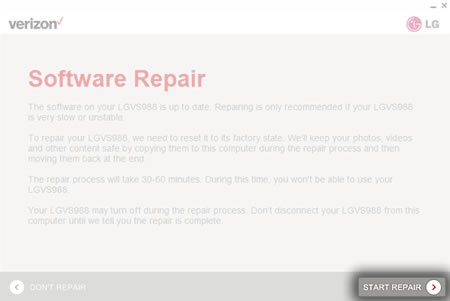
- If the software is up to date, theRepair Assistantautomatically launches a check for repair software. ClickStart Repairto begin.If a repair is necessary, it can take from 30-60 minutes to complete. Do not disconnect phone during this process.Some images may vary depending upon device and operating system.
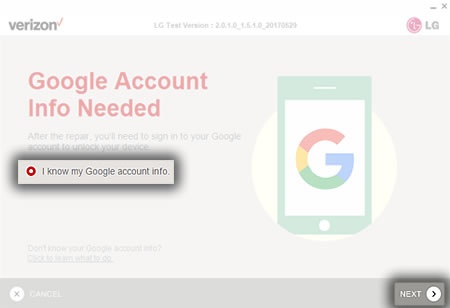
- After the repair, you need to sign in to your Google account to unlock your device. Click the "I know my Google account info" option, clickNEXTand skip to step 7.
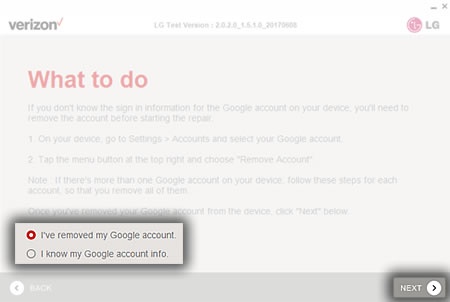
- If you do not know your Google account sign in info, follow the instructions and remove the account then check the appropriate option and clickNEXT.
- At this point, the data is backed up, the Repair software downloads and the repair begins.The amount of time required to back up your content depends on the amount of content to be backed up.Downloading the Repair software can take from 30-60 minutes and the repair can take from 30-60 minutes. Leave phone plugged into computer during this time.
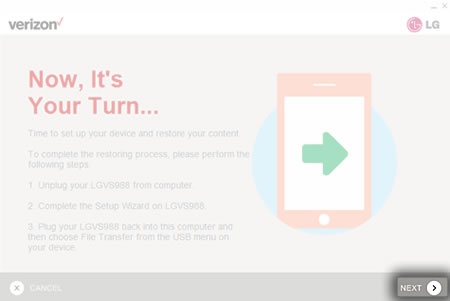
- Once the repair process is complete, follow the on-screen instructions then clickNEXT.
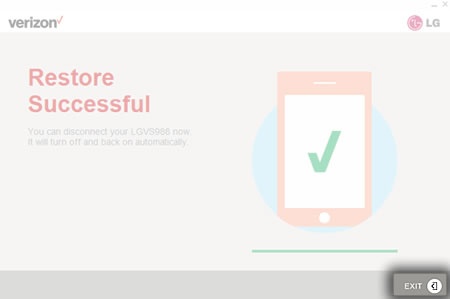
- At this point, the data restore takes place. It can take from 30-120 minutes. After the restore has completed, clickEXIT.